
How do I import contacts via CSV?
Tip: Whenever possible use .CSV file format for importing data.
Since they're plain text, they're easier to import into a spreadsheet or another storage database, regardless of the specific software you're using. To better organise large amounts of data.
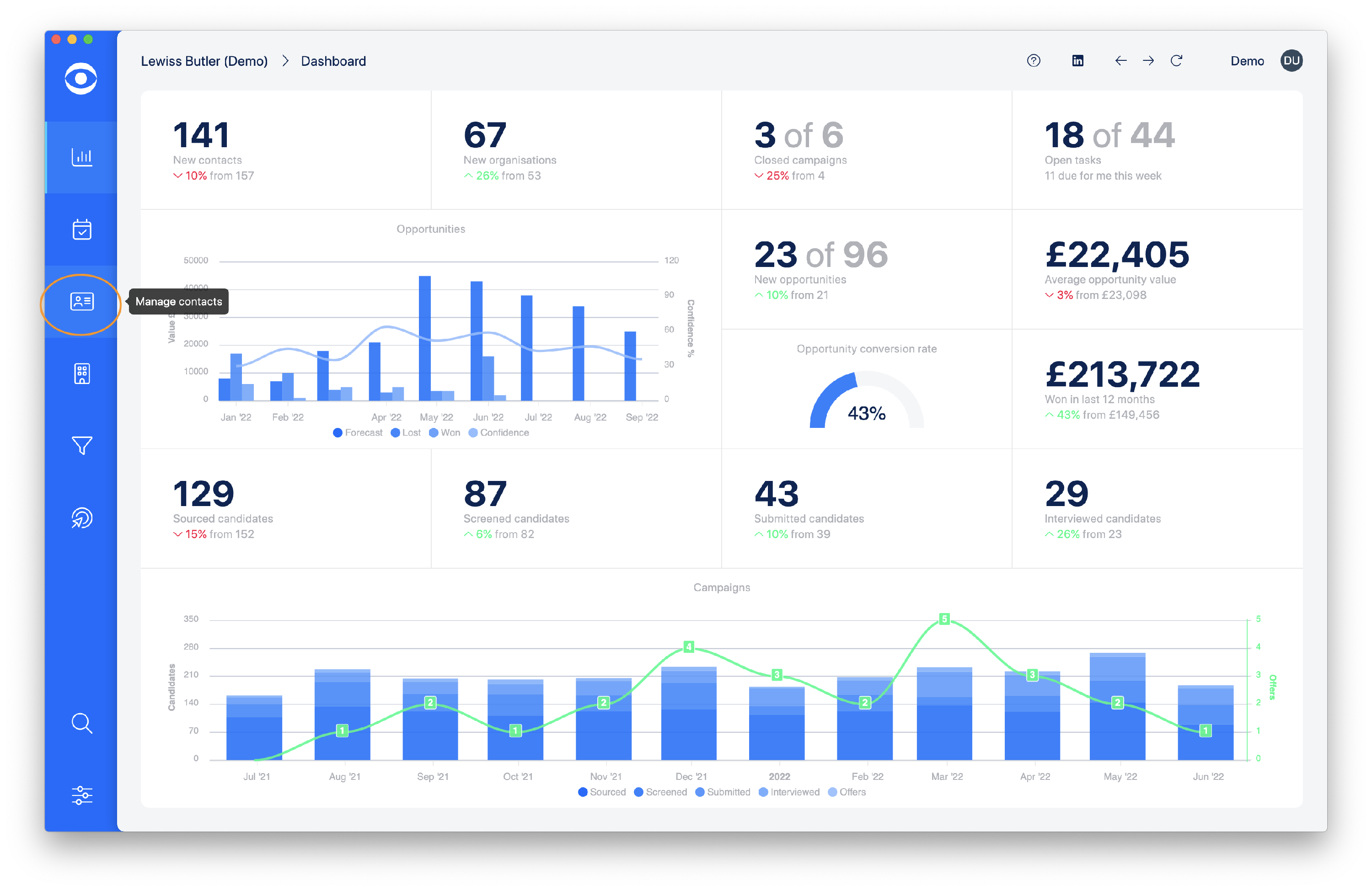
Navigate to the Contacts area using the Manage contacts tab on the lefthand toolbar.
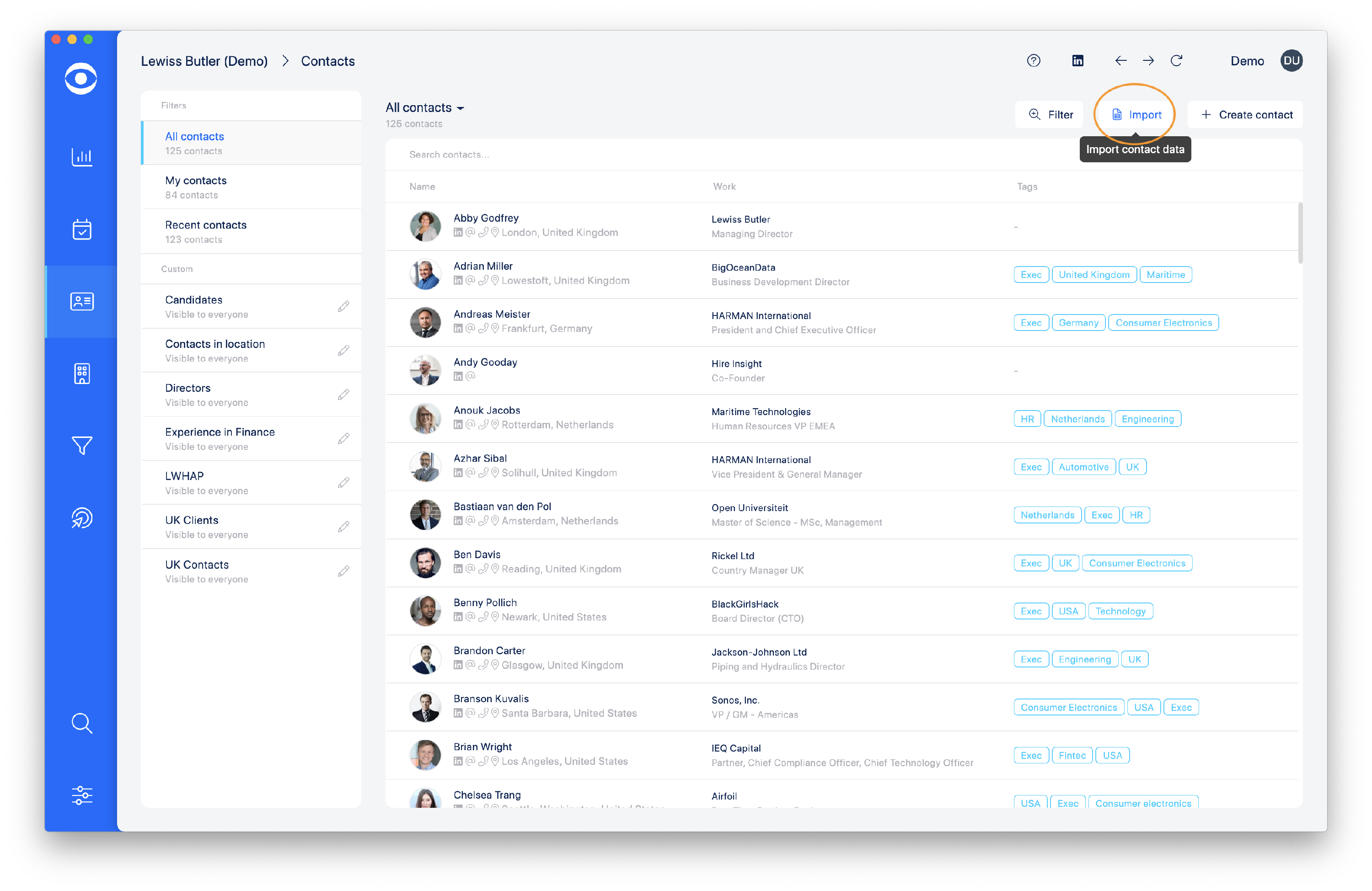
Navigate to the Import button at the top of the page and click.
The import screen opens showing which file formats can be imported.
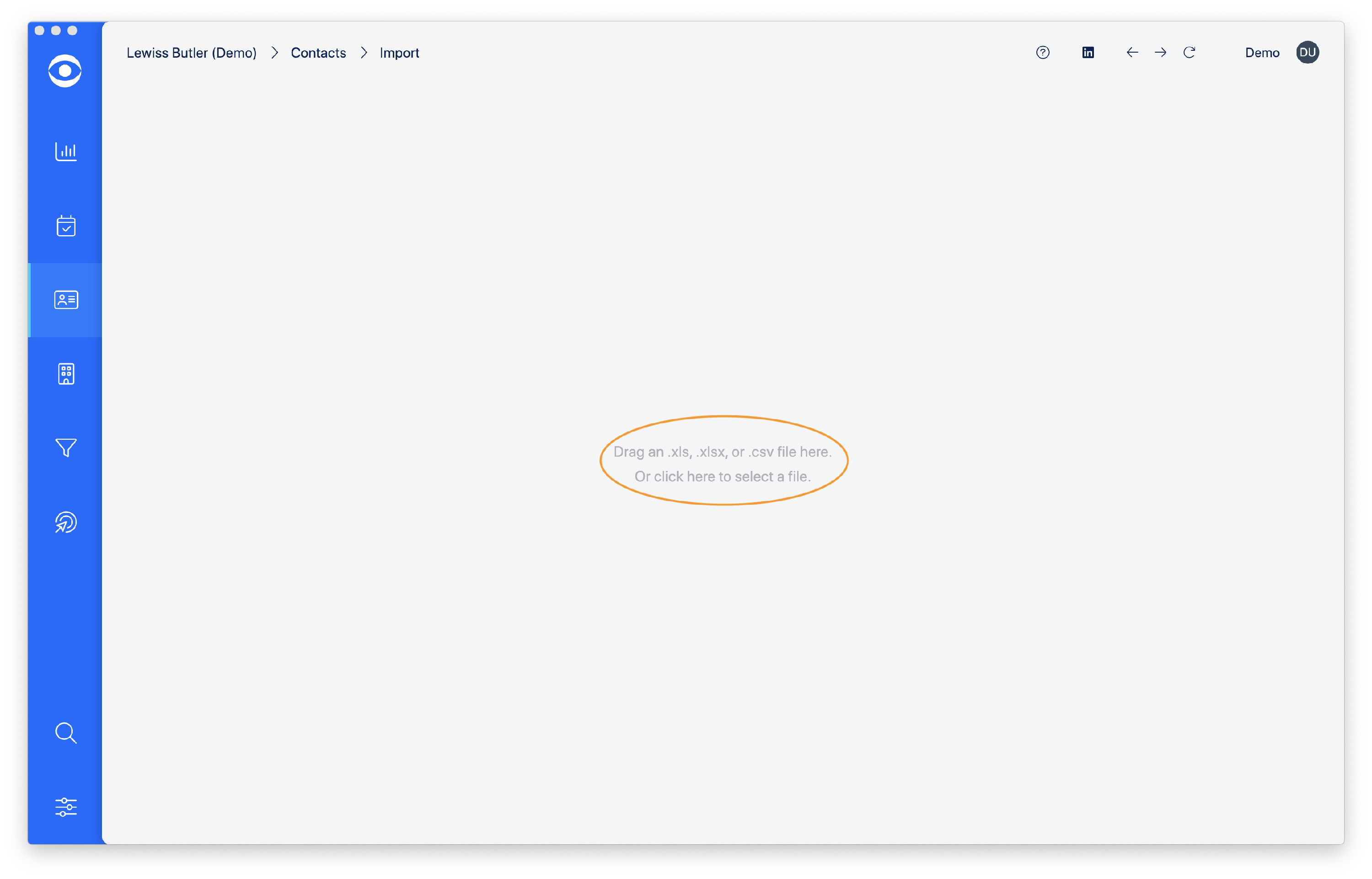
Files can be dragged and dropped on to the import screen, or you can select a file from your computer storage.
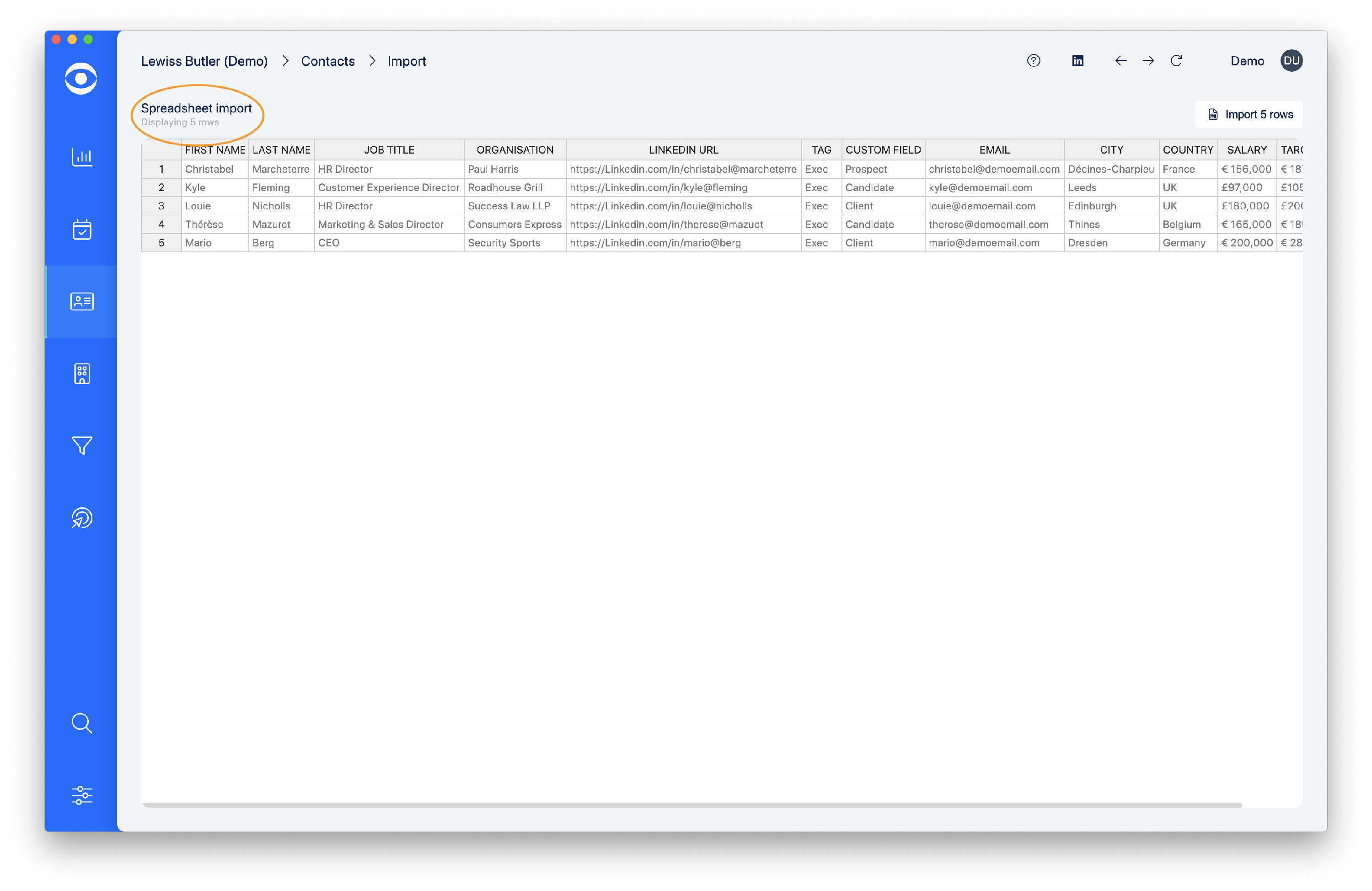
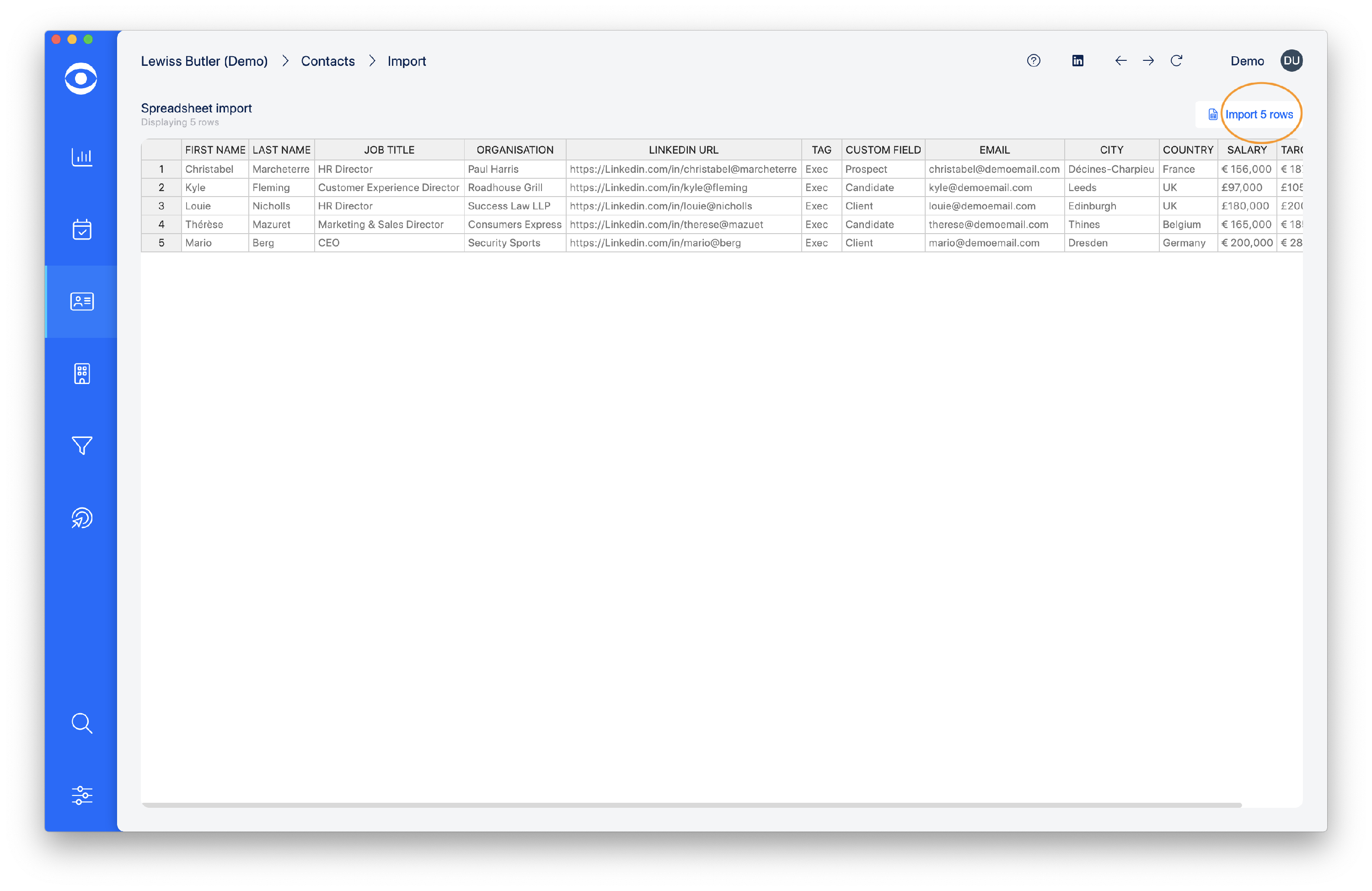
Once imported the spreadsheet data will open on the import screen, you can scroll horizontally to see all the data.
Check the number of rows displayed matches the number of rows on your source spreadsheet.
Tip: If you have a workbook with multiple spreadsheet the file importer will import the first tab only.
You will need to copy other tabs into a single spreadsheet for the import.
Navigate to Import 5 rows at the top righthand corner and click.
The Choose your columns pop up will open where you can match up the columns with the fields in Hire Insight.
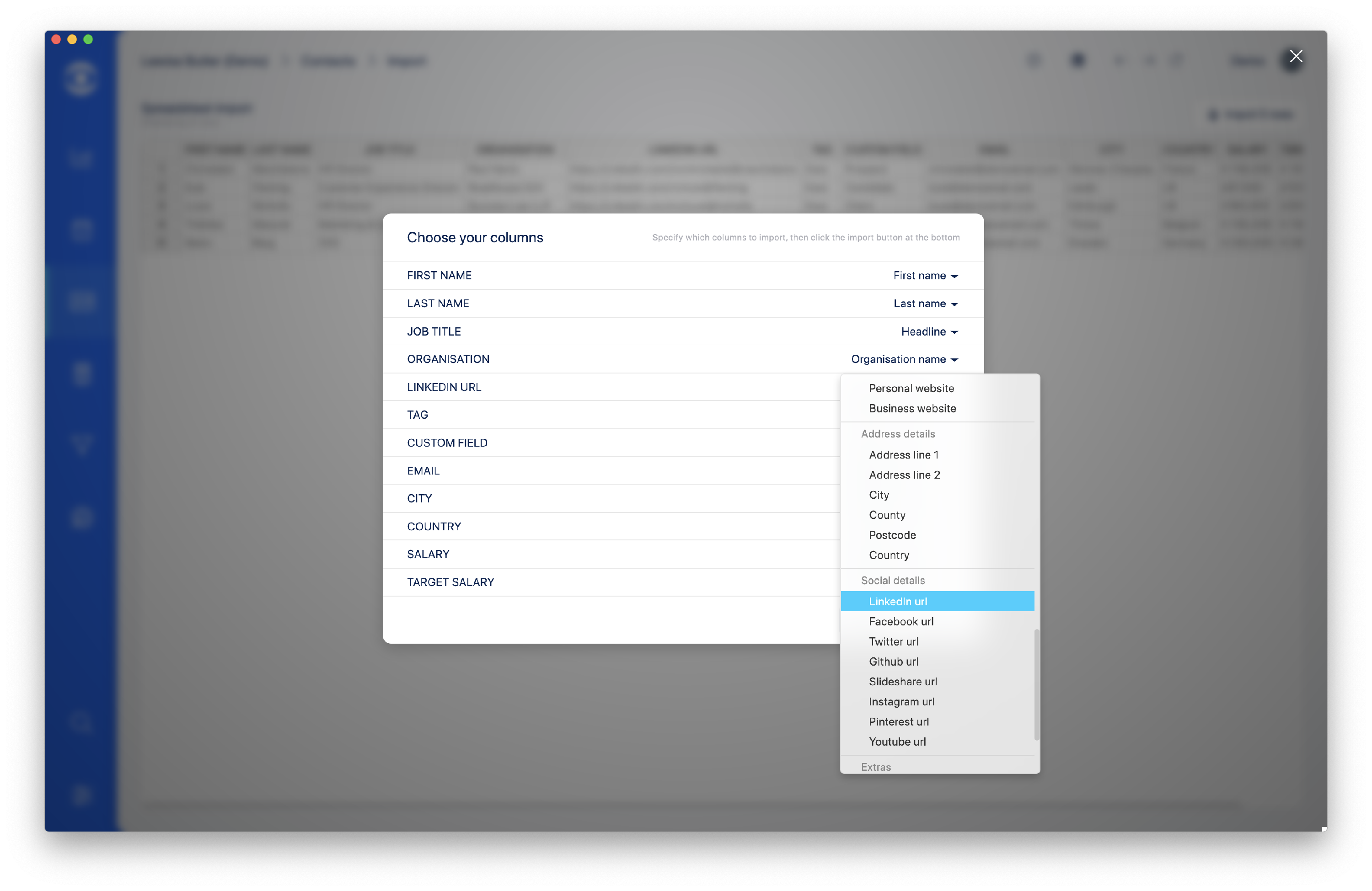
Tip: When matching City and Country these are for the Location information in a Contact record, and will show as a headline in the Contact profile.
The full address details are shown under Address details
When all the columns have been matched you are ready to click on Import at the lower right.
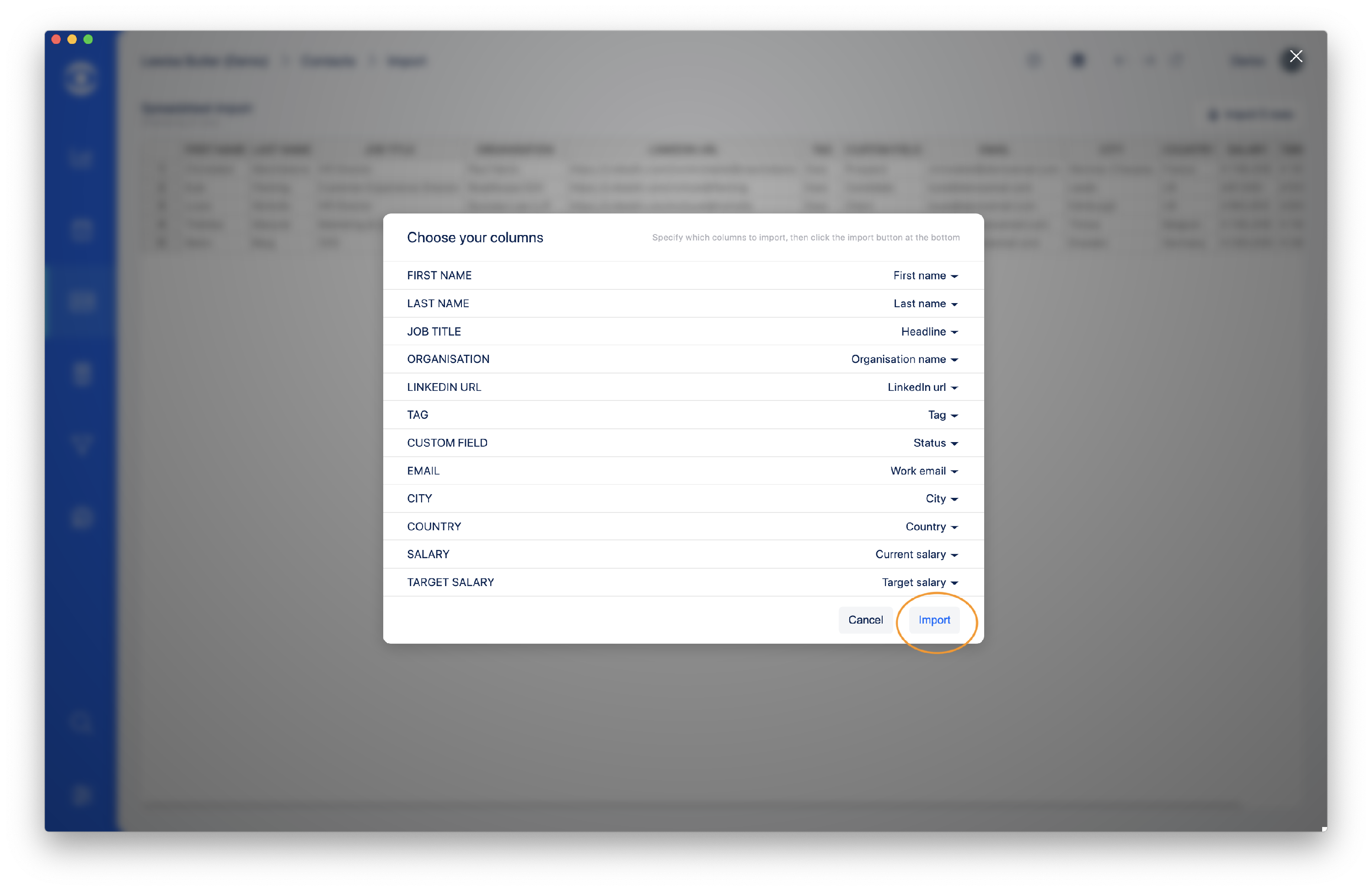
The data import will begin and once complete the data will populate Contacts and the spinning icon will stop.