
How to Manage User and Admin Status
CONTENTS:
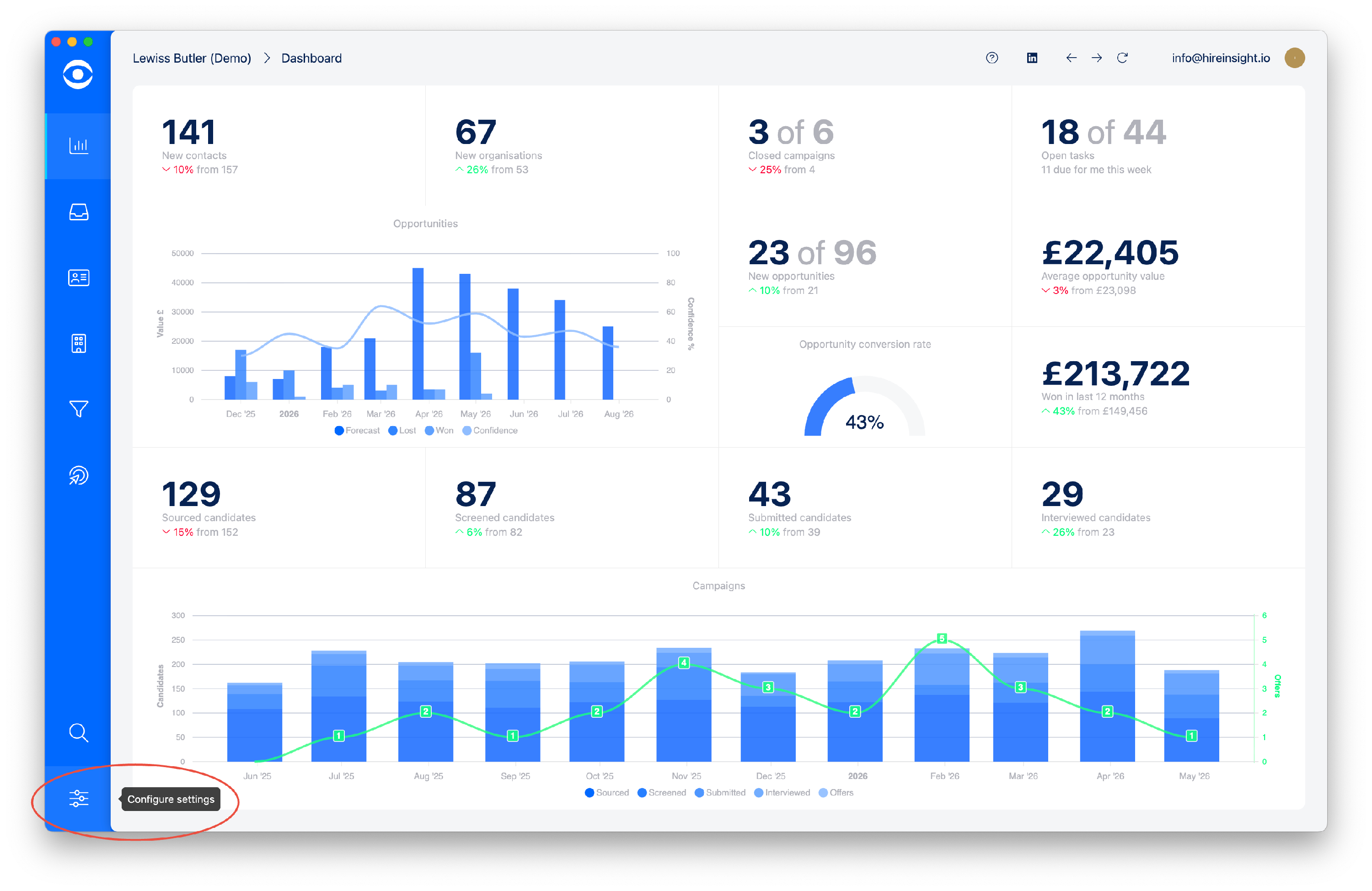
Any changes to Users is made in Settings. Click on Configure Settings in the lefthand toolbar.
In the Account section click on the Users tile.

1. USER PERMISSIONS
Select the User and click on Edit this user access.

In the Edit User Access window, permissions for each section of Hire Insight can be set up for the User.
Use the drop down menu to select the permission required for each area of Hire Insight.
Options include:
View only (Admin)
View and create (Admin)
View, create and update (Admin)
View, create, update and delete (Super-Admin)

2. HIDE USERS
To hide matching Users from your account, tick the box for Hide Users.

Hidden Users can be viewed in Account Users

3. DELETE USERS
To delete access for a User, click the trash button and delete.

4. ADD A NEW USER
To add a new User, click on the Add a new user button at the bottom righthand corner of the Account Users window.

In the Add User window, type the email address for the new User, select the appropriate permissions and click the Add a new user button at the bottom righthand corner.
