
Creating and Editing Custom Contact Fields
Tip: This function allows you to add customised information to your Contact profiles as an alternative to Tagging.
For example you might want to show Contact Type; Client, Candidate, Referee, Prospect.
Contents:
- HOW TO EDIT AN EXISTING CONTACT FIELD
- HOW TO ADD A NEW CONTACT FIELD
- HOW TO REMOVE A CUSTOM CONTACT FIELD
An example of a Contact field is the Contact Type box below, this is a multi -line selector box.
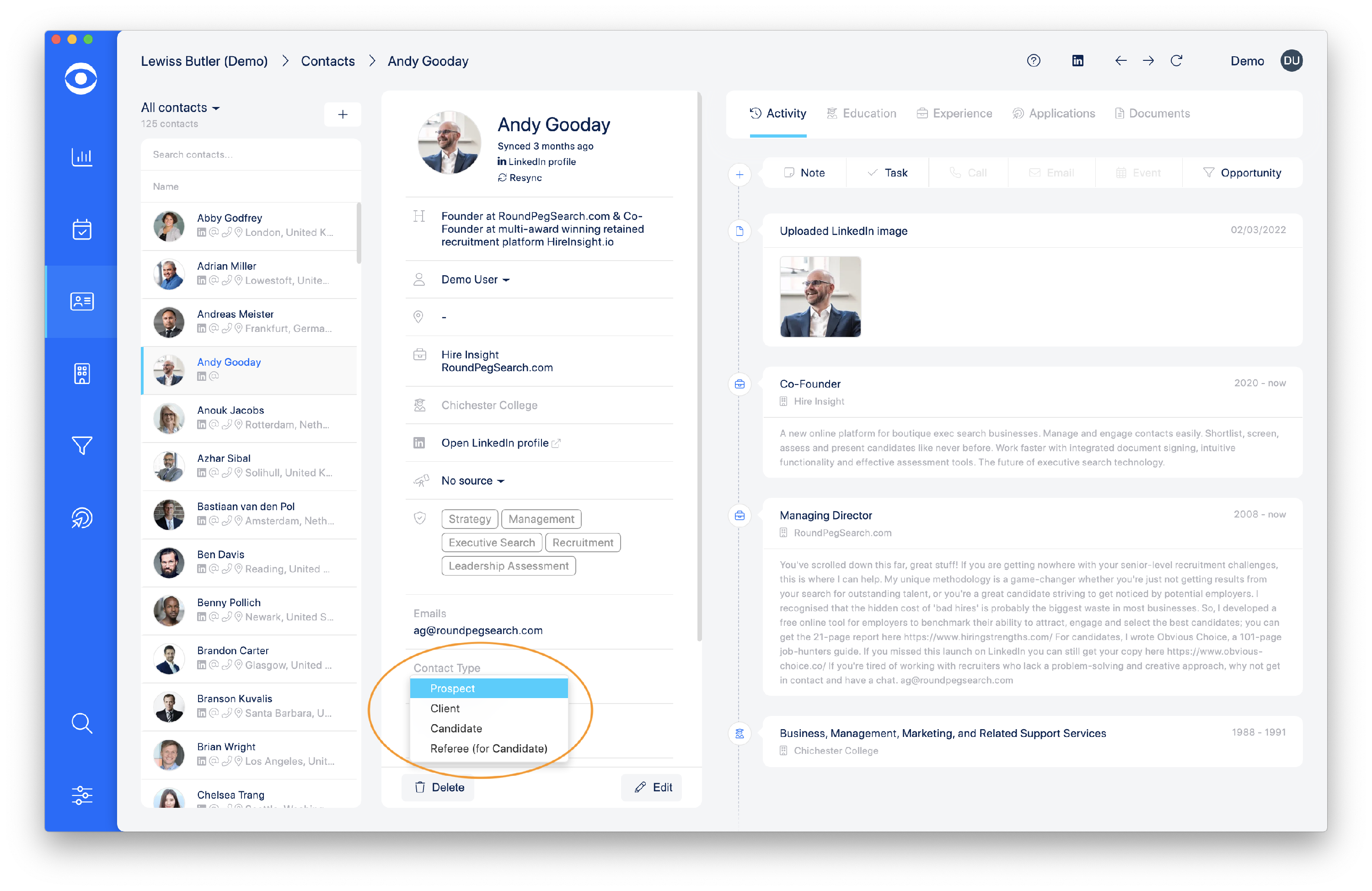
Different Contact Type options can be selected, including multiple options.
To add a custom field for your account navigate to Configure Settings and click.
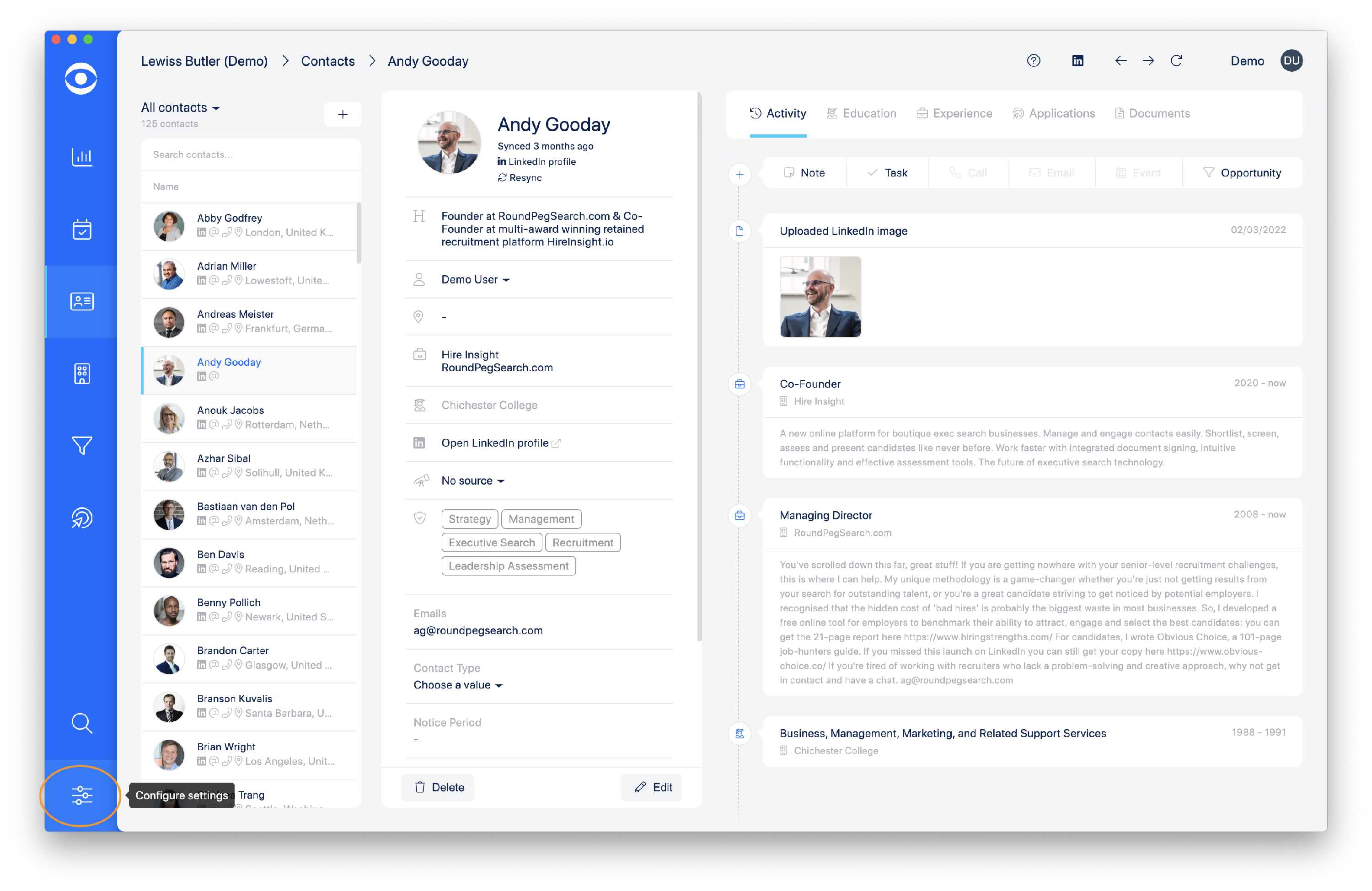
In Management navigate to the Contact Fields button.

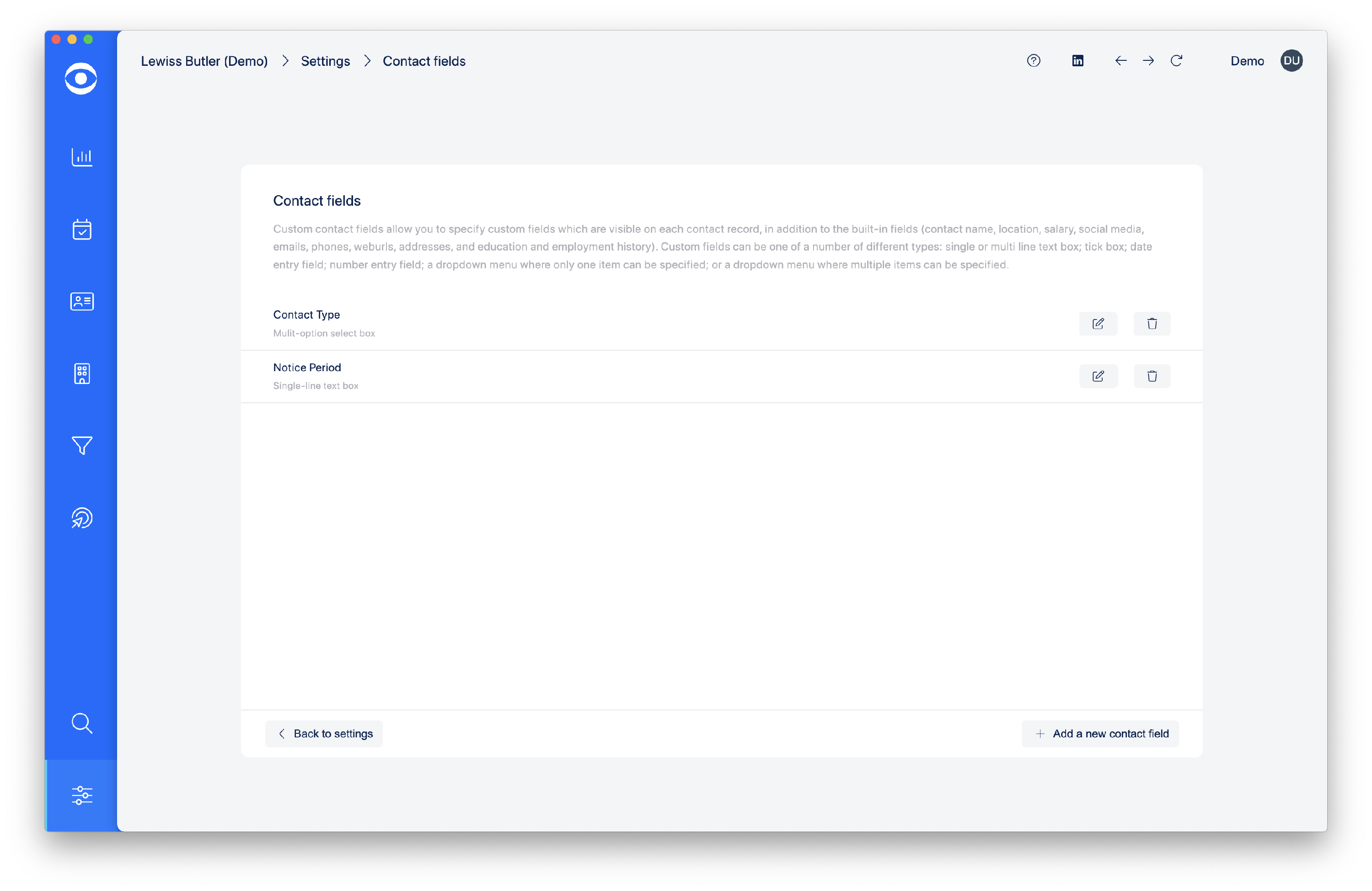
Click the Contacts Fields button and a pop up page shows the Contract Field options for this account.
In this case there are two options:
Contact Type
Notice Period
-
HOW TO EDIT AN EXISTING CONTACT FIELD
Click on the selected field edit button and the Edit Contact Field pop out box will appear.
There are multiple options for editing:
Type - clicking on the drop down arrow shows different options for the type of field.
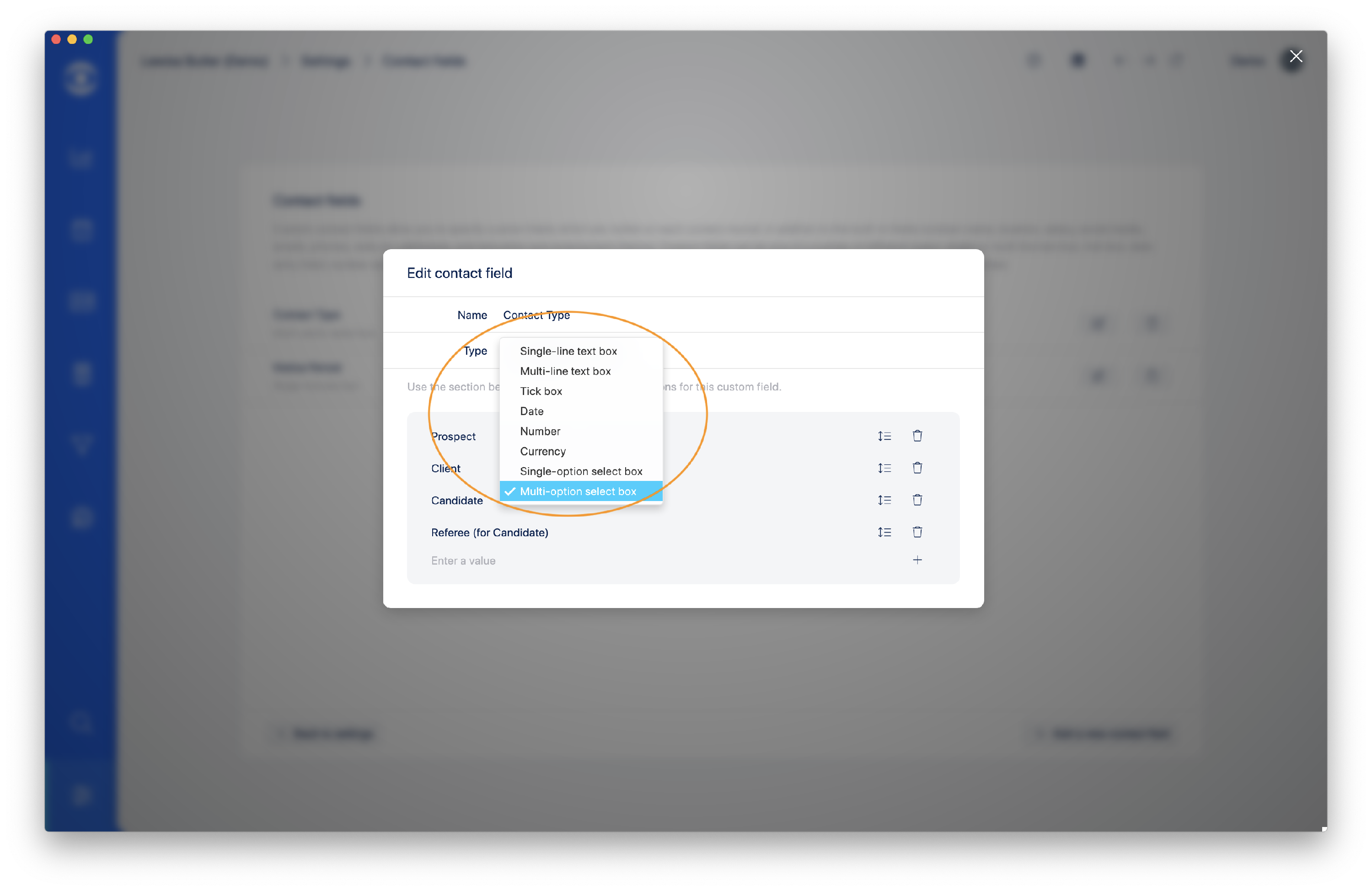
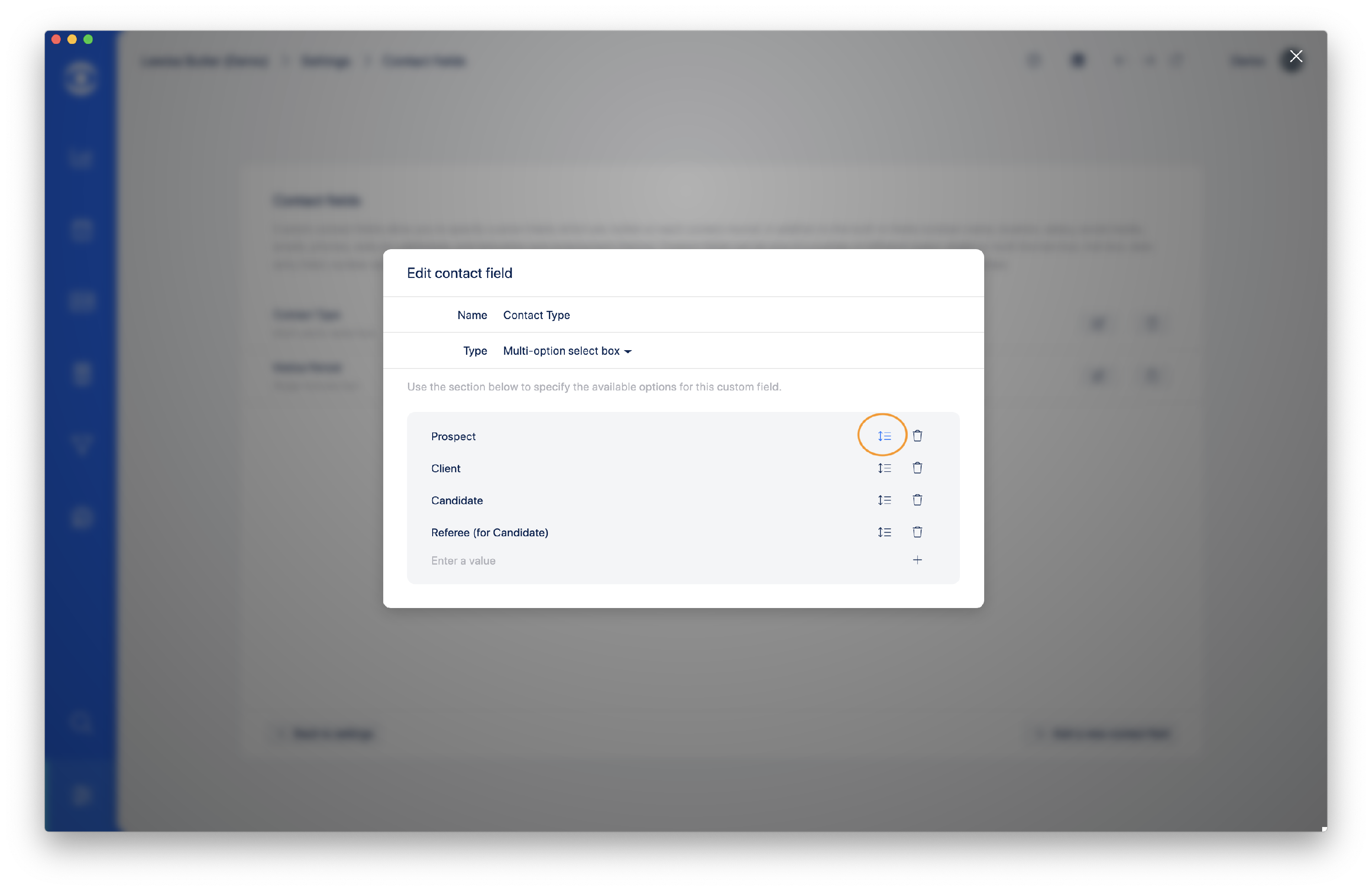
Reorder - using the reorder icon, options can be dragged into a different order
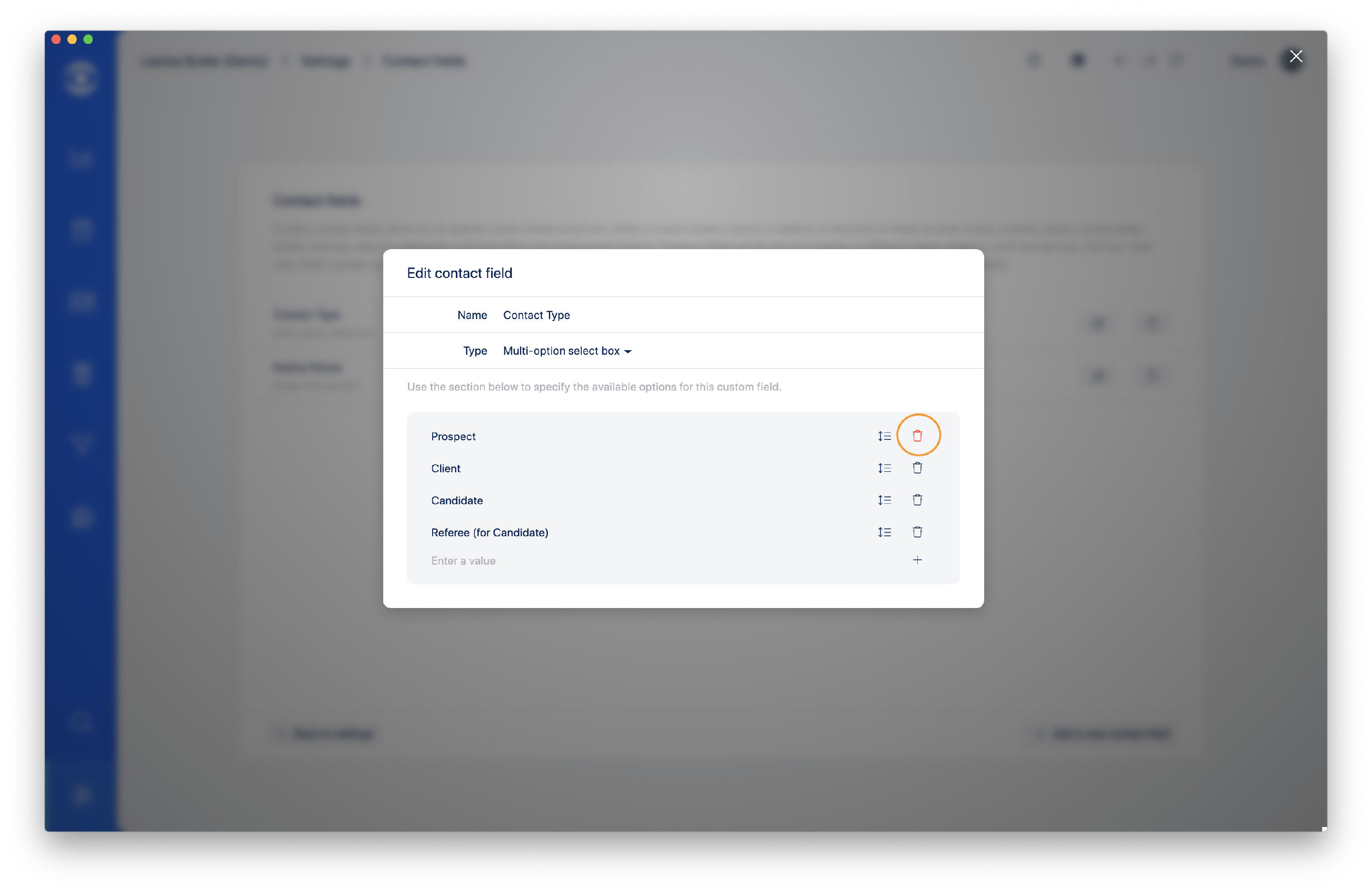
Delete - Click the bin icon to delete an option
New Option - To add a new option to this field, type the name into the Enter value section and click on the + sign.
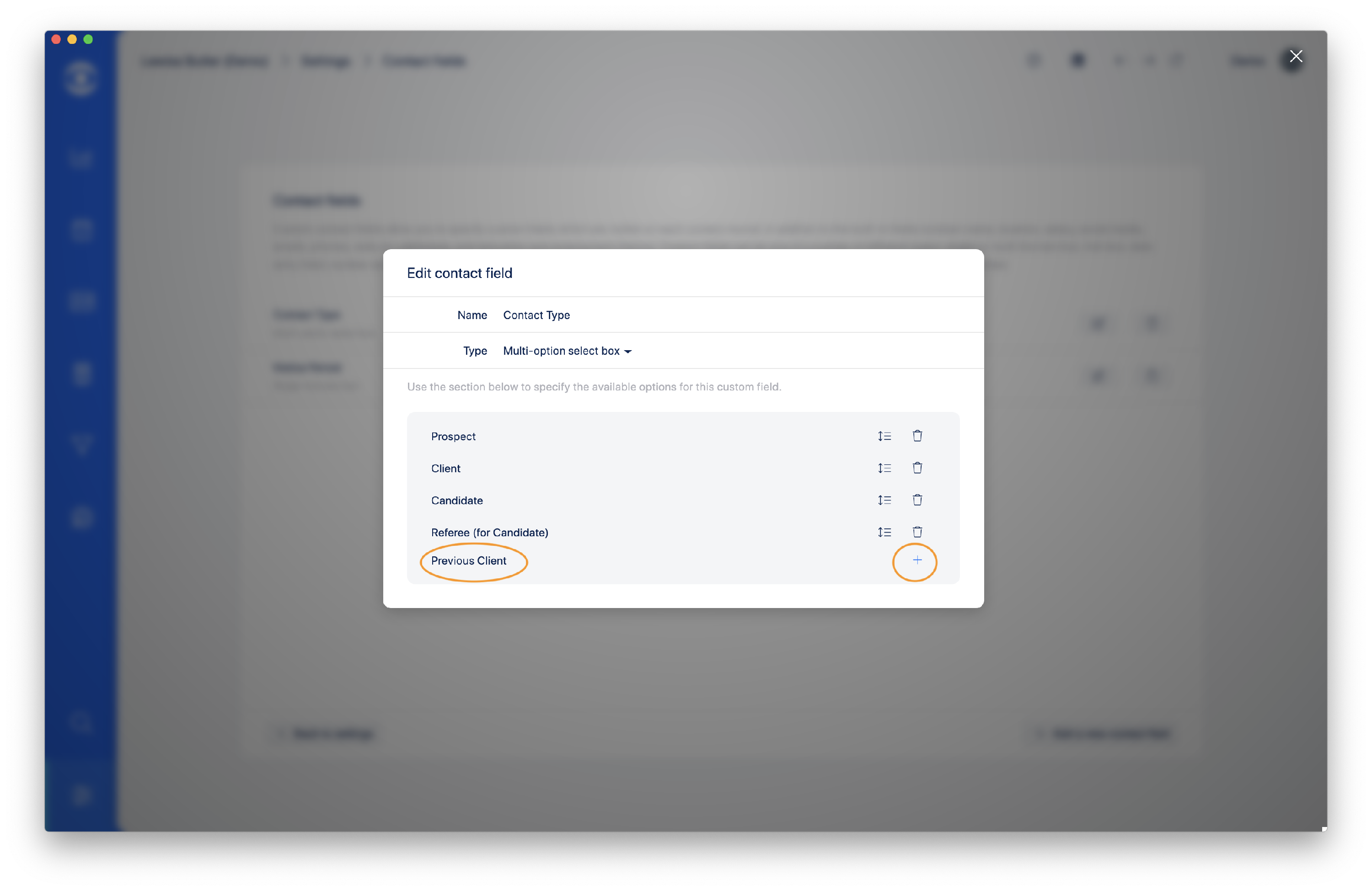
The option will now appear in the drop down for this field. This is applied to all Contacts in your account.

-
HOW TO ADD A NEW CONTACT FIELD
Click Configure settings and select Contact Fields.
The Contact Fields window will open, navigate to the + Add new contact field button at bottom right.
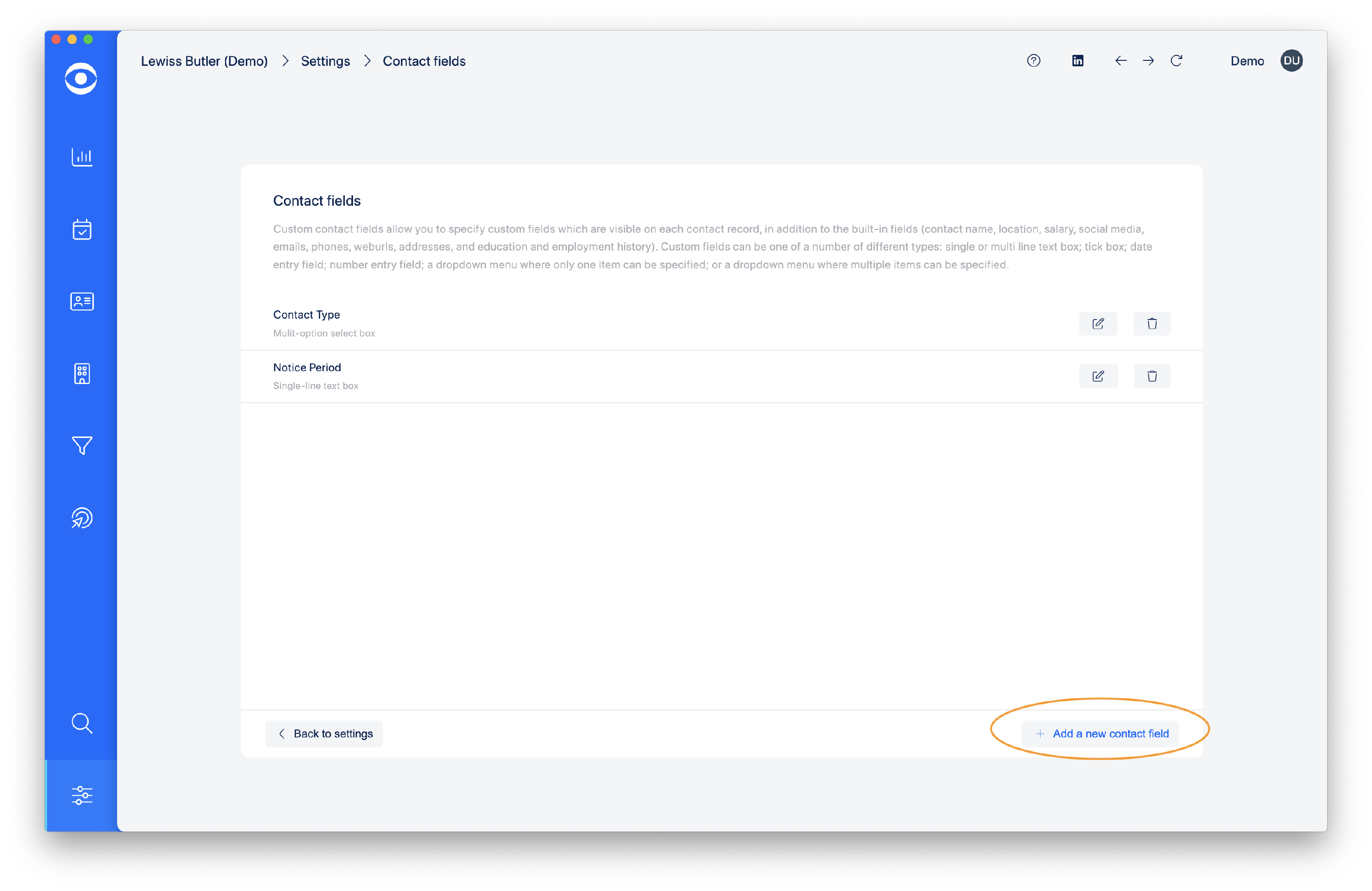
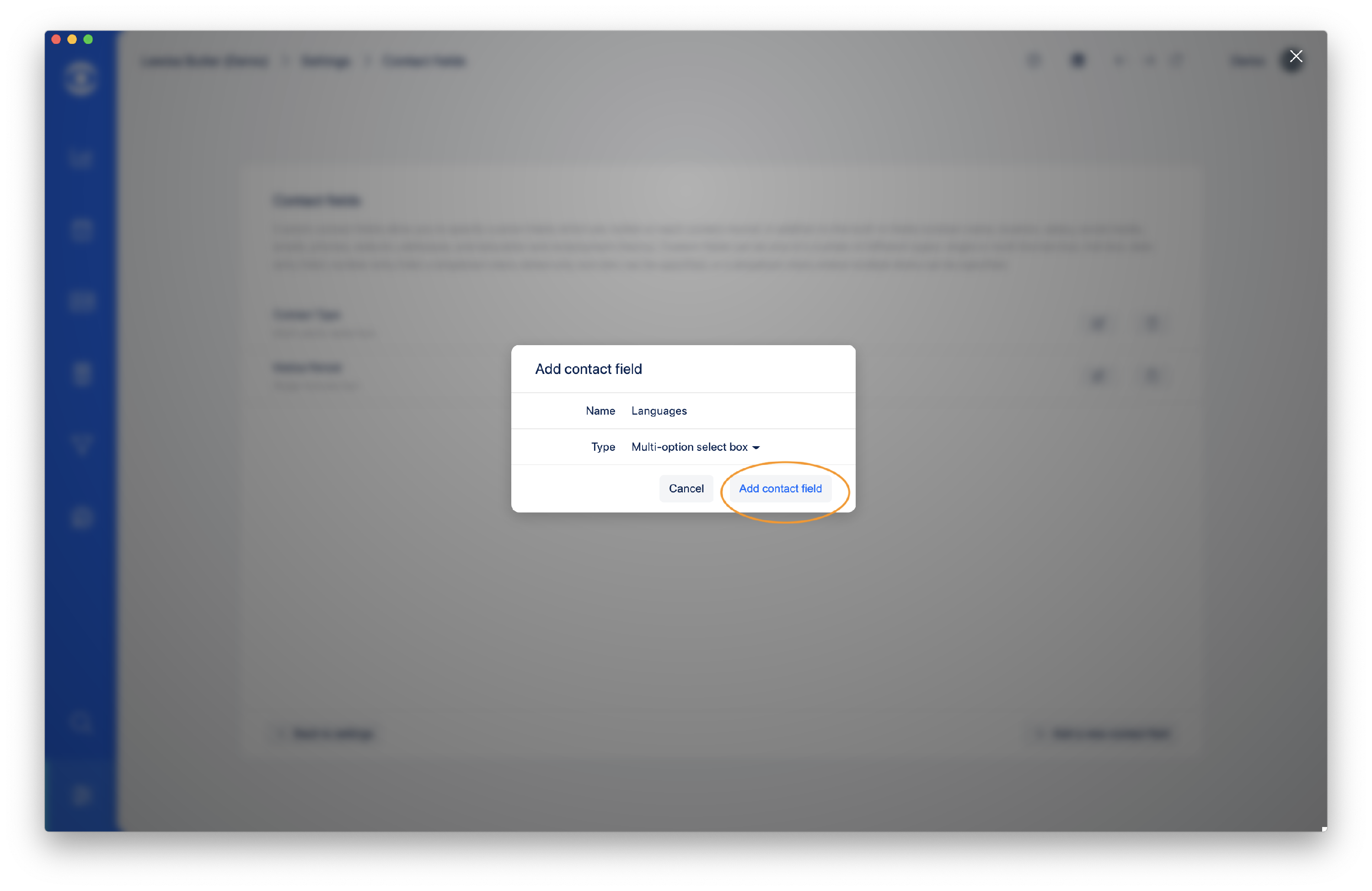
The Add contact field window will open.
Name - Type in the Name for the new Contact field
Type - From the dropdown, select the Type of field required.

When the information is complete, click Add contact field and the field is created. This will appear across all the Contact profiles in your account.
The new Contact Field will need to have options added.
Return to the Settings page for Contact Fields and navigate to the Edit this field button.
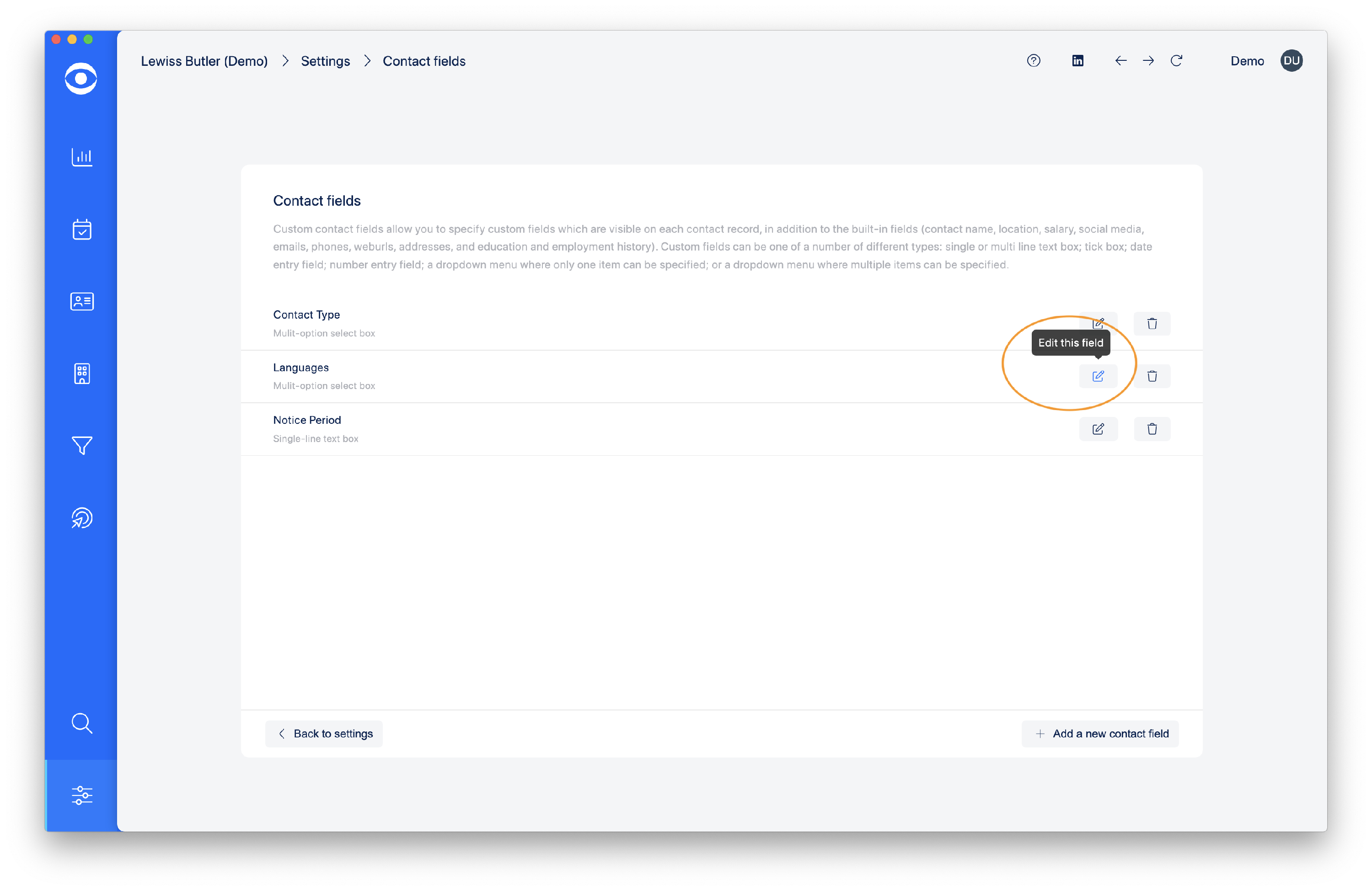
Add information to the Enter a value section and click the + button to save the option.

These options will be applied to the Contact Field across all Contact profiles in your account.

-
HOW TO REMOVE A CUSTOM CONTACT FIELD
In the Settings page select Contact Fields.
In the Contact Fields window, select the field no longer required and click on the bin icon to delete.
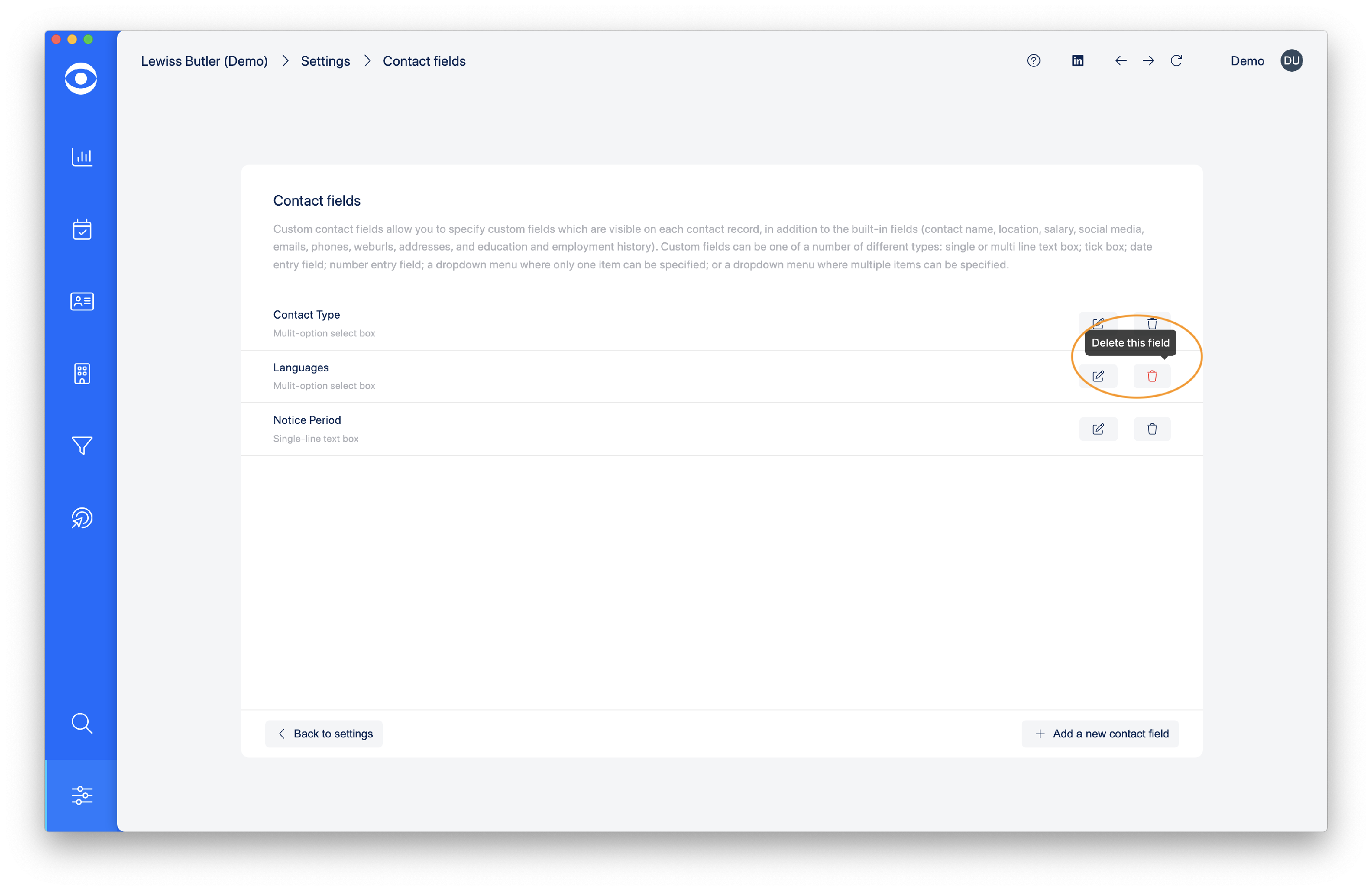
This action will remove the Custom Field from all Contact profiles in your account.