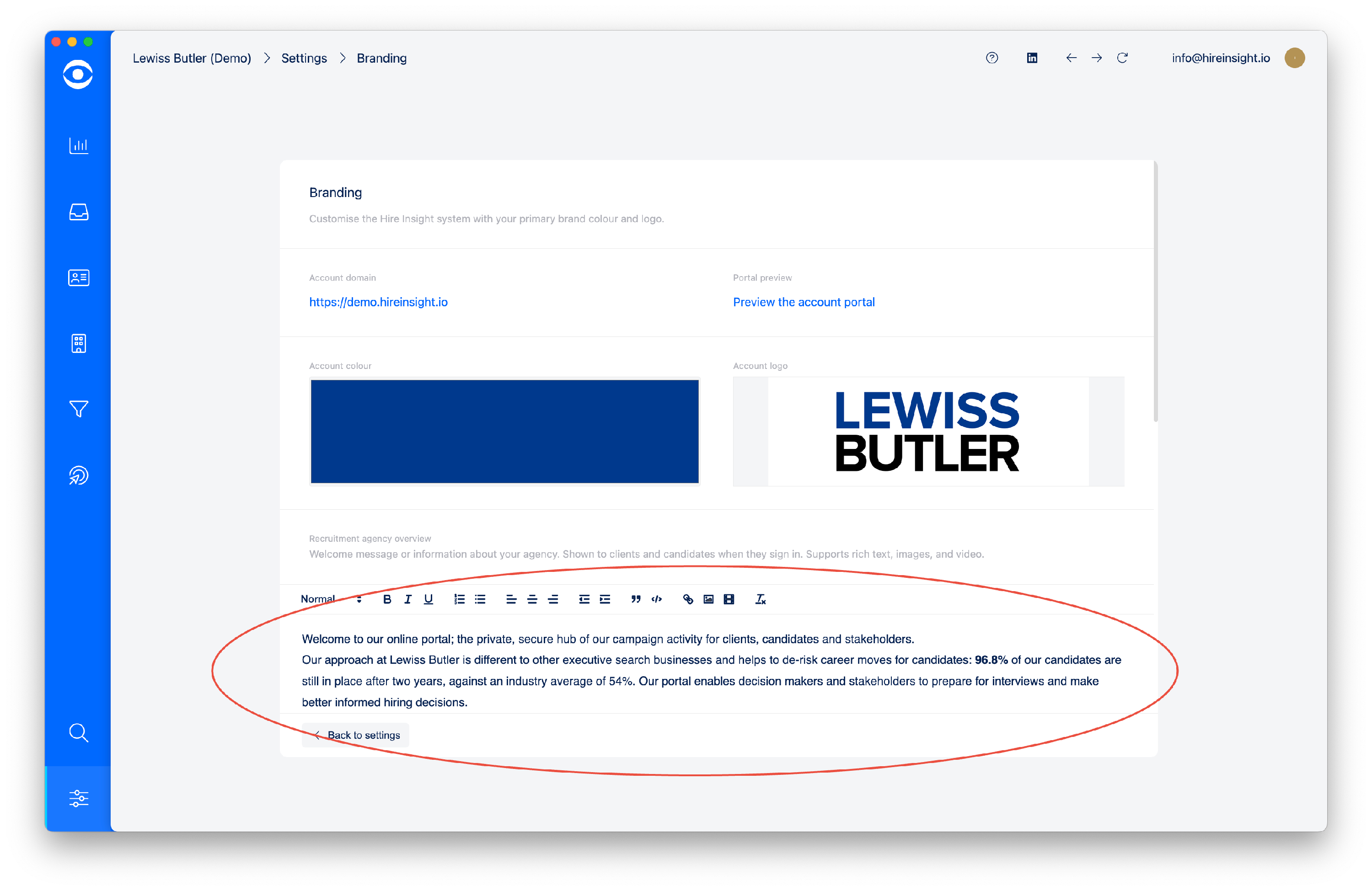
How to edit the welcome text in your portal
Tip: The Welcome text is the same message for both the candidate and client portals
The Welcome text in the client and candidate portal can be viewed by logging in to your account portal.
Log in to your portal using the recruiter's account name as a prefix.
[account name]@hireinsight.io
On the home page the Welcome message appears in the lefthand side.
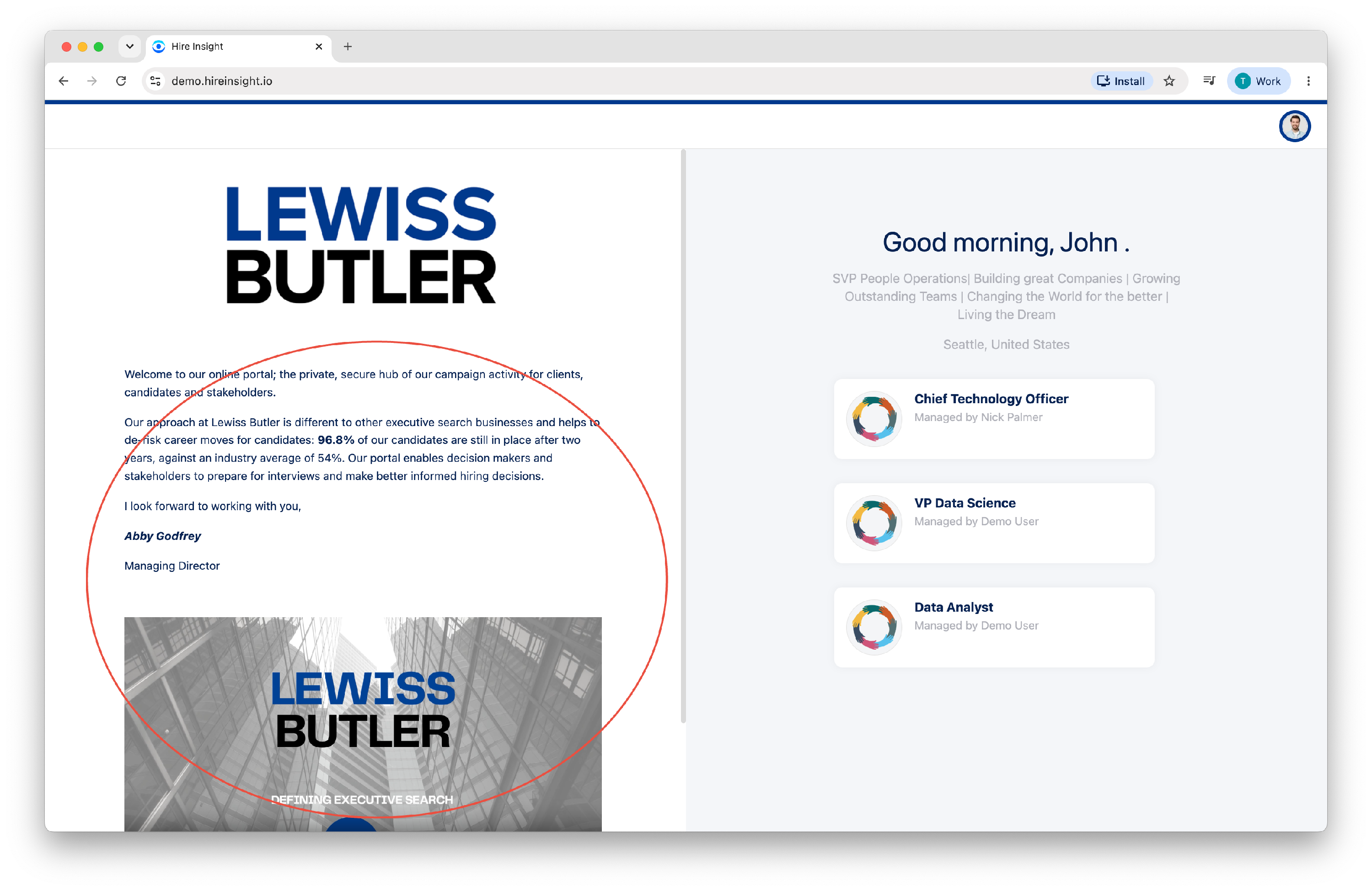
Tip: the optimum word-count for the Welcome text is 110 words, which is designed to fit in a standard 13" laptop screen without scrolling required.
To edit the text, navigate to the app and Configure settings.

In the Settings window navigate to the Management section and click on the Branding tile.

The Branding window will open and the Welcome text is visible in the Portal information text section.
Amends and editing can be made to the text and will automatically save when Back to settings is clicked.