
How to Set up and Edit Candidate Screening Stages
CONTENTS
- TO EDIT A SCREENING PROCESS
- TO ADD A NEW SCREENING PROCESS
- TO DELETE A PROCESS
- TO EDIT A PROCESS IN AN INDIVIDUAL CAMPAIGN
To view the candidate Screening stages of a Campaign, go to the Campaigns dashboard and select the Campaign required.
Click on the Screening tab.
The Screening stages will open and each stage is allocated a tile on the page.

To set up or edit the Screening stage you will need to navigate to Configure settings on the lefthand toolbar.

The Settings screen will open, click on the Processes tile.

The Processes screen will open where the different stages of Screening, Assessment and Interview Management can be tailored.
The default process shows as the Standard Process with 4 screening stages and 2 interview stages.

From this screen, you can edit, delete or add a new process.
1. TO EDIT A PROCESS
Click on the edit icon to begin the editing process.

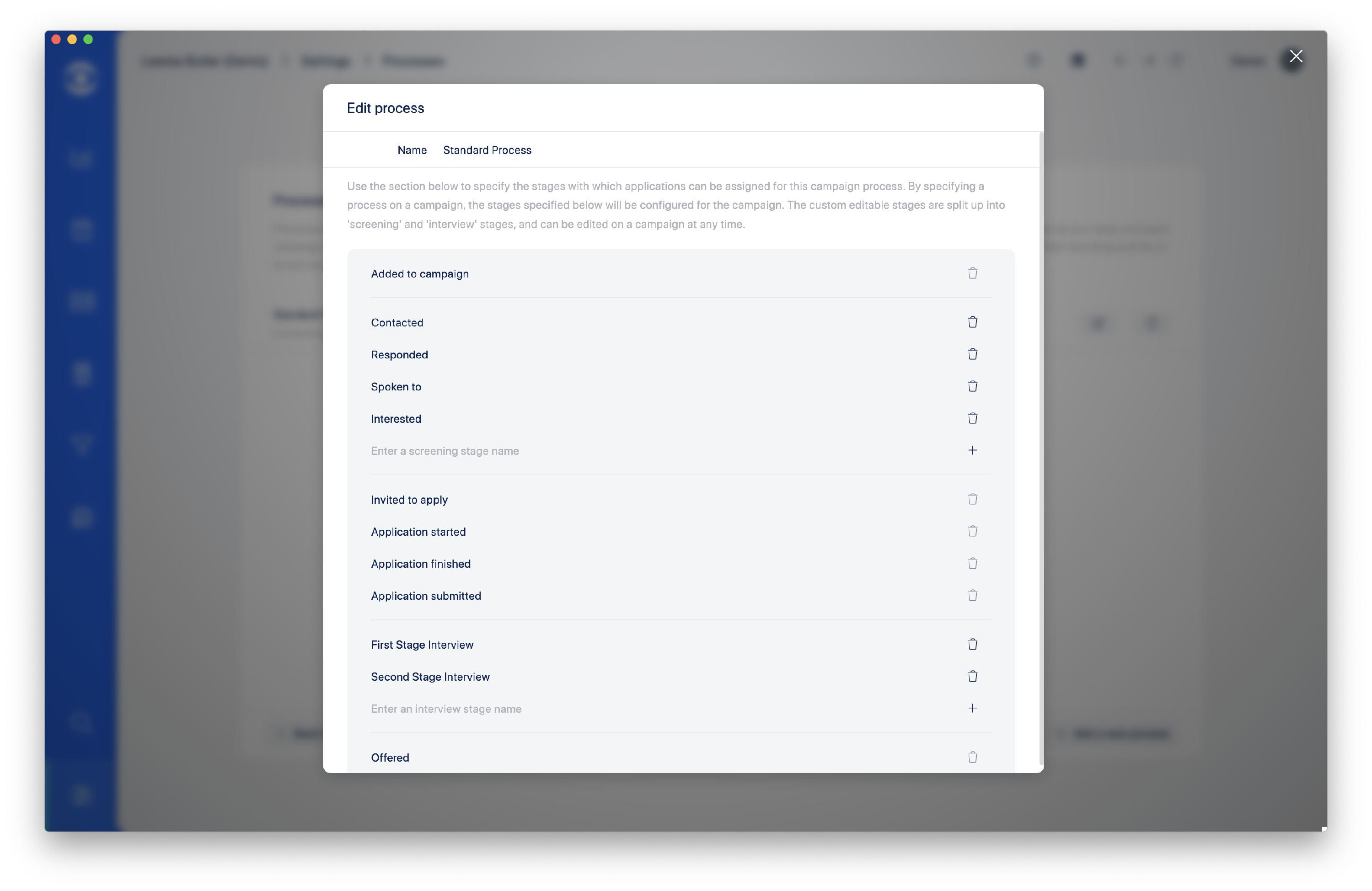
The Edit process popup will open. This allows multiple actions to tailor your process:
Name - Renaming the process is possible
Enter a screening stage name - Add a new screening stage
Enter an interview stage name - Add a new interview stage
Delete stages - Use the bin icon to remove stages if not required
2. TO ADD A NEW PROCESS
On the Processes screen navigate to the +Add a new process button and click.

The Add process popup will open. Add the name of the new process and click Add process.

The new process will show in the Processes dashboard. It will show that there are 0 stages.

Click on the Edit this process icon to begin editing the Process and adding stages as required.

3. TO DELETE A PROCESS
In the Processes dashboard navigate to the process to be removed and click on the bin icon to delete.

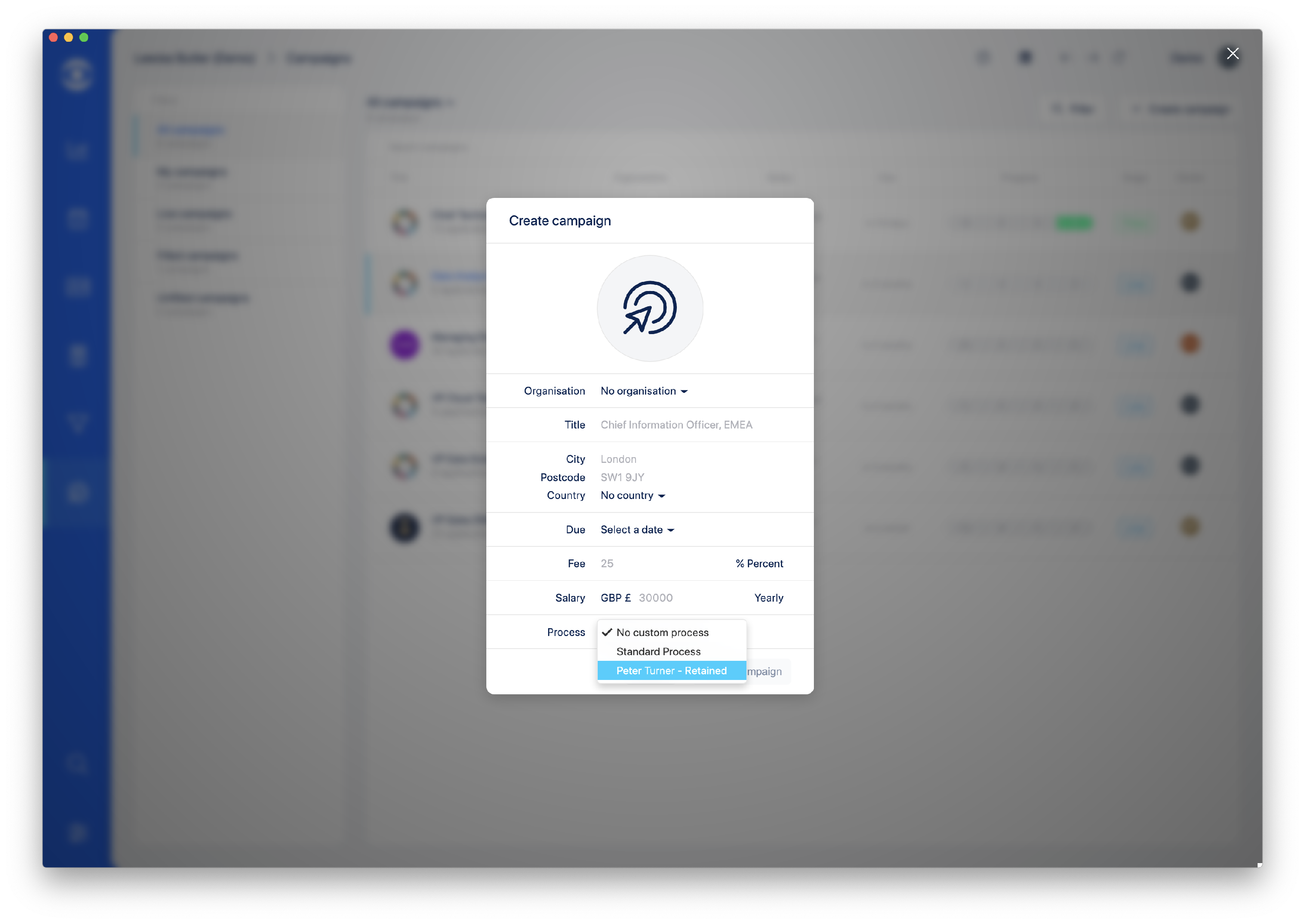
Now the new Process is set up it will be offered in the drop down menu for Create campaign.
Click here to read How to create a Campaign
4. TO EDIT A PROCESS IN AN INDIVIDUAL CAMPAIGN
Once the screening process is set up in settings the pre-set screening stages will be offered for any campaign in your account.
If you need to edit the screening stage in an individual Campaign, for example an extra Interview is required, this can be done in the Campaign profile.
Navigate to the Manage campaigns tab on the lefthand toolbar.

Select the Campaign to edit and click the Edit campaign details button at the bottom of the central windowpane.

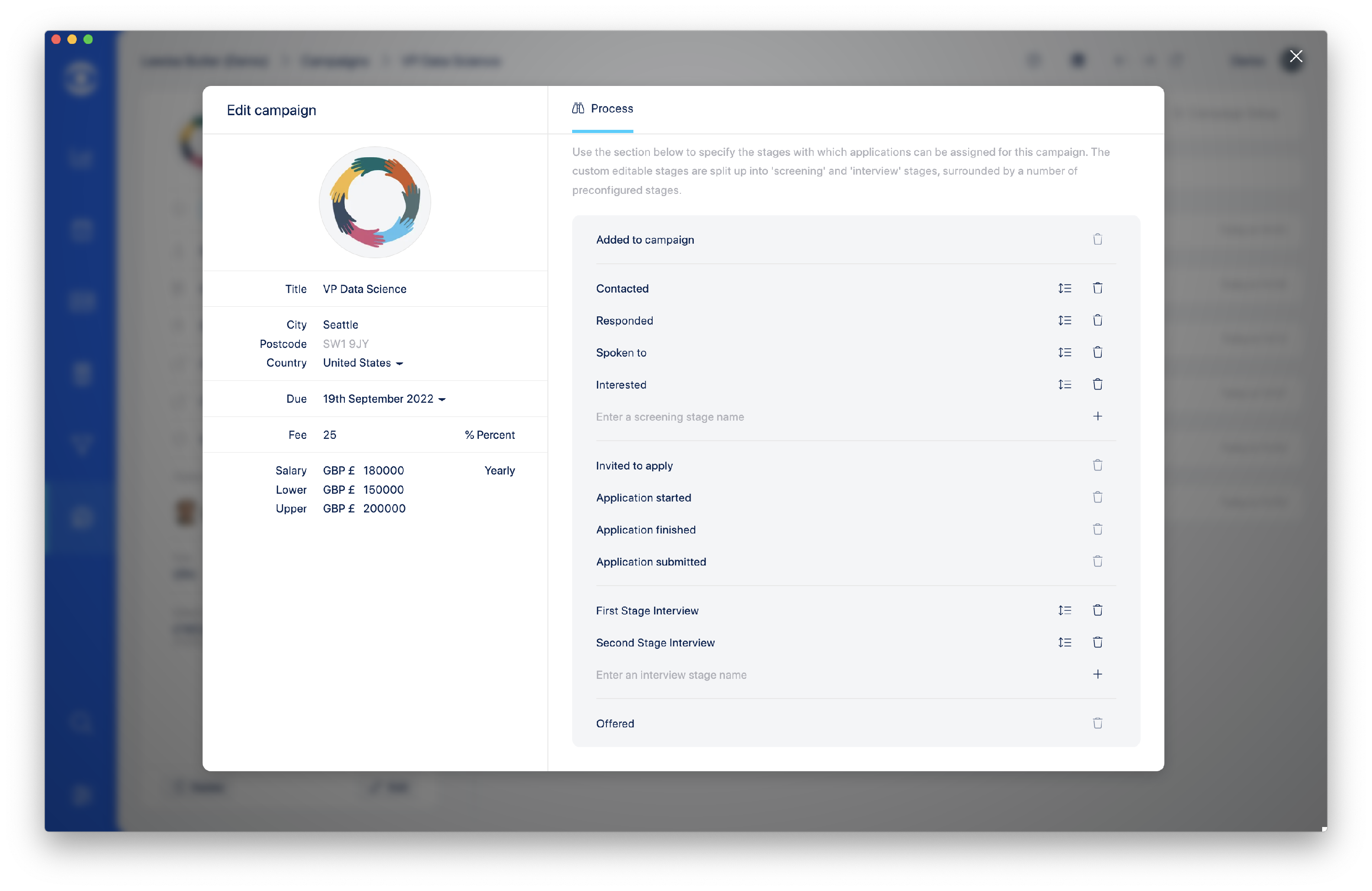
In the Edit campaign popup, the following actions can be carried out:
Delete - remove a stage by clicking on the bin icon
Move - change the order of stages by dragging the up/down icon
Add - add a screening stage or an interview stage
Return to the Campaign profile to save your edits.