
How to Edit the Campaign Process
Tip: The Campaign process specifies the stages with which applications can be assigned to a Campaign. The custom editable stages are split into 'screening' and 'interview' stages. Each one has a number of preconfigured substages which can be changed and tailored to individual campaign requirements.
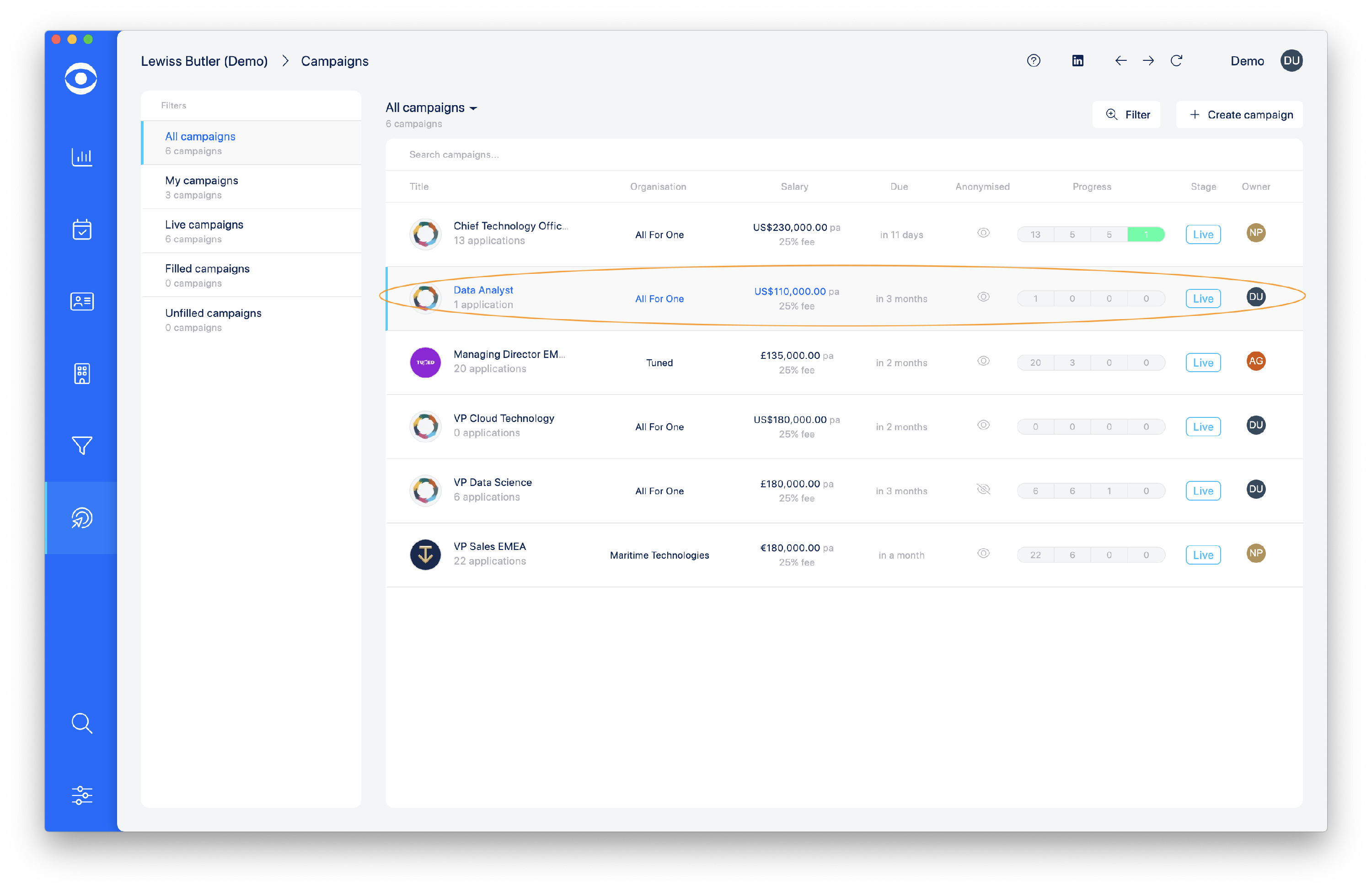
Click on Manage Campaigns on the lefthand toolbar.

Select the Campaign in which you want to edit the Campaign process.
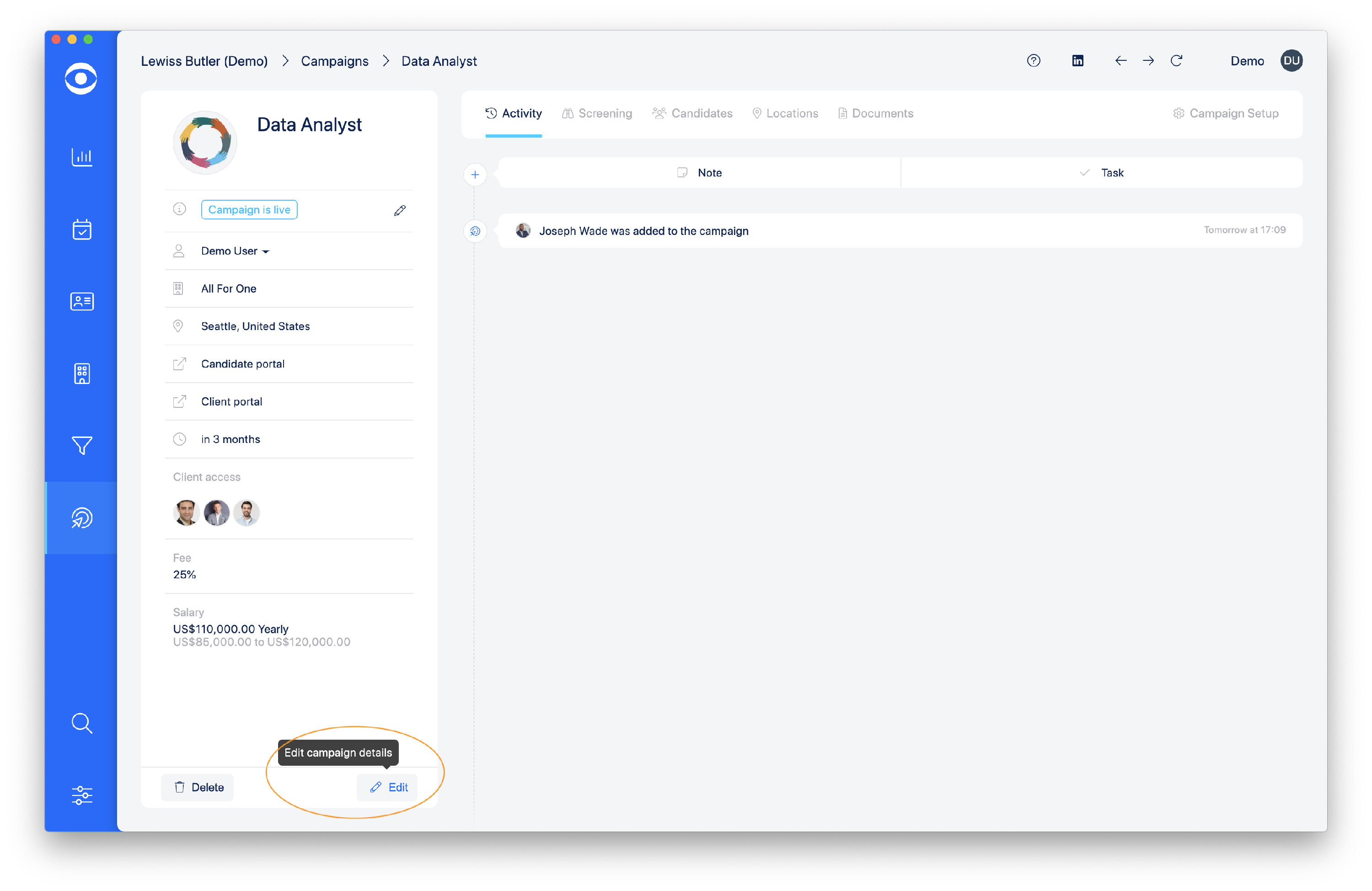
Click the Edit campaign details button in the lefthand pane.
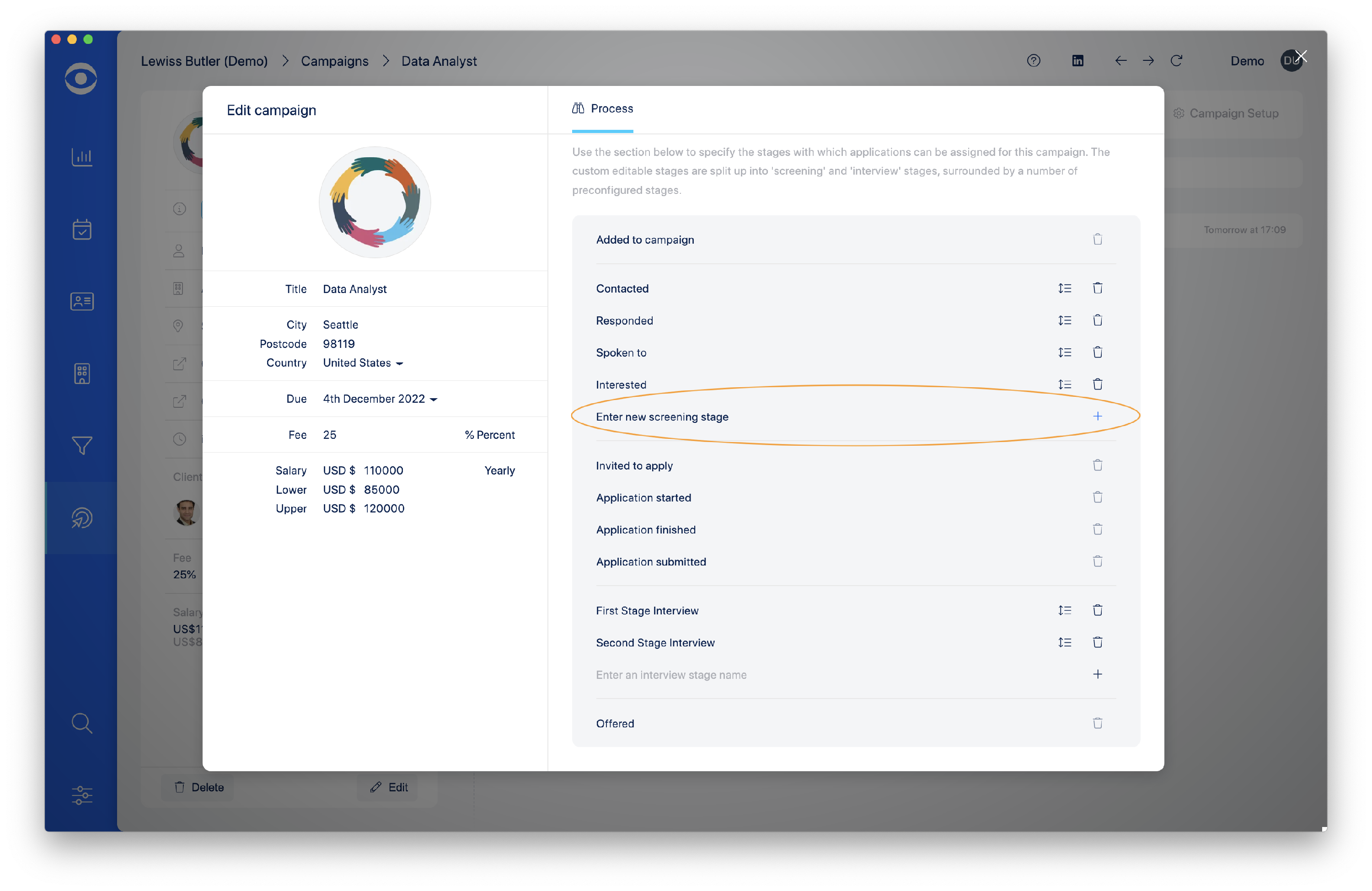
The Edit campaign screen has several options for tailoring the stages of the process:
ADD A SCREENING STAGE
To enter a new Screening stage, type over the greyed out text and click the + button to add.
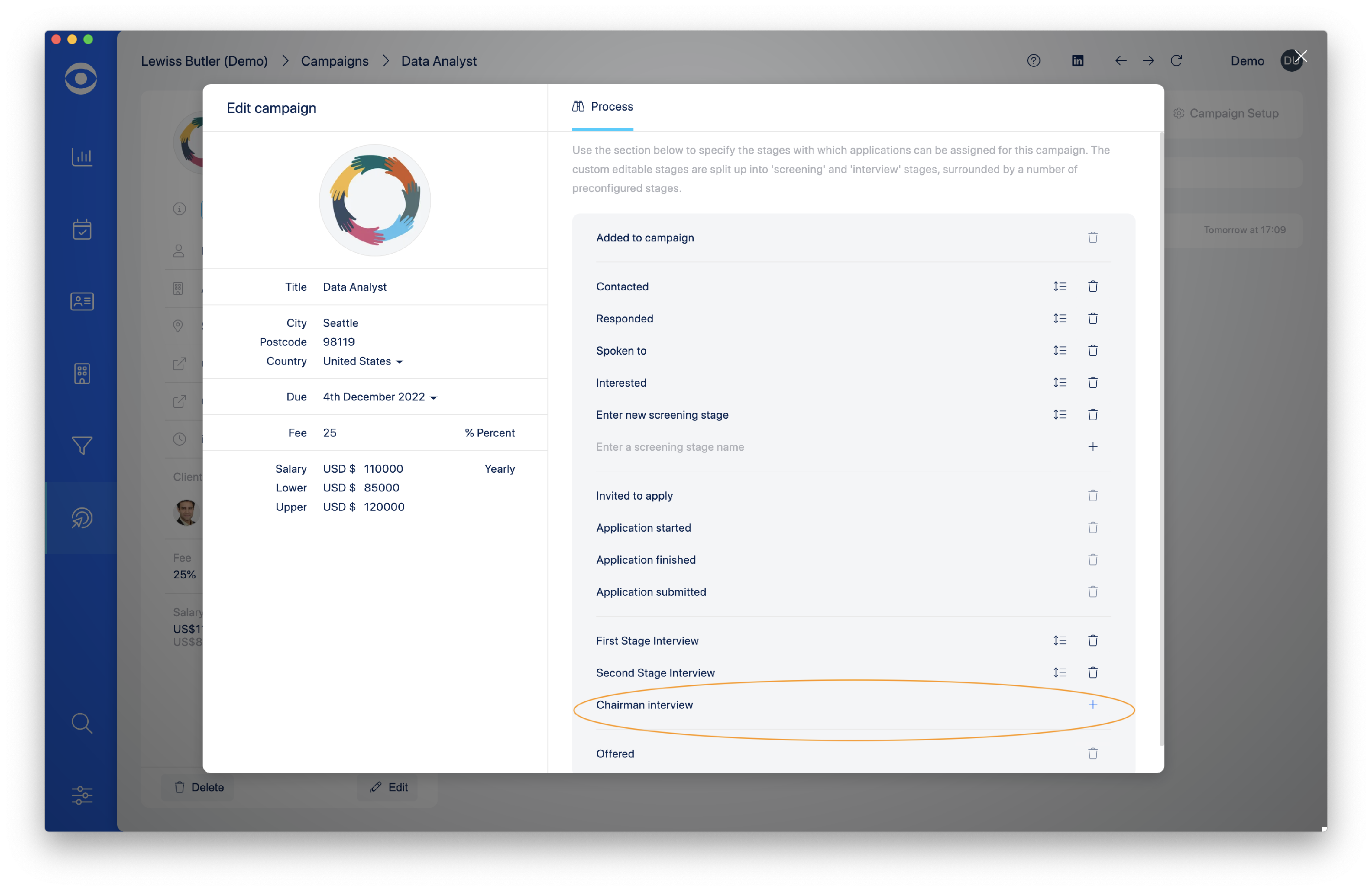
ADD AN INTERVIEW STAGE
To enter a new Interview stage, type over the greyed out text and click the + button to add.
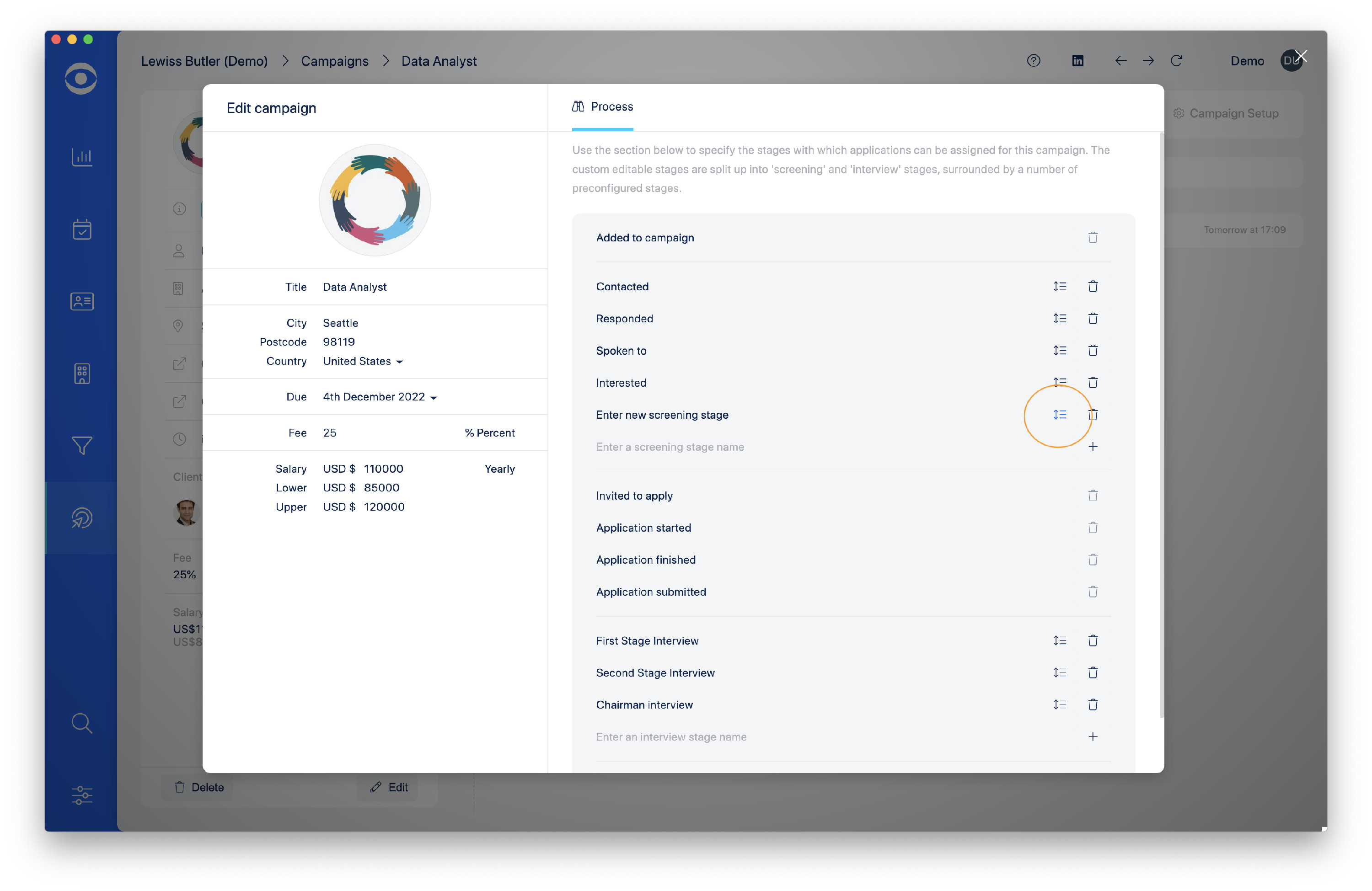
CHANGING THE ORDER FOR THE STAGES IN THE CAMPAIGN
Hover the cursor over the move icon and drag the Stage to a different location to alter the order of stages.
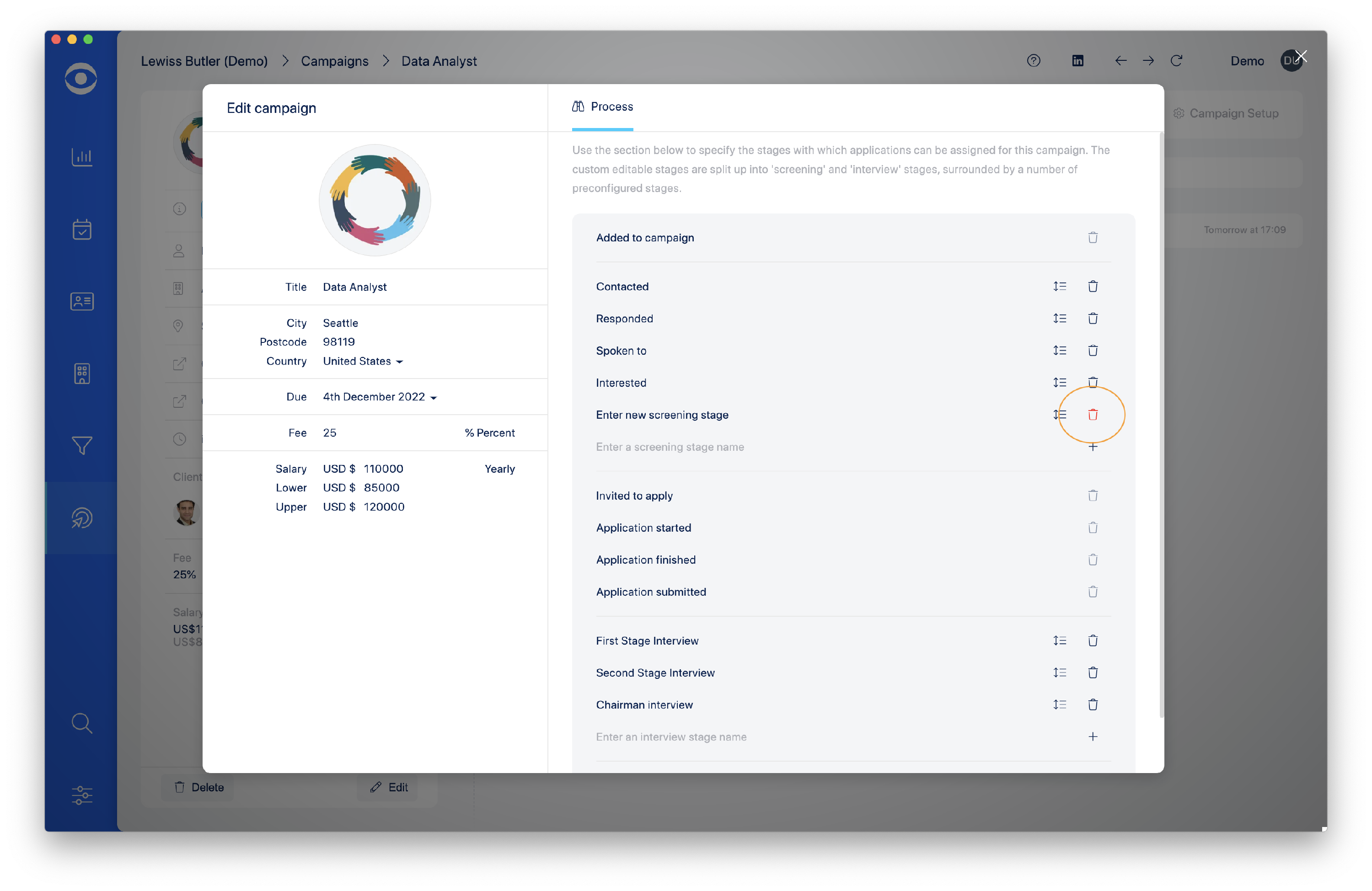
HOW TO DELETE A CAMPAIGN STAGE
Click on the trash icon to the right of the Stage to delete.
We are continuously improving the Knowledge Base.
Was this article helpful?
Click smiley below to send us feedback.