
Creating the Campaign Elements - Screening Questions
CONTENTS:
Click on Manage Campaigns on the lefthand toolbar.

Select the Campaign from the list of Campaigns.
Read how to Create a Campaign here.

Click on Campaign setup at the top righthand side of the page.

In the Set up section, the Screening tools are the lower section of tiles.
There are 3 tiles for Screening questions:
Keyfacts - Quantifiable information such as headcount, geographical experience and technical qualifications
Competencies - A Candidate's skills and ability to handle different challenges they will encounter in the role
Experiences - A Candidate's experience in specific scenarios

-
KEYFACTS QUESTIONS
Click on the Keyfacts tile to open the Keyfacts questions popup window.
Enable Candidate responses by selected Yes in the dropdown options. If you prefer to have the Candidates complete the screening questions at a later stage in the campaign, choose No.

To add a question, begin typing over the greyed out suggestion text. Once your question is complete click the + to save, and enable further questions to be added.

The Keyfact questions will now appear in the Candidate Portal

The Keyfact questions and responses will appear in the Client Portal.
Navigate to the Candidates tab at the top of the Flightdeck.
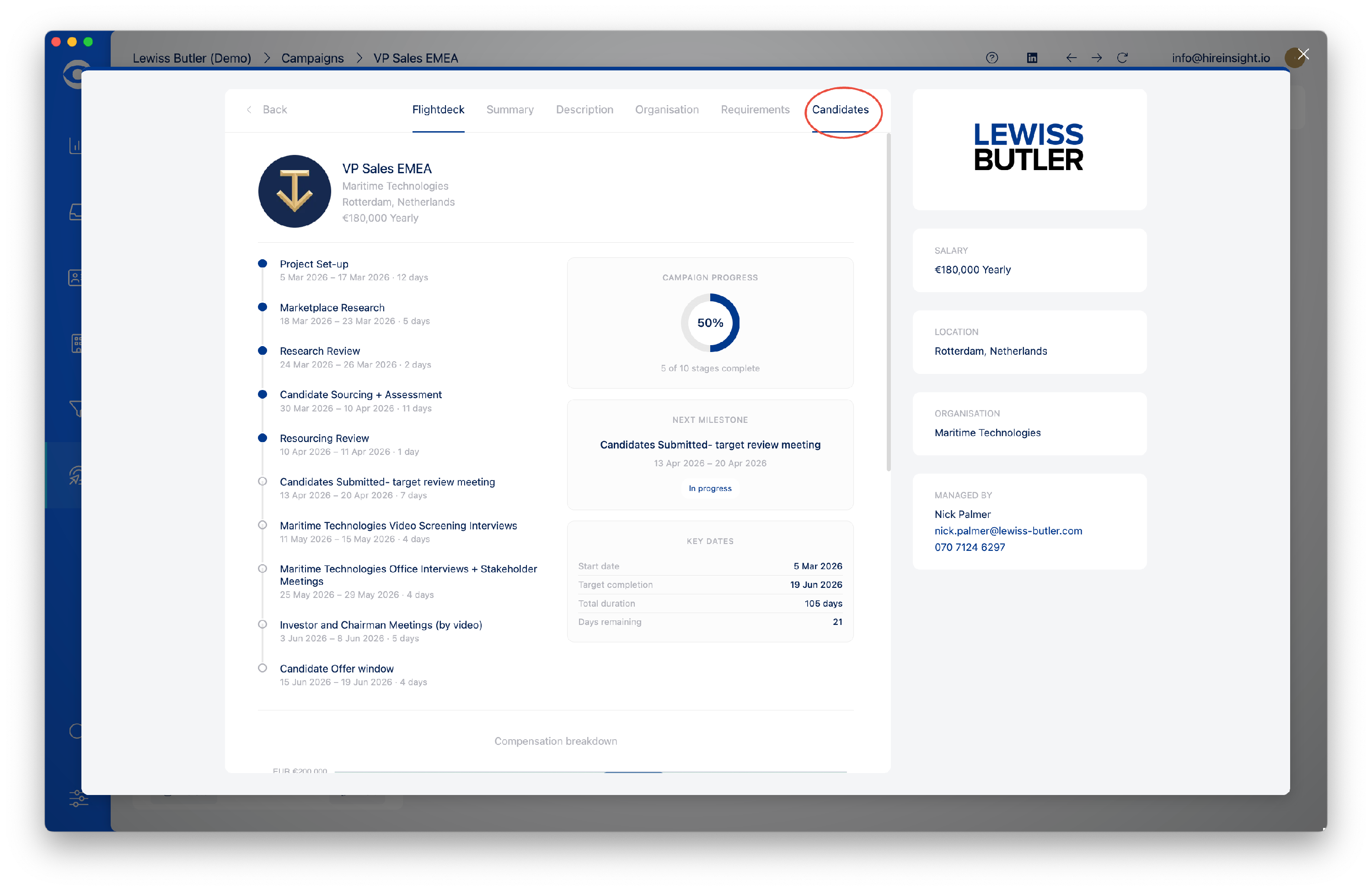
Select the Candidate and click on their name to open the Candidate popup. Click on the Responses tab to view the Screening questions responses from the Candidate.
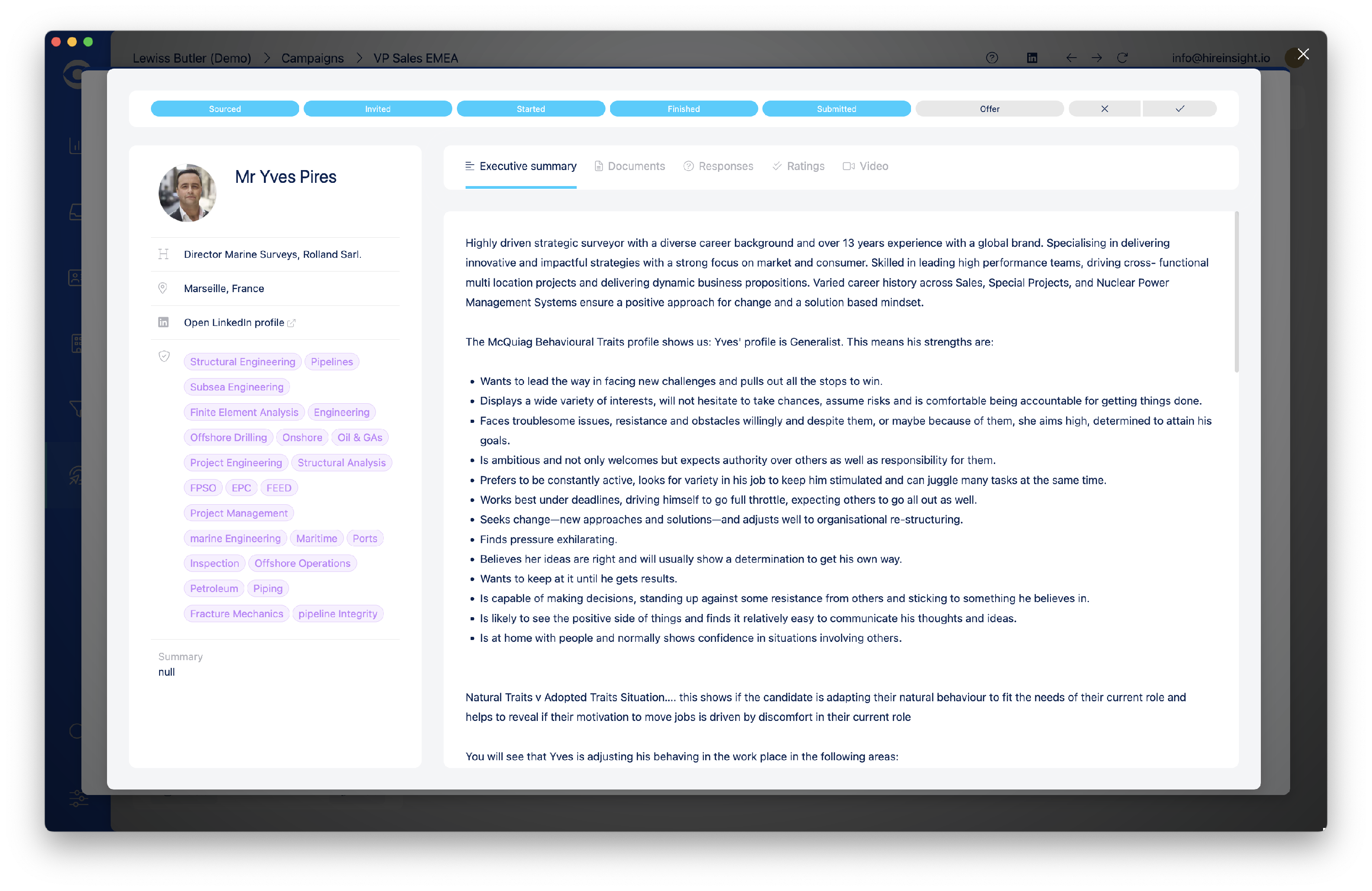
The Keyfact questions will be visible in the Hire Insight App in the Candidate section of the Campaign dashboard.
Click on the Candidate whose responses you want to review.

Click on the Responses tab to see Question responses.
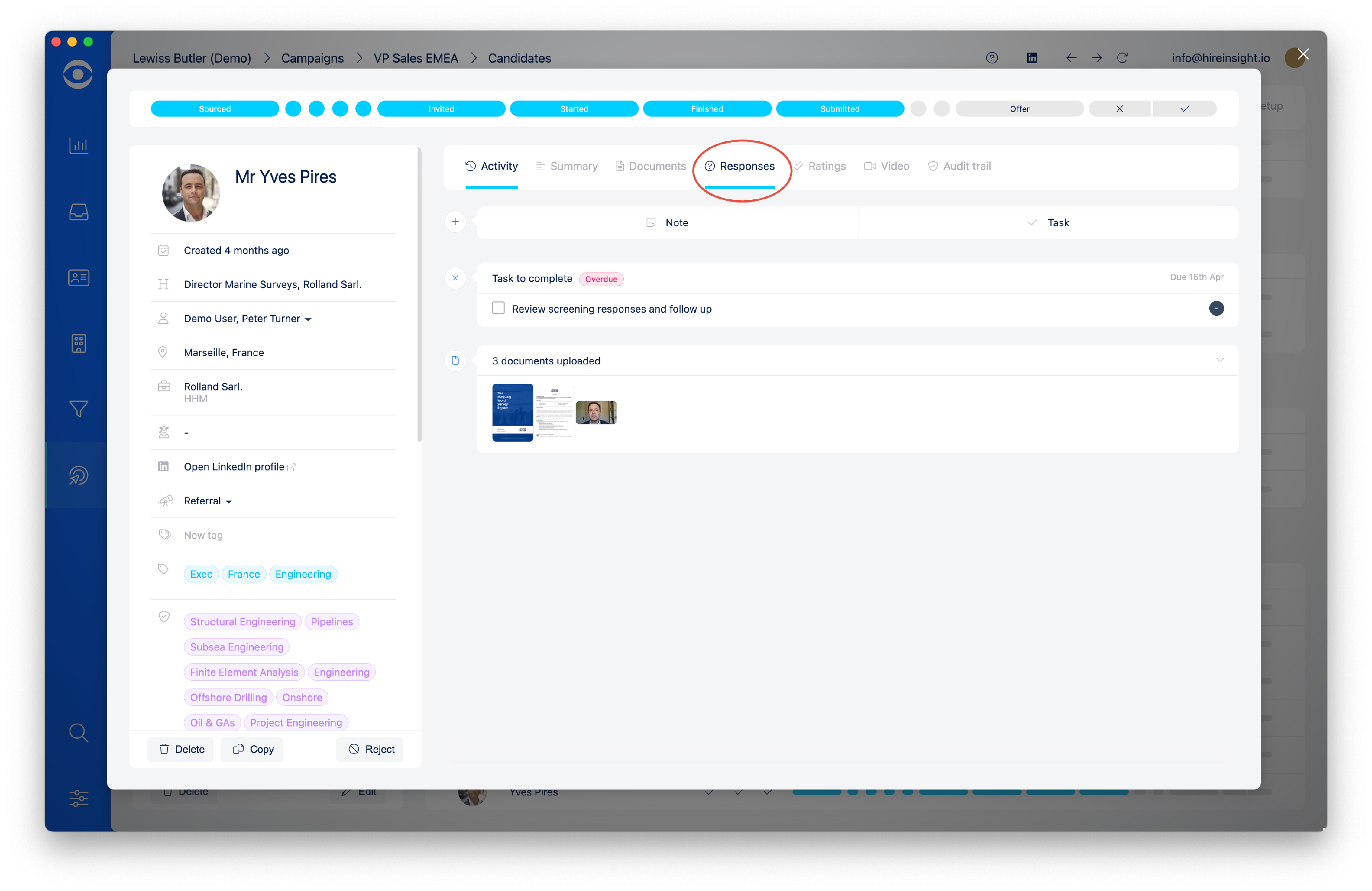
The Candidate's responses to the questions can be viewed and collapsed using the grey arrow at the beginning of each question.

2. COMPETENCY QUESTIONS
Click on the Competencies tile to open the Competency questions popup window.
Enable Candidate responses by selected Yes in the dropdown options. If you prefer to have the Candidates complete the screening questions at a later stage in the Campaign, choose No.

To add a question, begin typing over the greyed out suggestion text. Once your question is complete click the + to save, and enable further questions to be added.

The Competencies questions will now appear in the Candidate Portal.

The Competencies questions and responses will appear in the Client Portal. Navigate to the Candidates tab at the top of the Flightdeck.
Select the Candidate and click on their name to open the Candidate popup. Click on the Responses tab to view the Screening questions responses from the Candidate.
The Competencies questions will be visible in the Hire Insight App in the Candidate section of the Campaign dashboard.
Click on the Candidate whose responses you want to review.
Click on the Responses tab to see Question responses.

The Candidate's responses to the questions can be viewed and collapsed using the grey arrow at the beginning of each question.
-
EXPERIENCE QUESTIONS
Click on the Experiences tile to open the Experiences questions popup window.
Enable Candidate responses by selected Yes in the dropdown options. If you prefer to have the Candidates complete the screening questions at a later stage in the campaign, choose No.

To add a question begin typing over the greyed out suggestion text. Once your question is complete click the + to save, and enable further questions to be added.

The Experiences questions will now appear in the Candidate Portal.

The Experiences questions and responses will appear in the Client Portal.
Navigate to the Candidates tab at the top of the Flightdeck.
The Experiences questions and responses will appear in the Client Portal. Navigate to the Candidates tab at the top of the Flightdeck.

Select the Candidate and click on their name to open the Candidate popup. Click on the Responses tab to view the Screening questions responses from the Candidate.
The Experiences questions will be visible in the Hire Insight App in the Candidate section of the Campaign dashboard.
Click on the Candidate whose responses you want to review.
Click on the Responses tab to see Question responses.
The Candidate's responses to the questions can be viewed and collapsed using the grey arrow at the beginning of each question.
-
DELETING A SCREENING QUESTION
Click on Campaign setup at the top righthand side of the page.
In the Set up section, the Screening tools are the lower section of tiles.
There are 3 tiles for Screening questions:
Keyfacts
Competencies
Experiences
Click on the relevant tile to open the Screening questions popup window.
In the popup window navigate to the Screening question you want to remove and click on the trash symbol. The question will be permanently deleted and will no longer appear in the Candidate Portal or the Client Portal.
