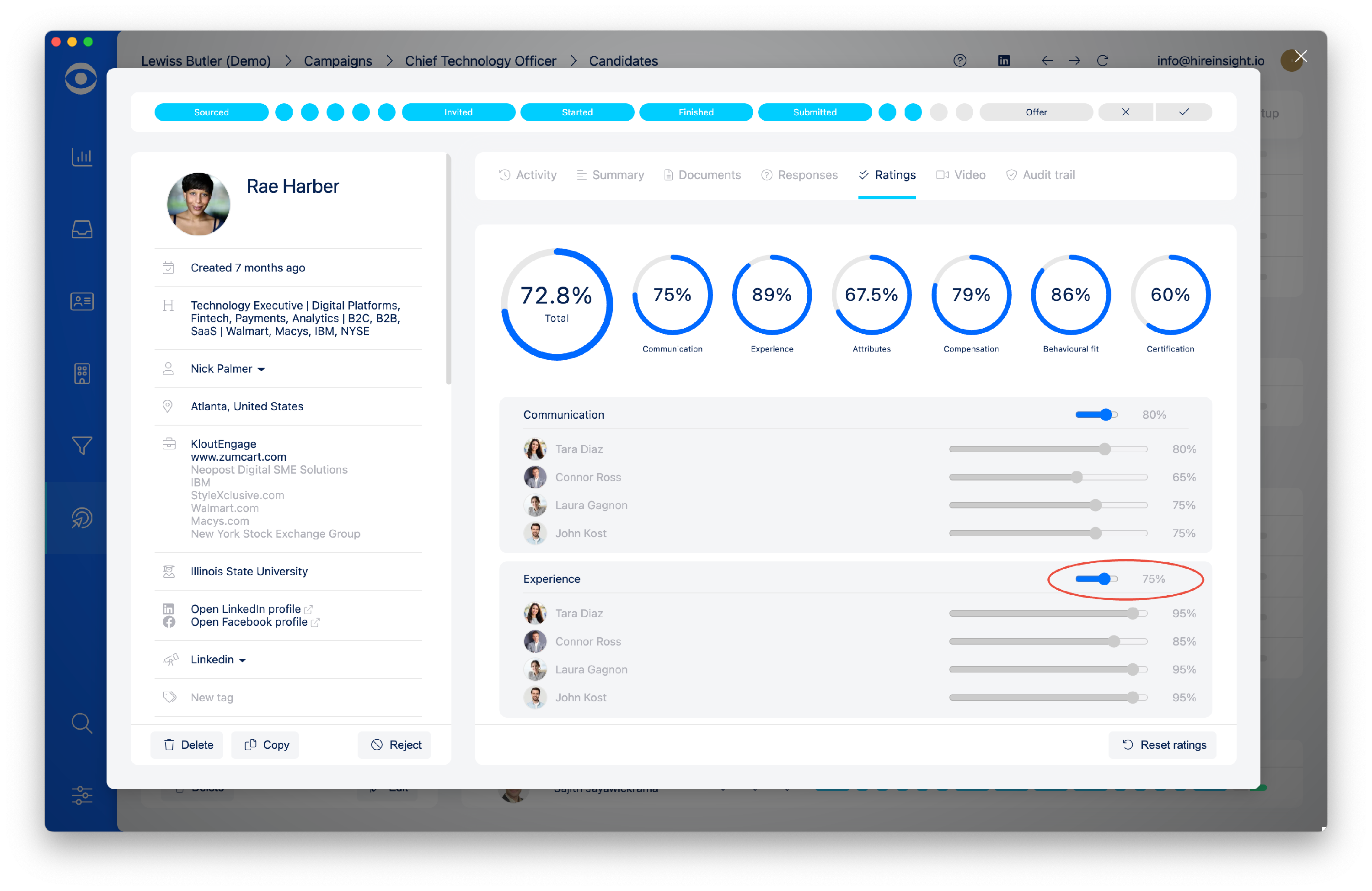
Creating the Campaign Elements - Candidate Ratings
Benefits of Candidate Ratings:
For the client:
- Ratings provide a structured scorecard approach to Candidate evaluation
- All interviewing stakeholders can participate in a blind, objective ratings process - this prevents the HIPO (Highest Paid Person Opinion) from affecting the overall process
- The ratings process fosters consensus over the final decision
For the recruiter:
- Outlier ratings can be identified and discussed to interrogate bias or missed information during the interview process
- Candidate ratings provide a defensible, documented process in the event of a discrimination claim, allowing the recruiter and client to demonstrate objective, criteria-based decision-making
- Using ratings shifts the recruiter's perceived role from transactional CV deliverer to consultative advisor.
Hire Insight offers two Candidate Rating Models:
Banded Ratings - (e.g., Below, Meets, Exceeds, Exceptional). This is simpler to use, with no ambiguity in what each band means. It is recommended as the default model for most use Campaigns. Band labels and descriptors can be customised to suit the specific Campaign.
Percentage Ratings: - This model is more precise, suited to cases where candidates have completed measurable assessments such as technical coding tests, language evaluations, or other scored examinations. Percentage ratings require more explanation to stakeholders regarding what a score means in context with the job requirement, so can be more complex to set up initially.
It is recommended to use Banded Ratings as a default, and Percentage Ratings when drilling down into specific, measurable skills or certifications.
CONTENTS:
1. Banded Candidate Ratings
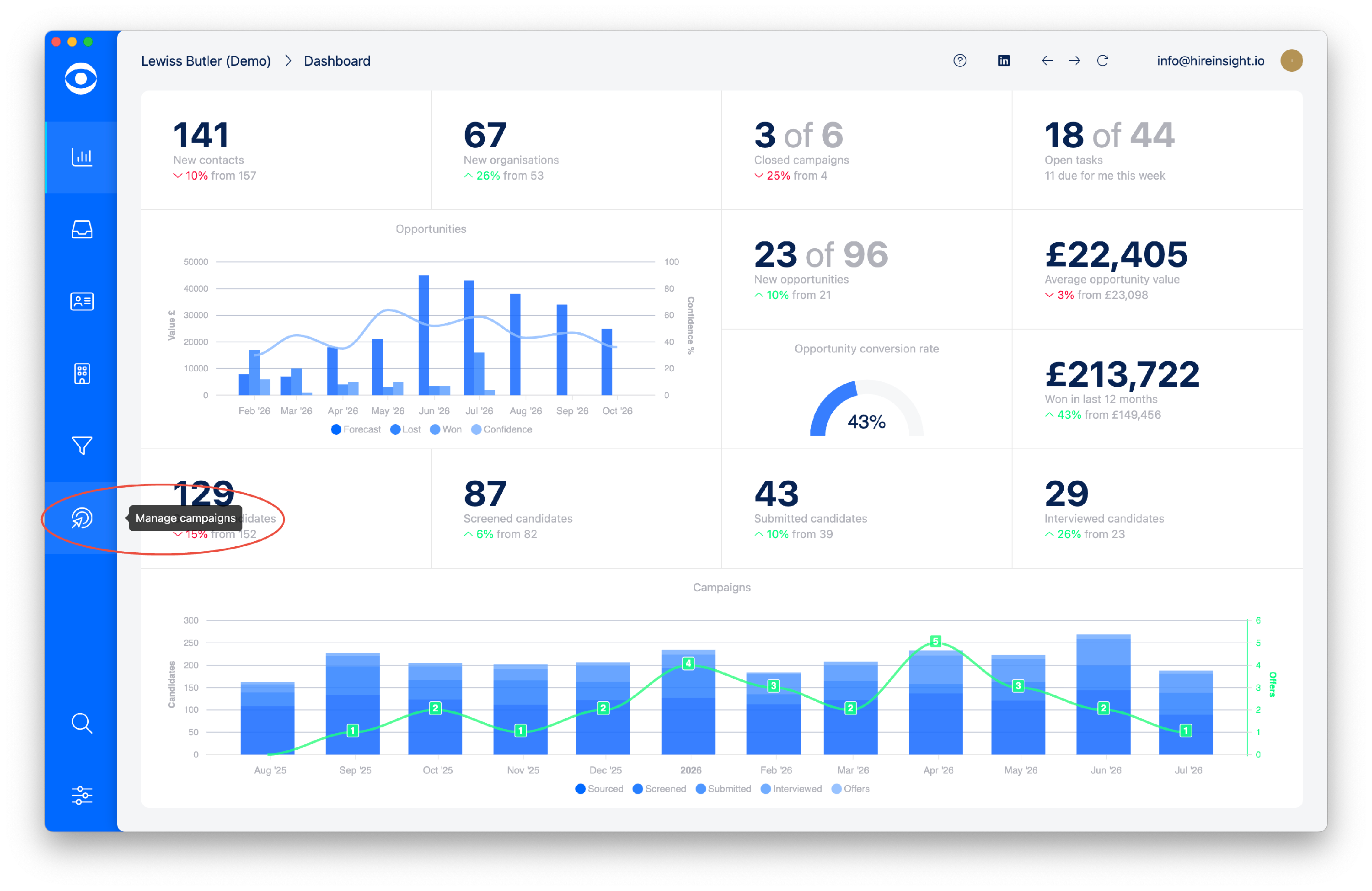
Select the Manage Campaign from the lefthand toolbar.
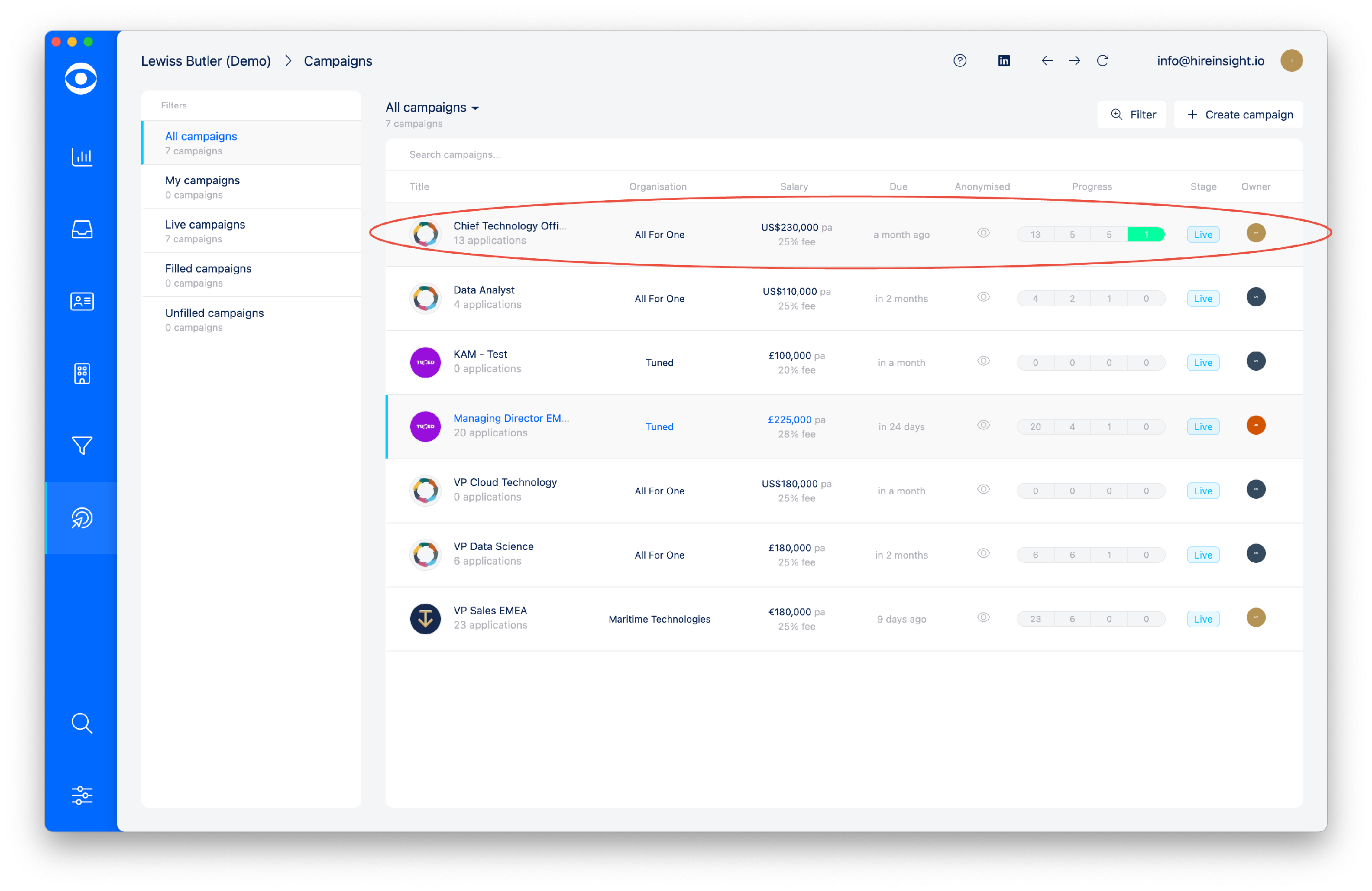
Select the Campaign for which you want to set up the Candidate Ratings tool.
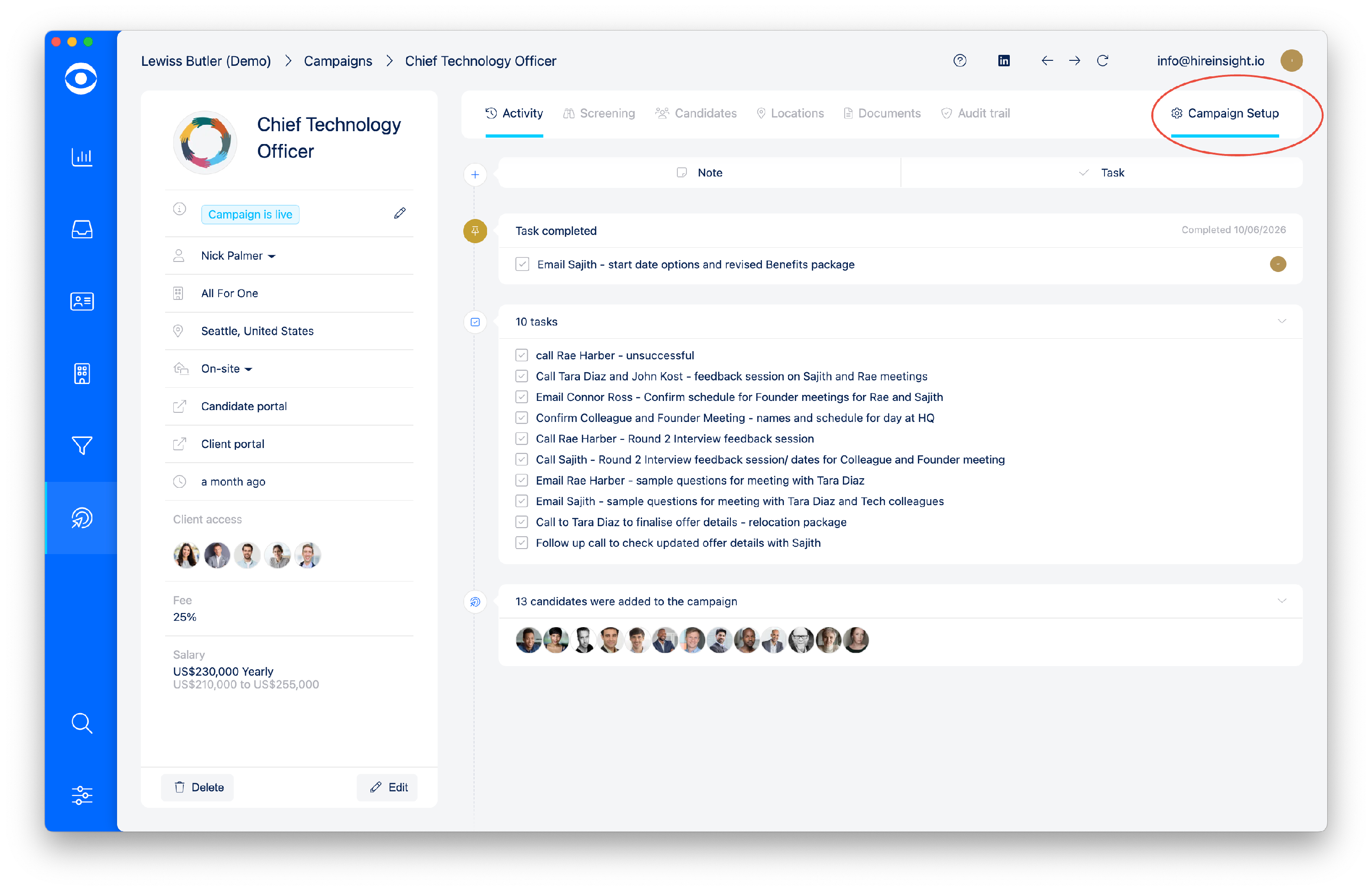
Click on Campaign setup in the top right of the screen to open the Campaign Settings page.
In the Screening Tools tiles select Ratings.
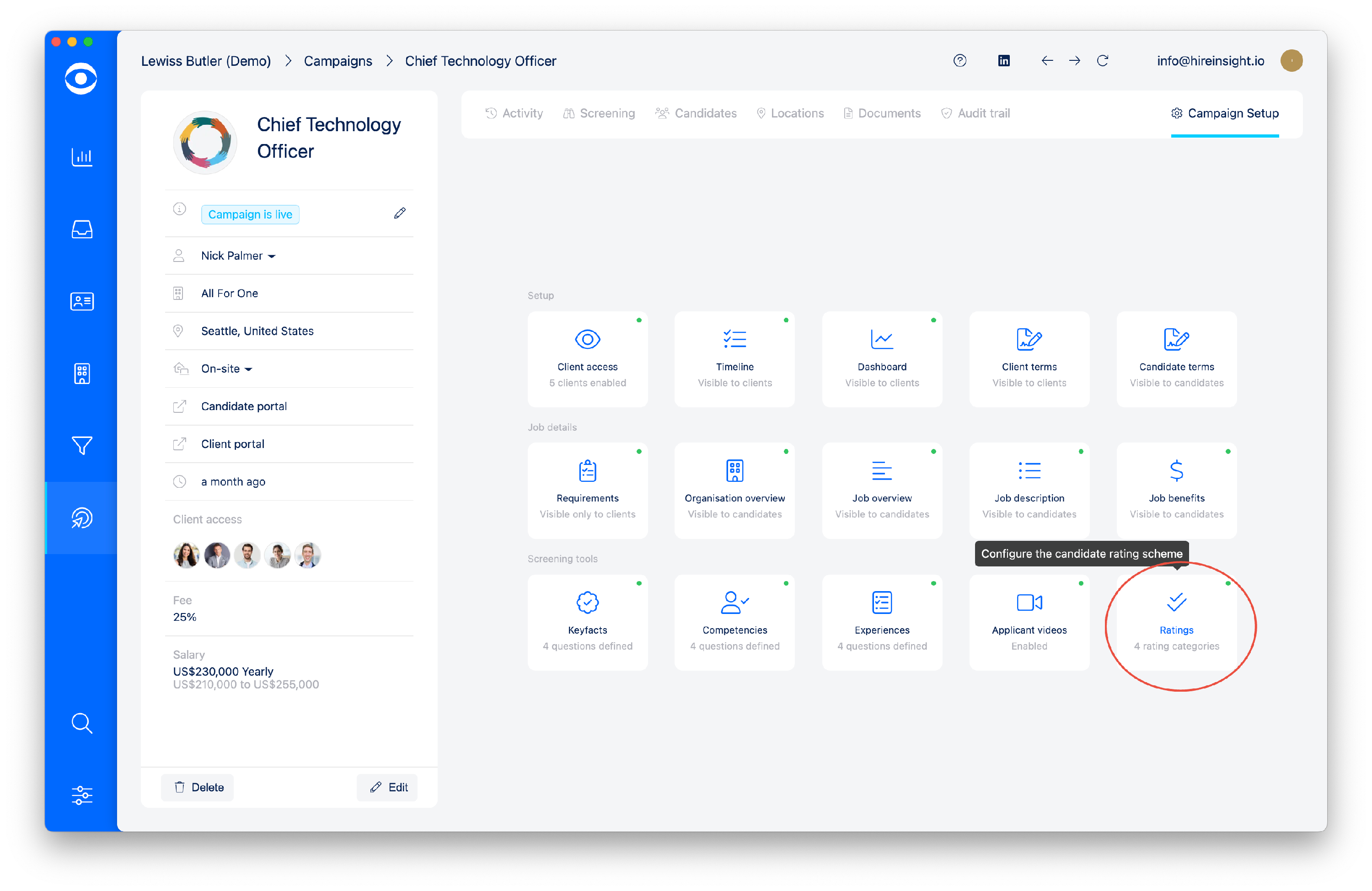
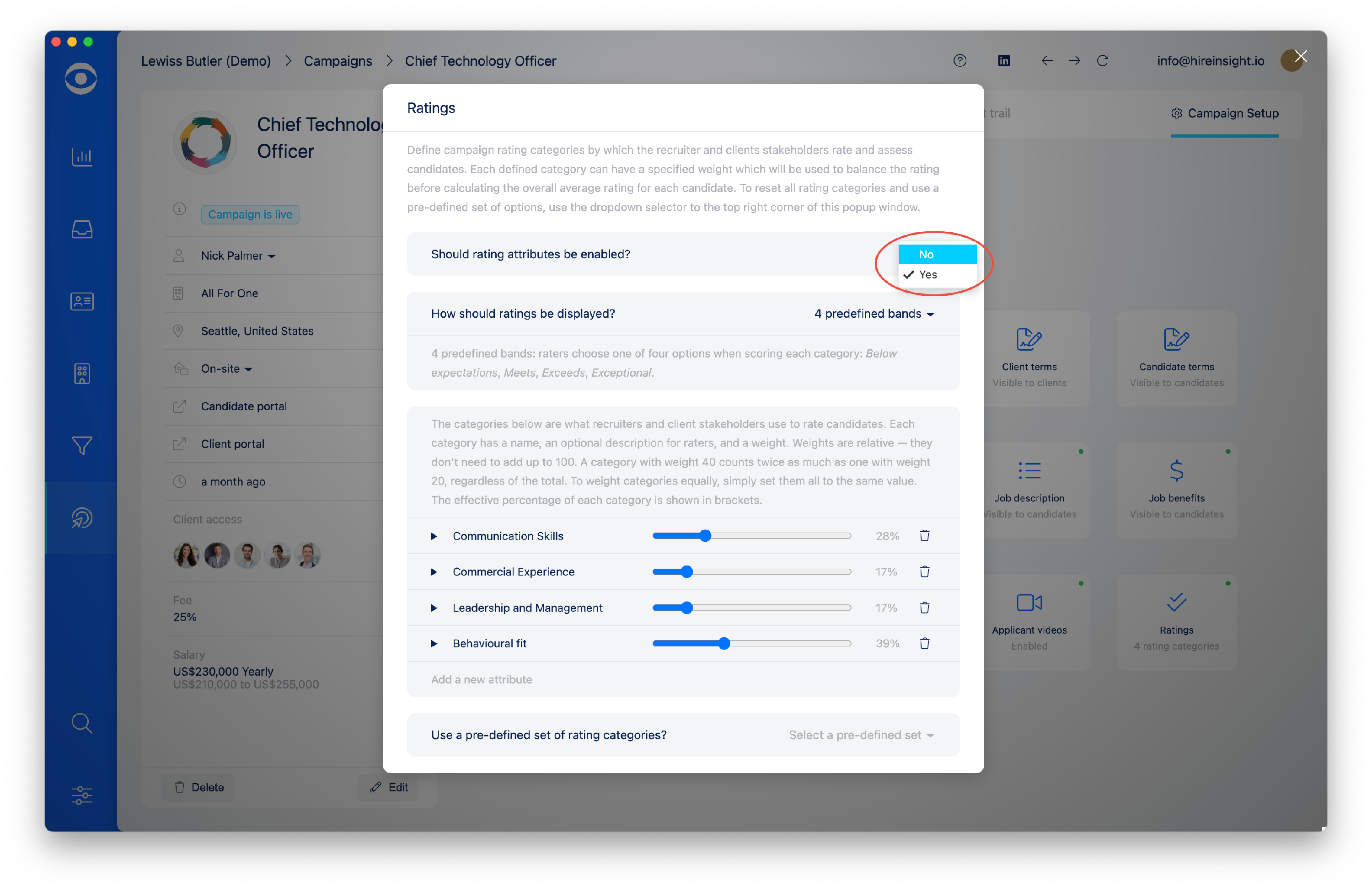
In the Ratings Popup window the first option is whether to enable ratings attributes.
Select Yes if you want to utilise the Ratings tool for your Campaign
Select No if you do not want to use the Ratings tool in a particular Campaign.
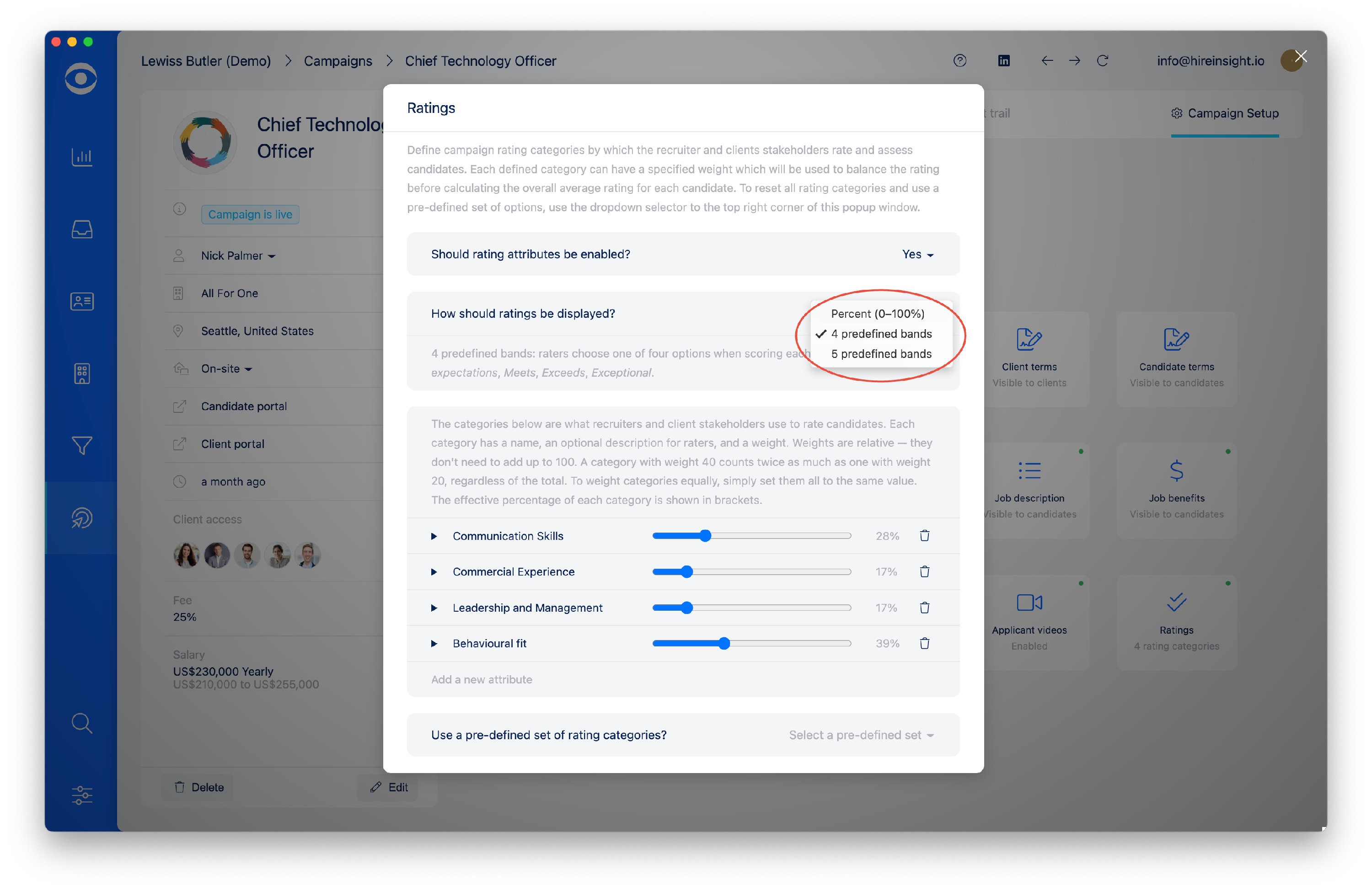
The next option is to select how ratings should be displayed.
There are three options for the ratings display:
Percent (0-100%) - Raters use a slider from 0-100% for each category. Scores are stored as percentages and used to calculate the overall rating.
4 Predefined bands - Raters choose one of four options when scoring each category: Below expectations, Meets, Exceeds, Exceptional.
5 Predefined bands - Raters choose one of five options when scoring each category: Below expectations, Average, Good, Better, Best.
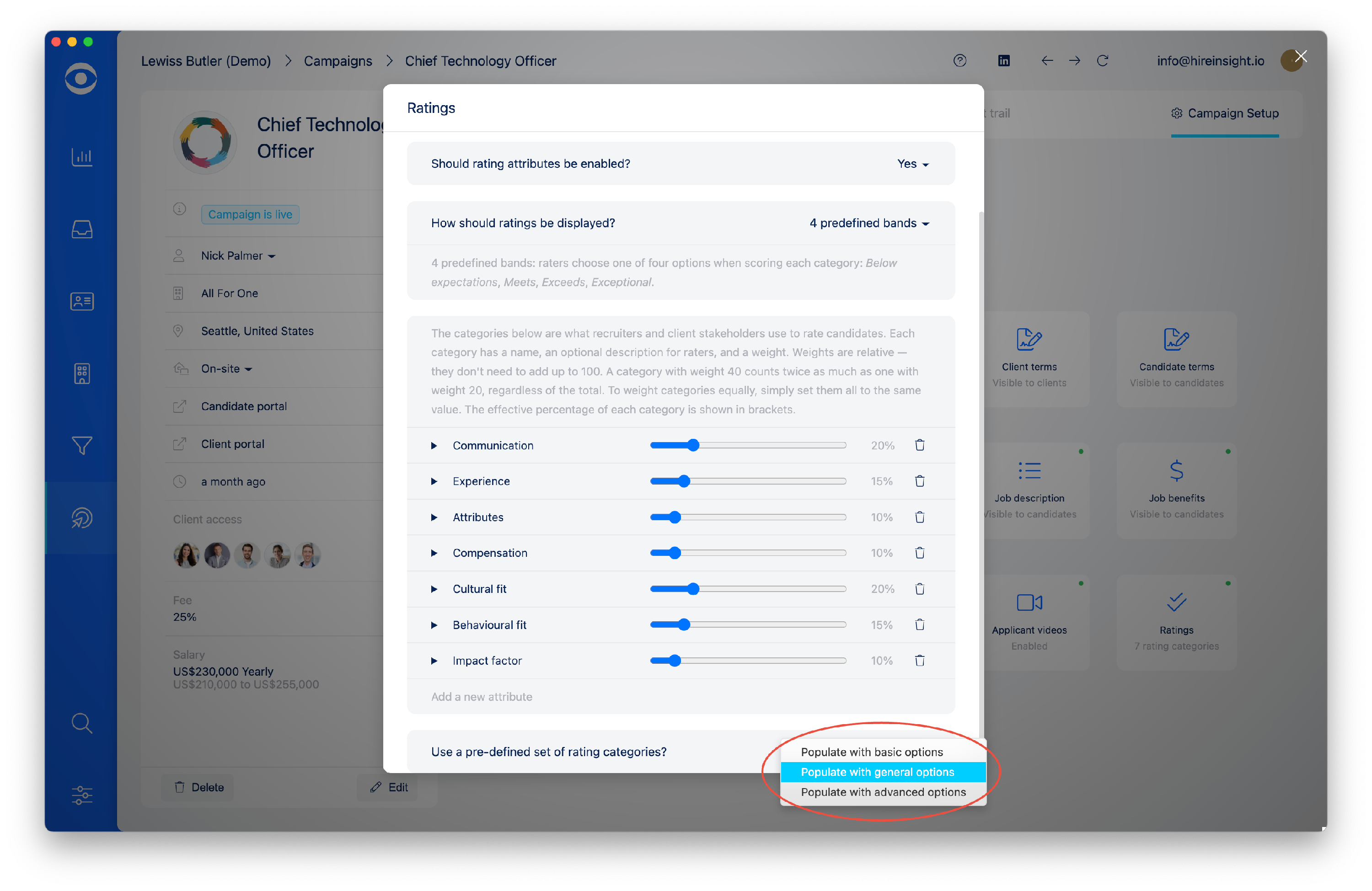
There are 3 options of Pre-defined rating categories, these are accessed at the bottom of the popup window:
Populate with basic options
Communication
Experience
Compensation
Behavioural fit
Populate with general options
Communication
Experience
Attributes
Compensation
Behavioural fit
Populate with advanced options
Communication
Experience
Attributes
Compensation
Cultural fit
Behavioural fit
Attributes
Impact factor
To select a Pre-defined rating category select from the drop down menu.
The selected attributes will load automatically.
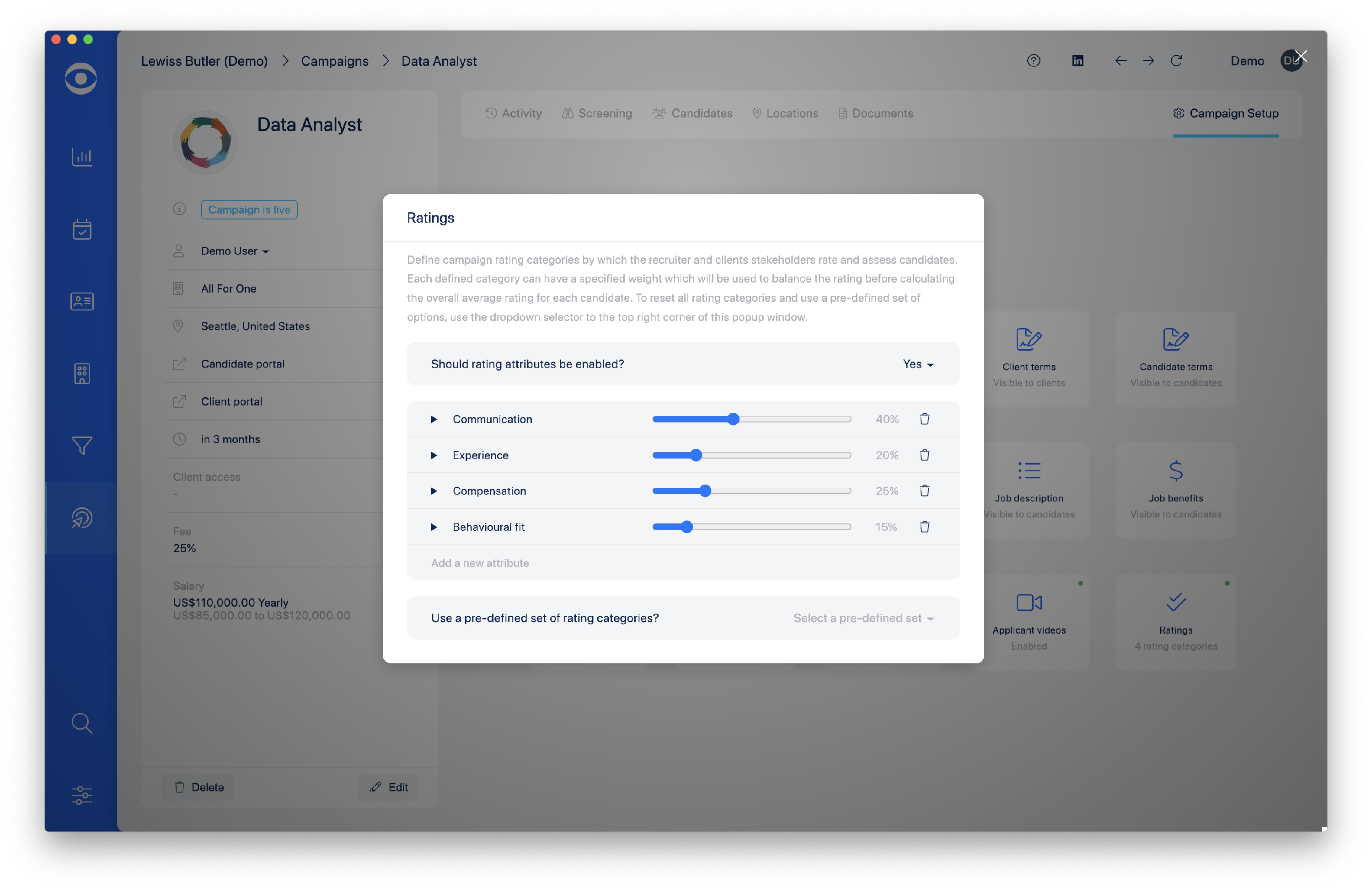
For each attribute, use the dropdown arrow to the left of the attribute to open the greyed out description text.
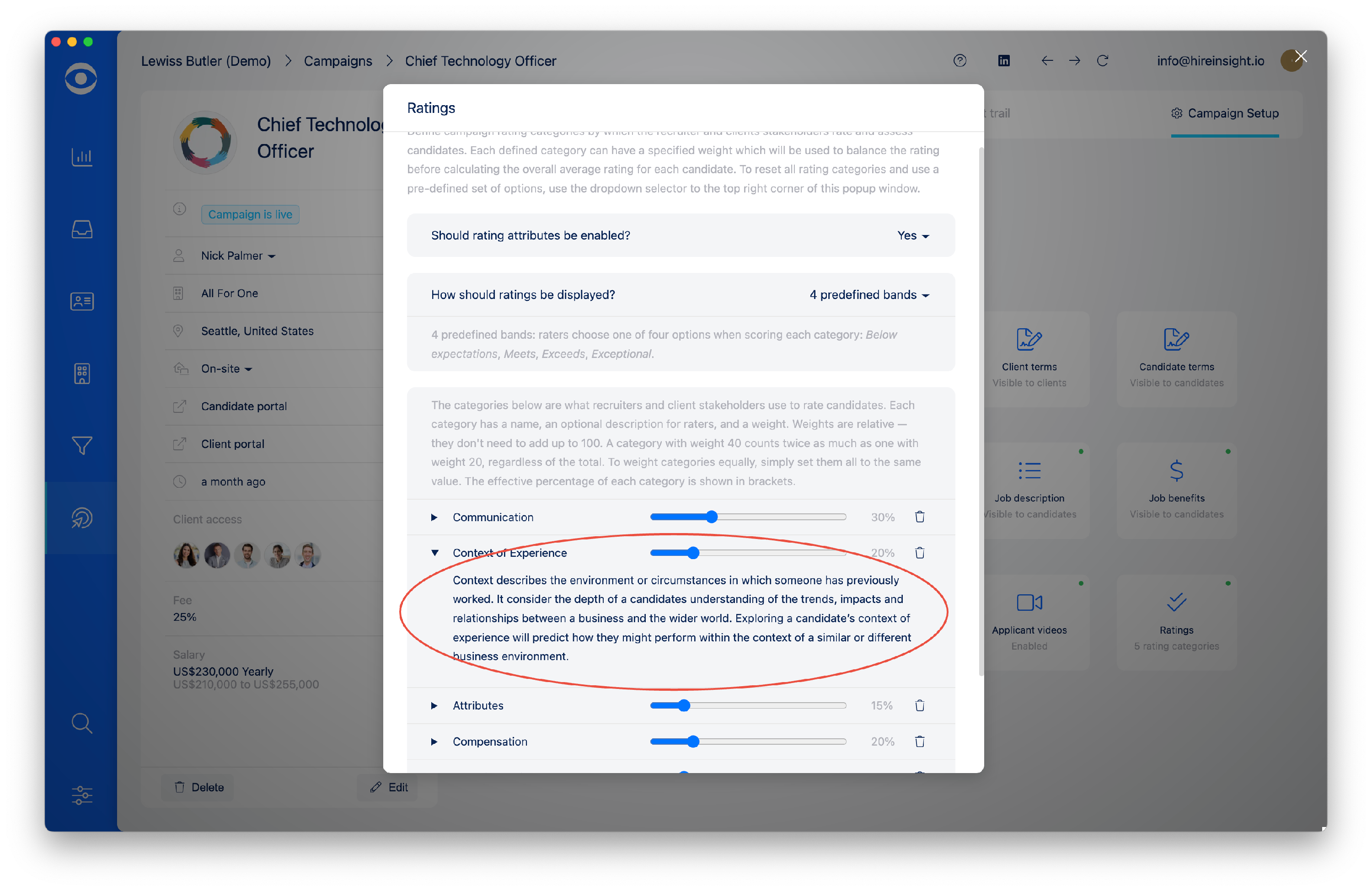
Tip: Attribute descriptions are tailored to each Campaign
Add a description detailing how the attribute is intended to be assessed; the Client will read this description for guidance when rating a Candidate.
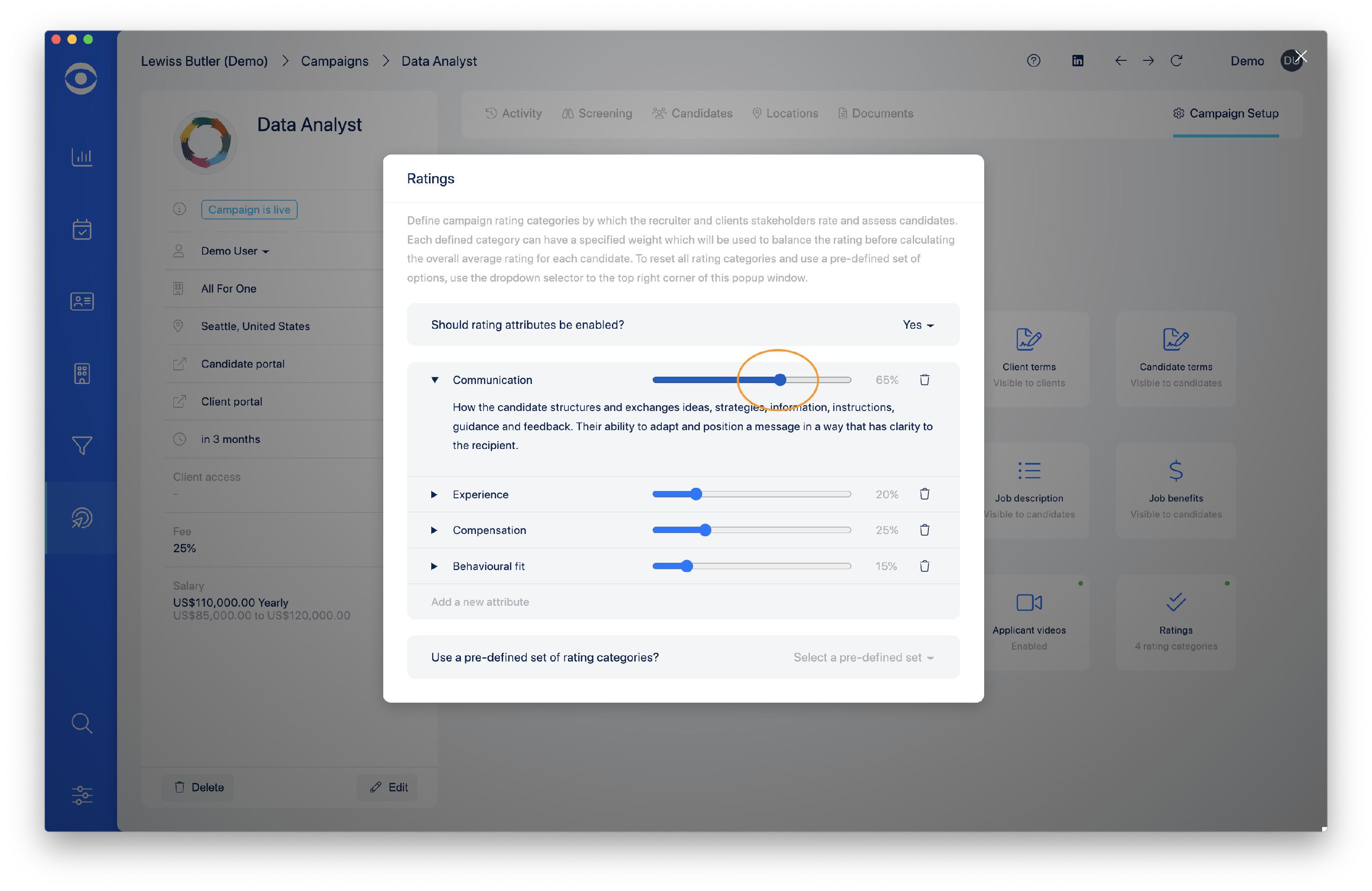
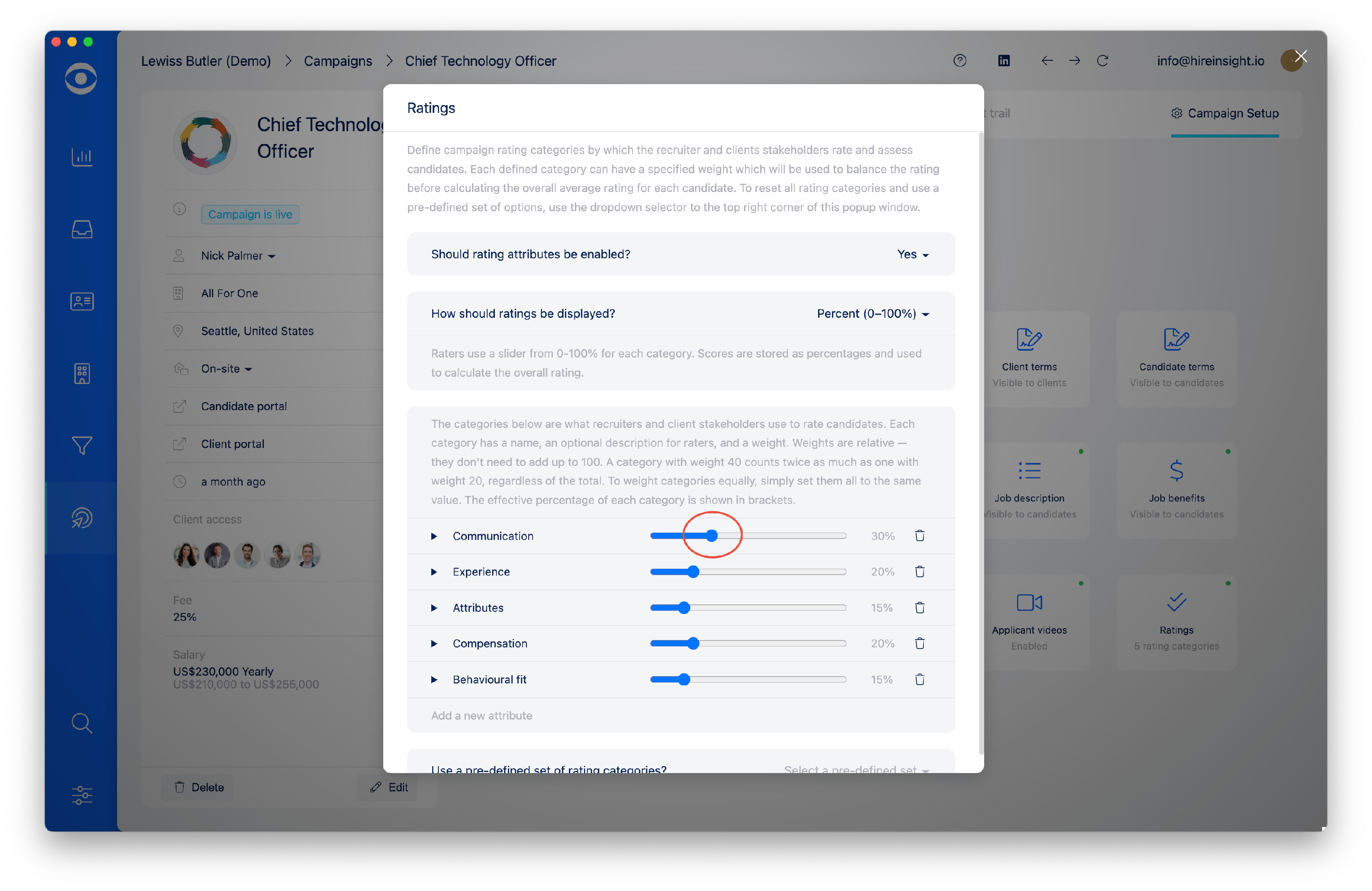
Use the blue slider bar to set the % weighting of the attribute.
The description and weighting % will automatically save.
Tip: The % weighting for attributes is determined by discussion with the client. The total rating applied to each candidate will be a calibration of the individual stakeholder ratings against the weighting.
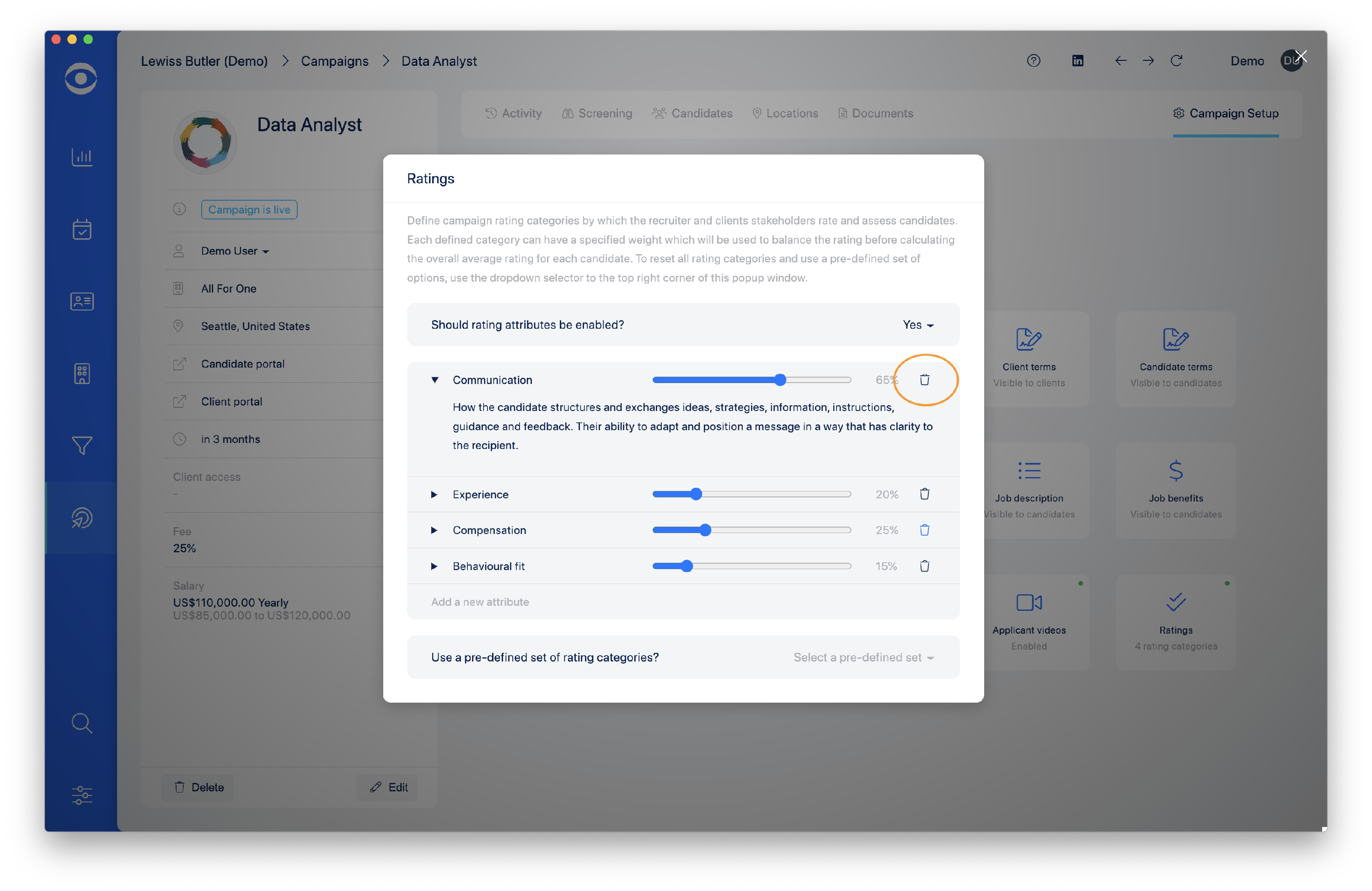
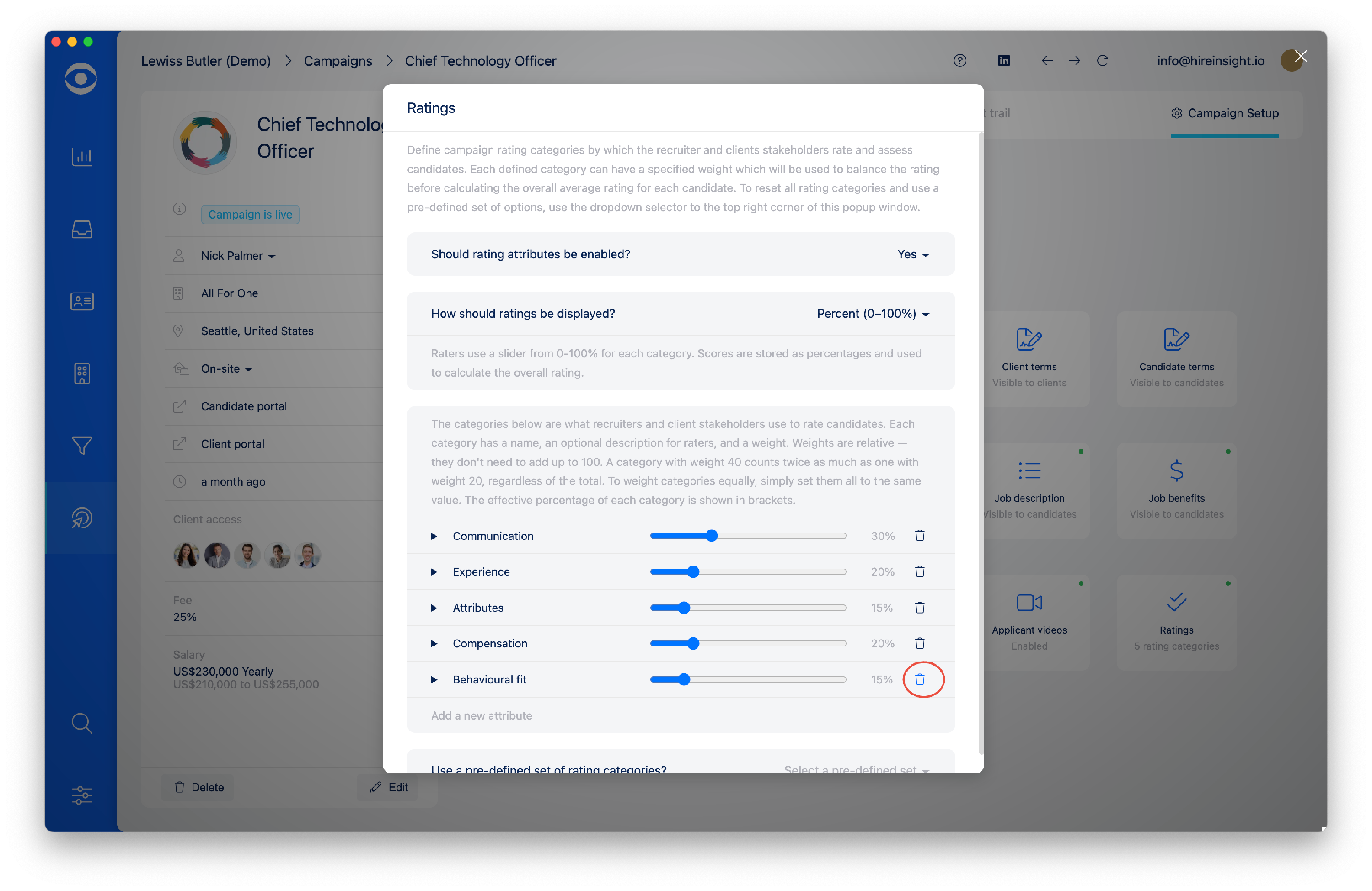
To delete an attribute click on the Trash symbol to the righthand side and the attribute will be removed and not be visible in the Client Portal.
To add a new attribute, click on the greyed out text and type in the attribute. Use the blue slider bar to set the % weighting and click the + button.
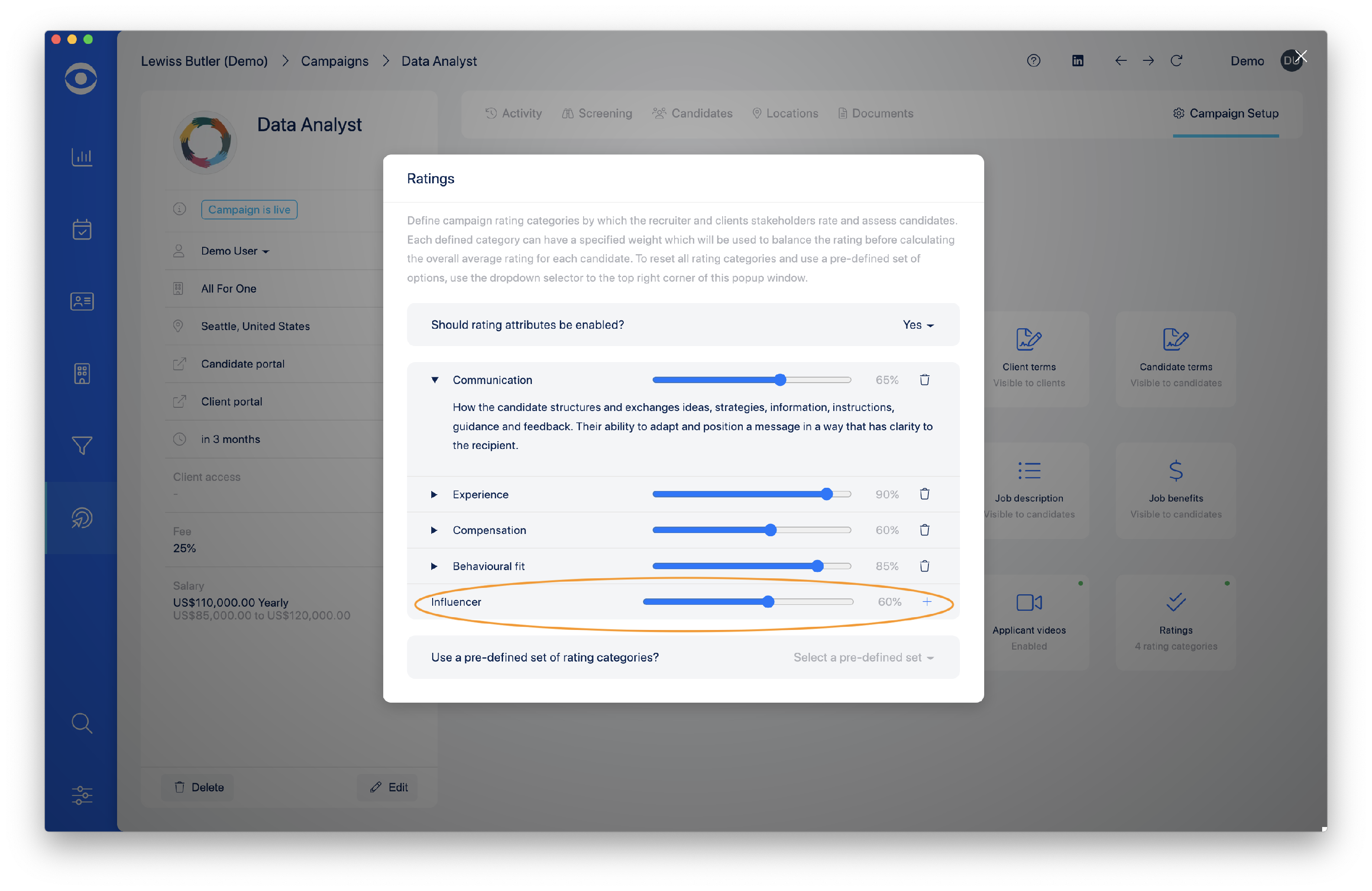
Use the dropdown arrow to the left of the attribute to open the description section and add a description for the new attribute.
The weighting % will automatically save.
The Ratings Tool in the Client Portal will now reflect the information you have entered into the Ratings set up area in the Hire Insight App.
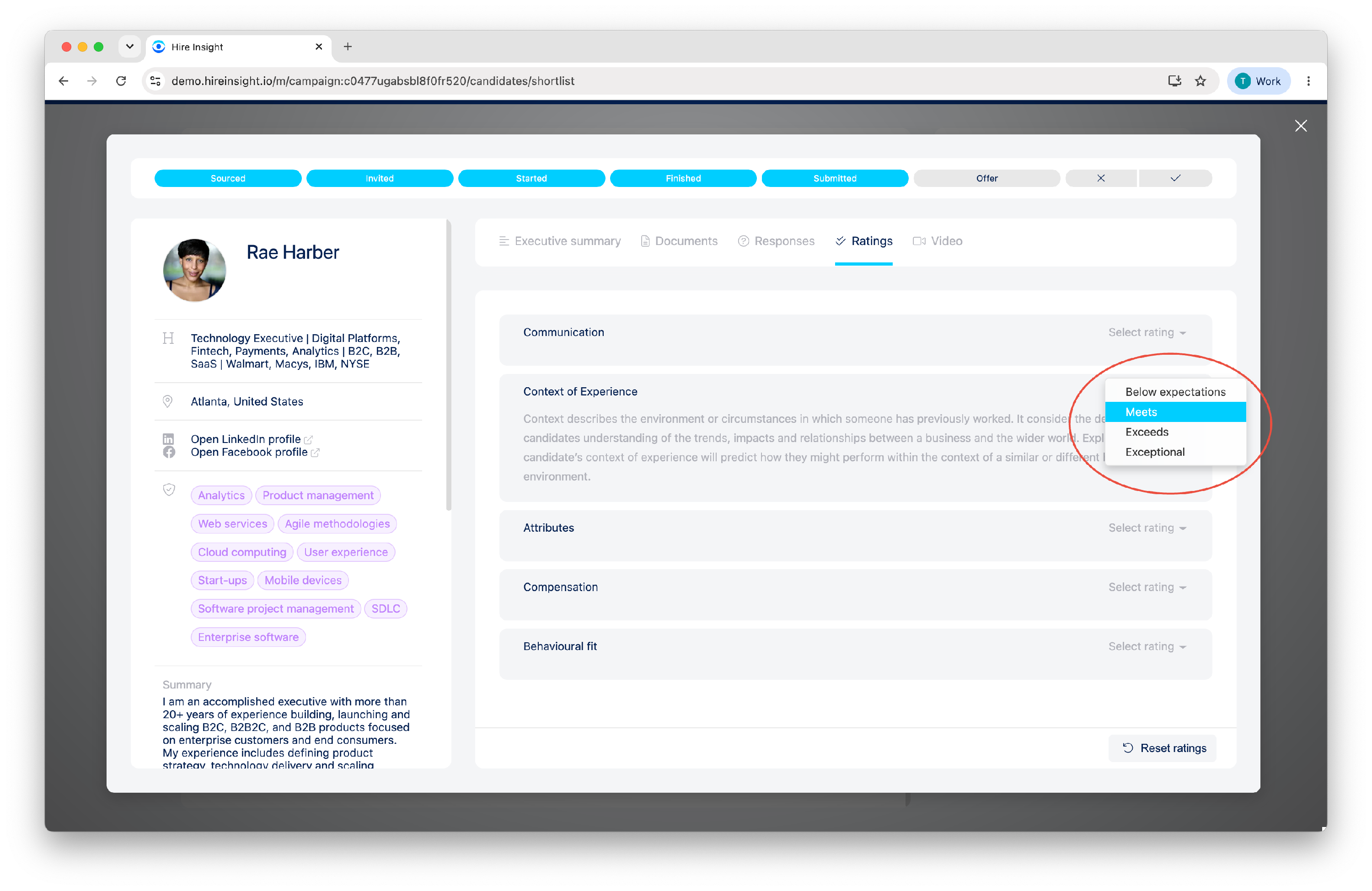
The Client can rate the Candidate against each attribute.
When the Ratings Tool has been set up as Pre-defined categories, the Client will use the drop down arrow to select the Rating.
-
Percentage Candidate Ratings
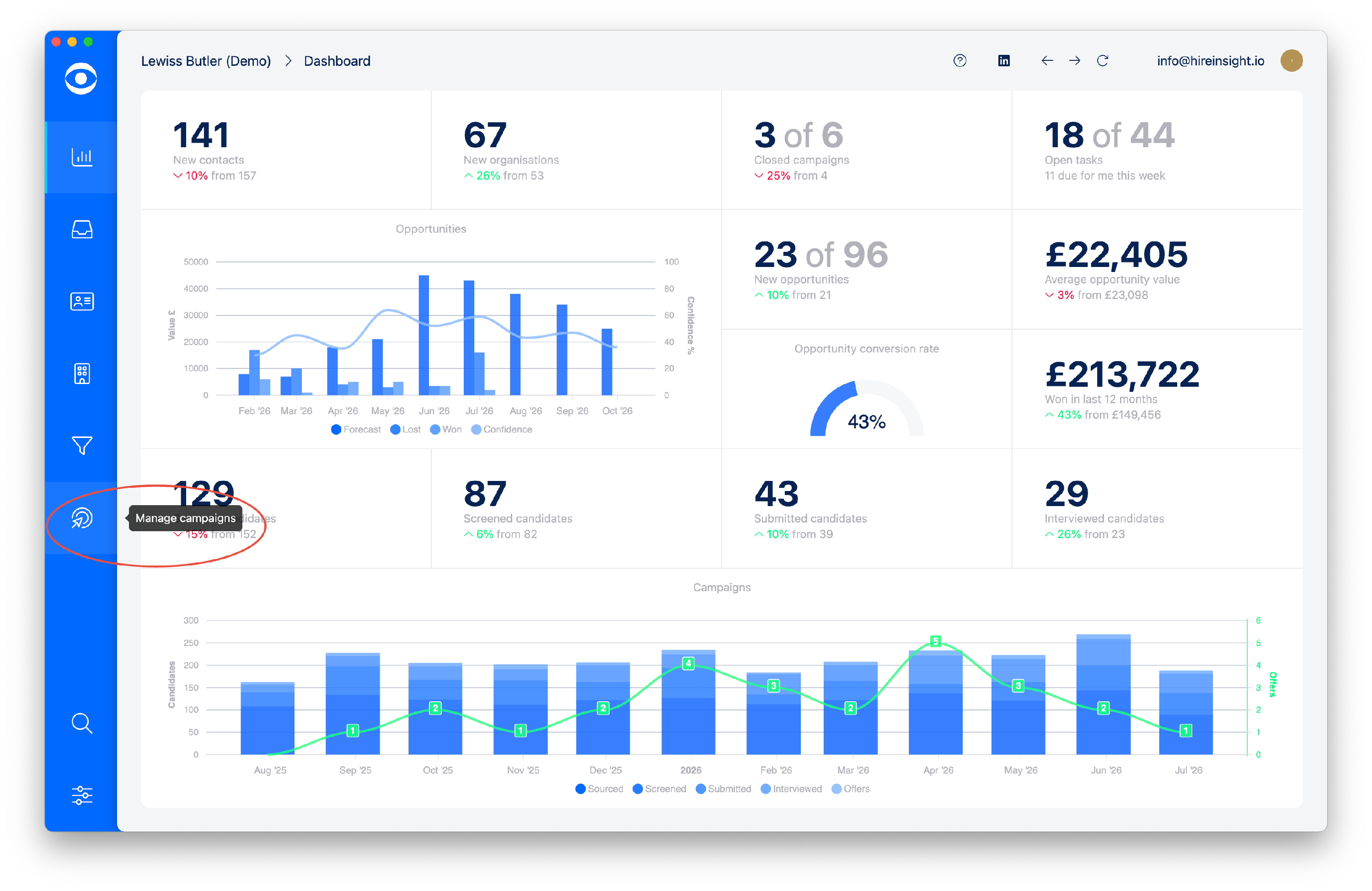
Select Manage campaigns from the lefthand toolbar.
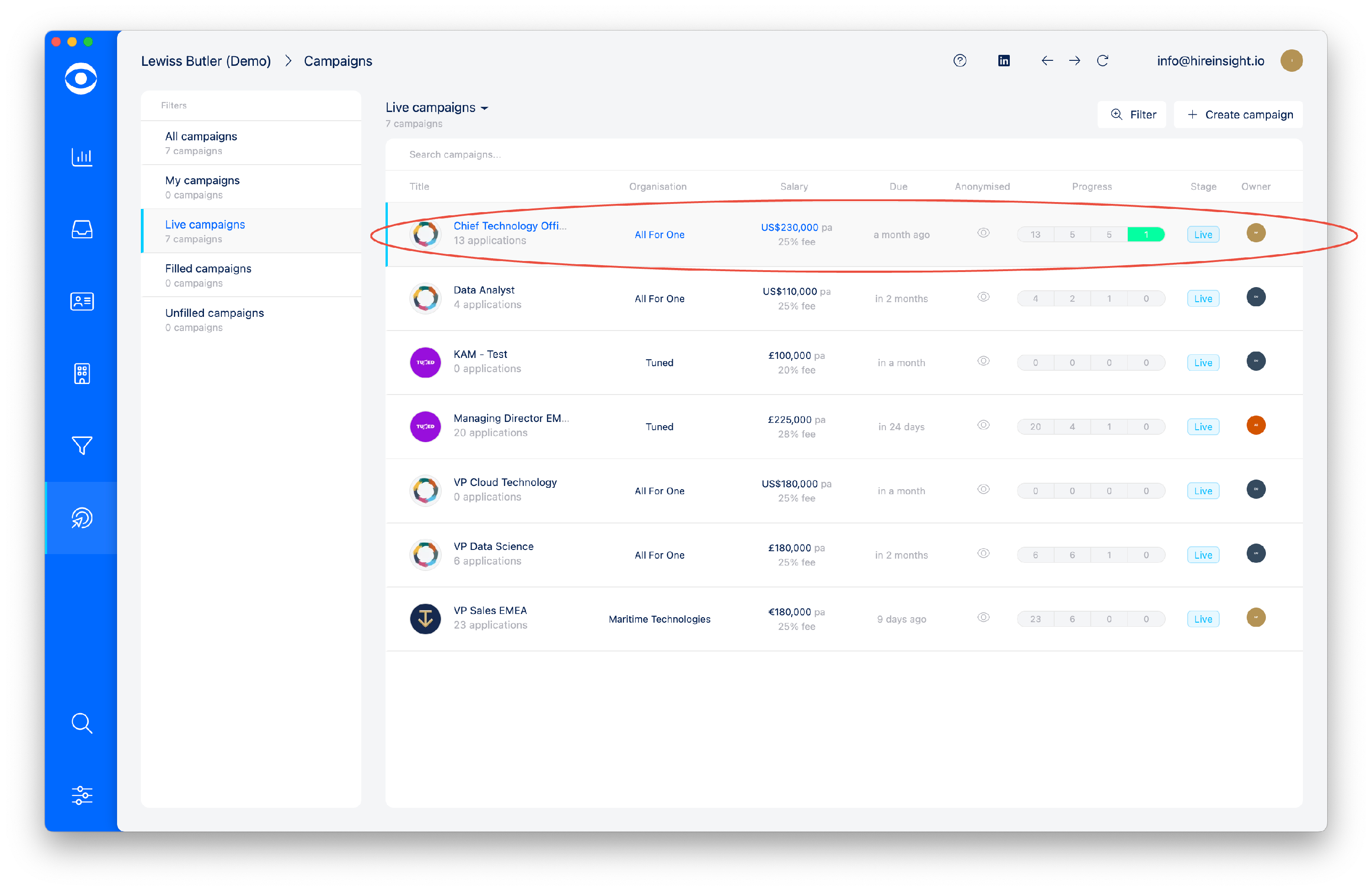
Select the Campaign for which you want to set up the Candidate Ratings tool.
Click on Campaign setup in the top right of the screen to open the Campaign Settings page.
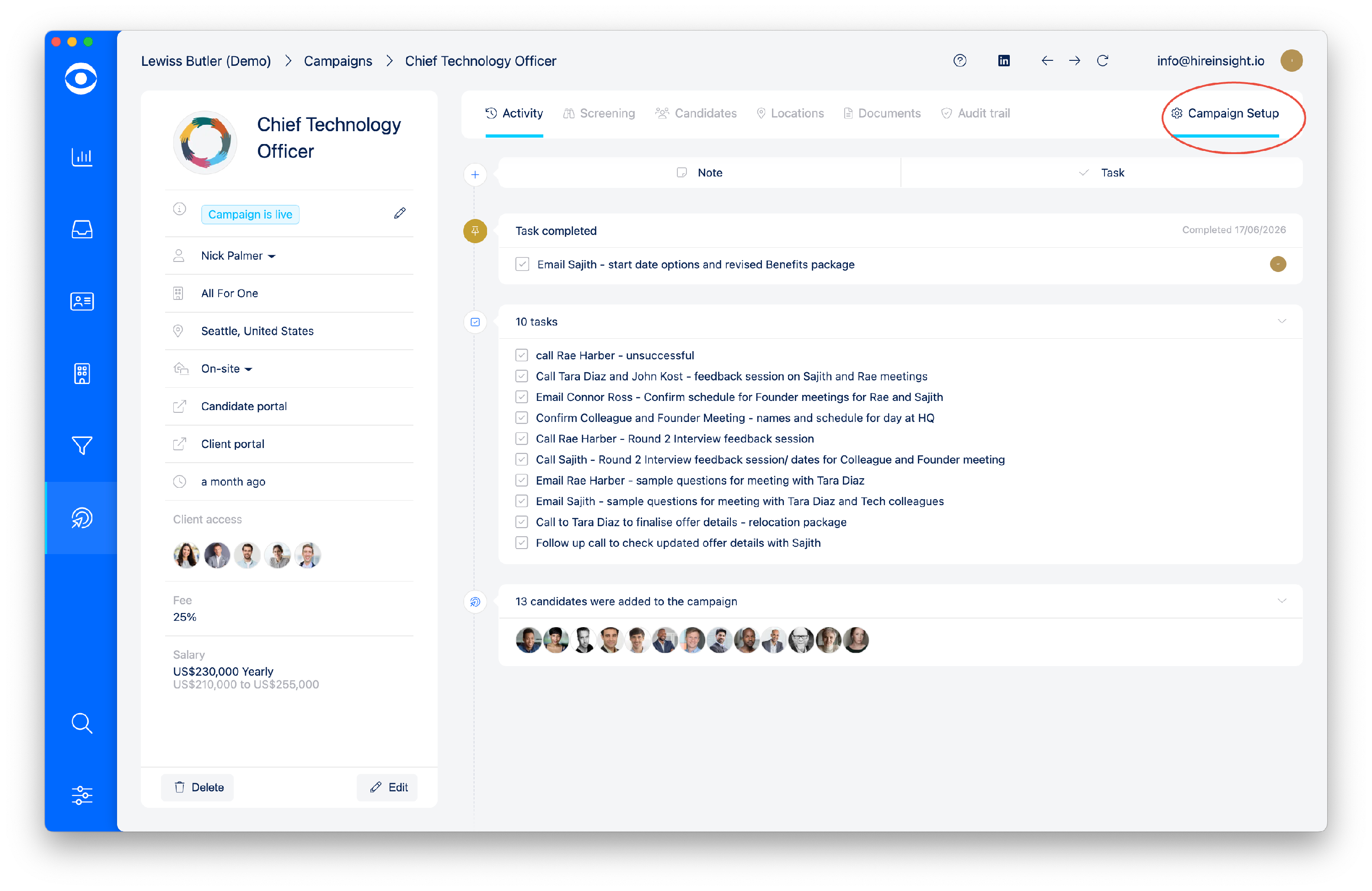
In the Screening Tools tiles select Ratings.
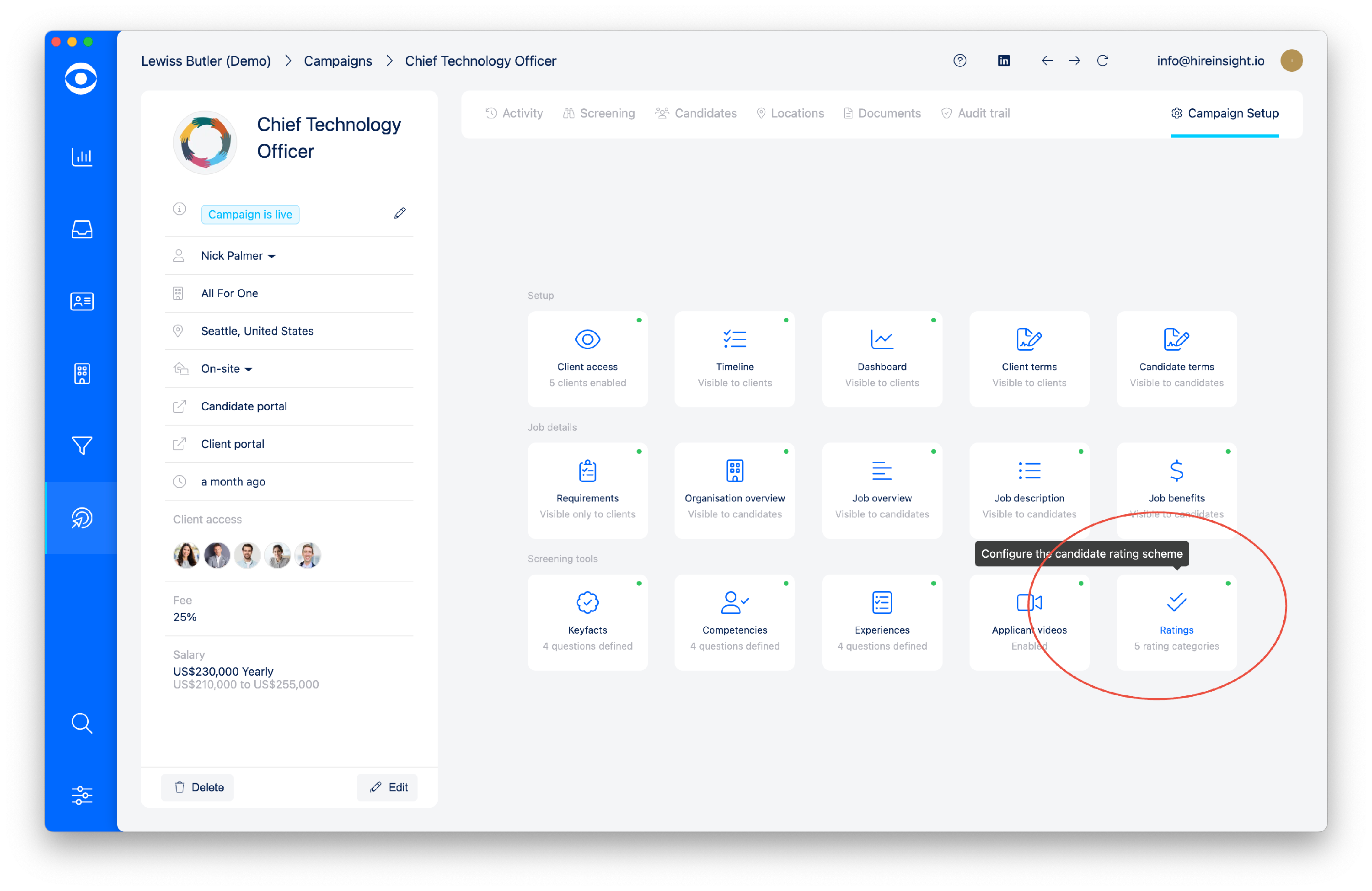
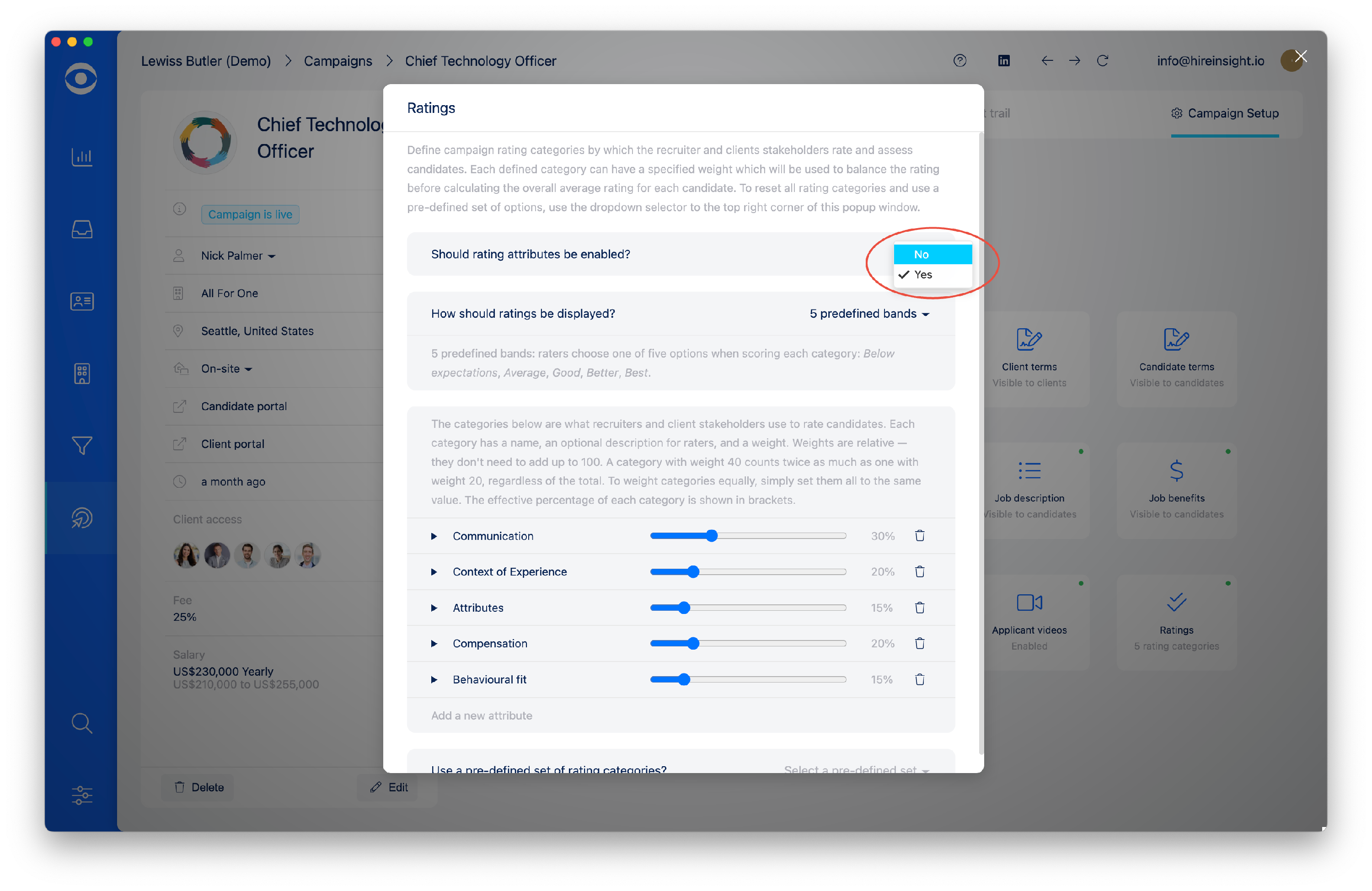
In the Ratings Popup window the first option is whether to enable ratings attributes.
Select Yes if you want to utilise the Ratings tool for your Campaign
Select No if you do not want to use the Ratings tool in a particular Campaign.
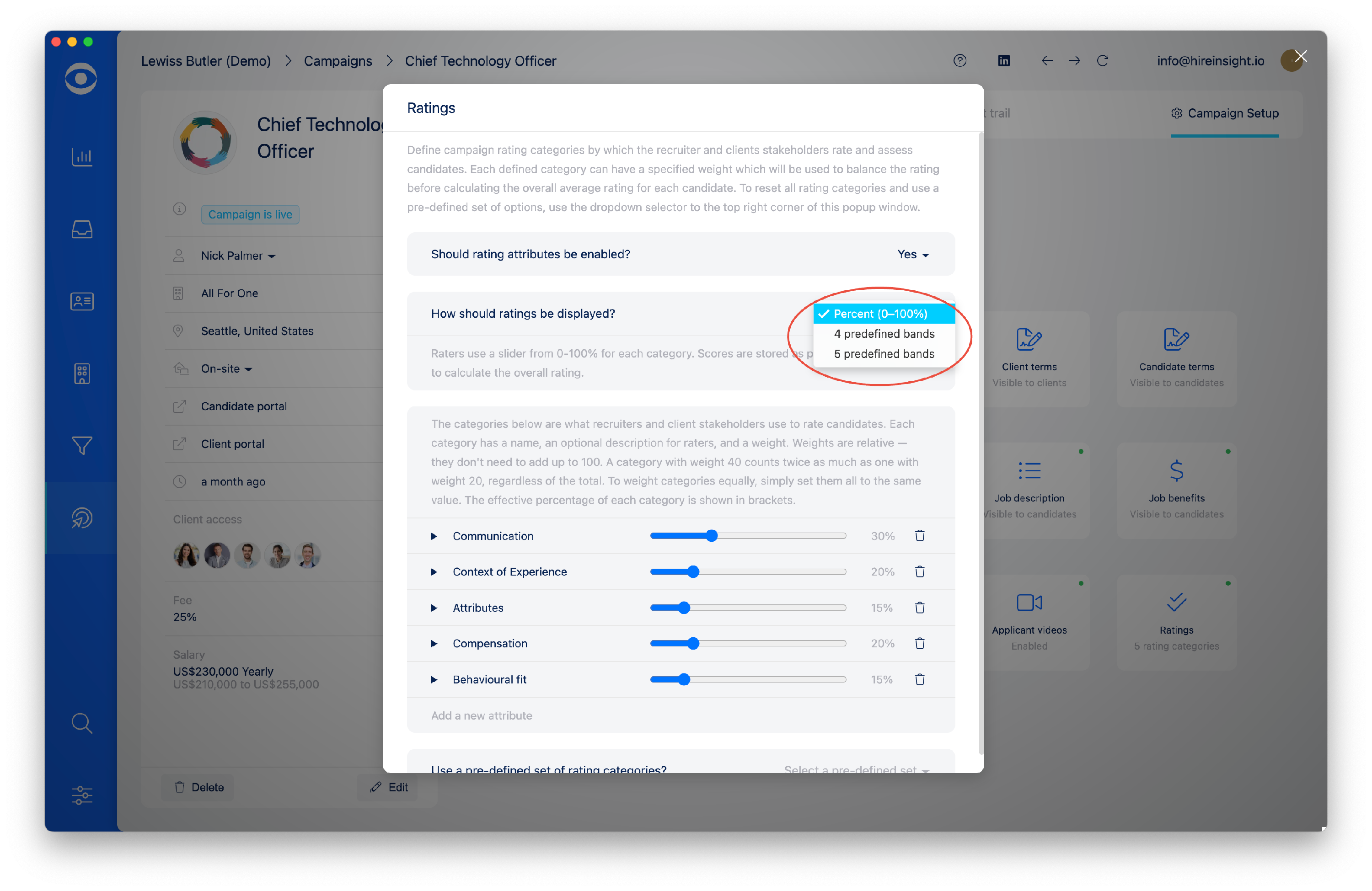
The next option is to select how ratings should be displayed.
There are three options for the ratings display:
Percent (0-100%) - Raters use a slider from 0-100% for each category. Scores are stored as percentages and used to calculate the overall rating.
4 Predefined bands - Raters choose one of four options when scoring each category: Below expectations, Meets, Exceeds, Exceptional.
5 Predefined bands - Raters choose one of five options when scoring each category: Below expectations, Average, Good, Better, Best.
There are 3 options of Pre-defined rating categories, these are accessed at the bottom of the popup window:
Populate with basic options
Communication
Experience
Compensation
Behavioural fit
Populate with general options
Communication
Experience
Attributes
Compensation
Behavioural fit
Populate with advanced options
Communication
Experience
Attributes
Compensation
Cultural fit
Behavioural fit
Attributes
Impact factor
To select a Pre-defined rating category select from the drop down menu.
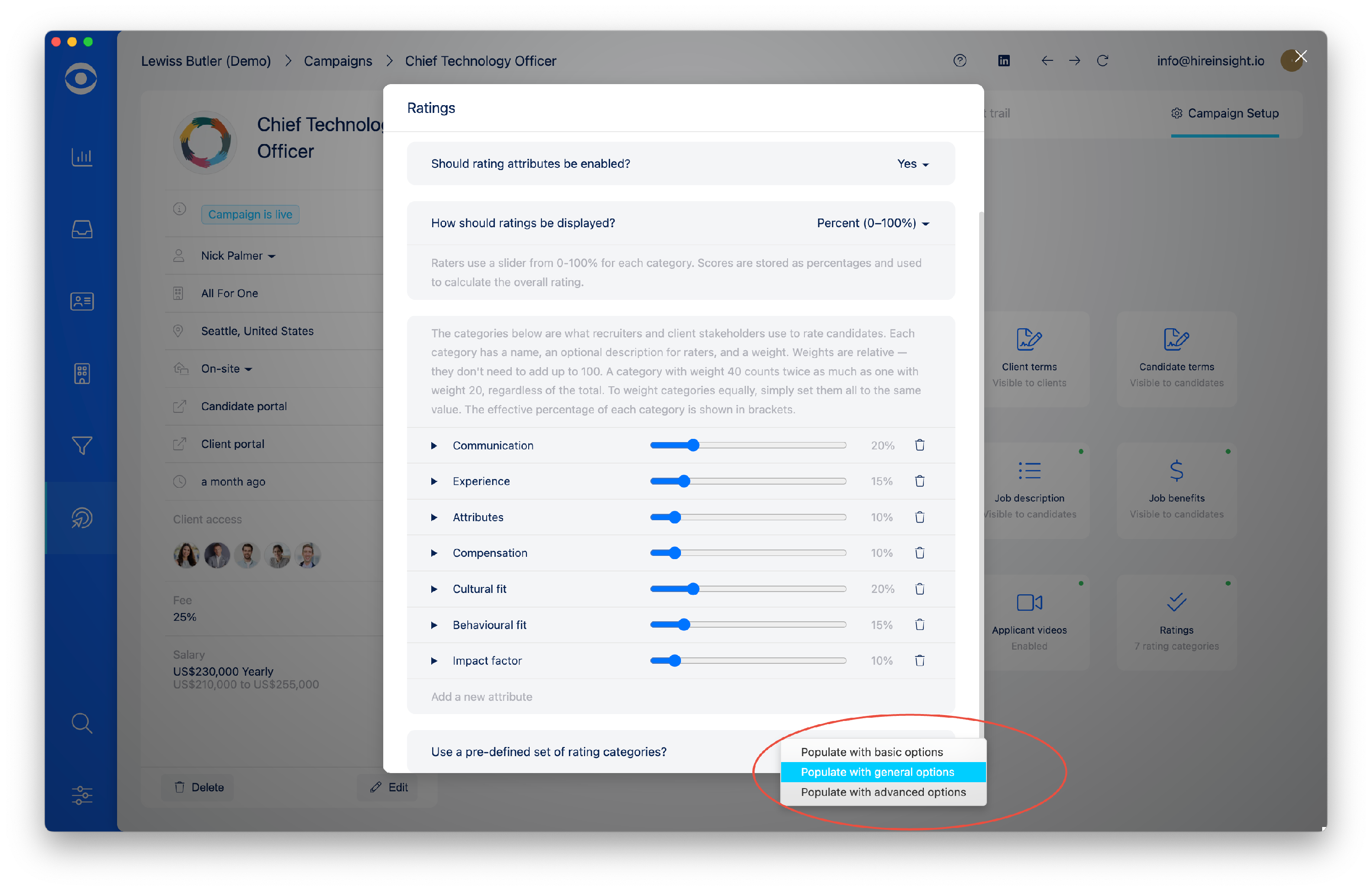
The selected attributes will load automatically.
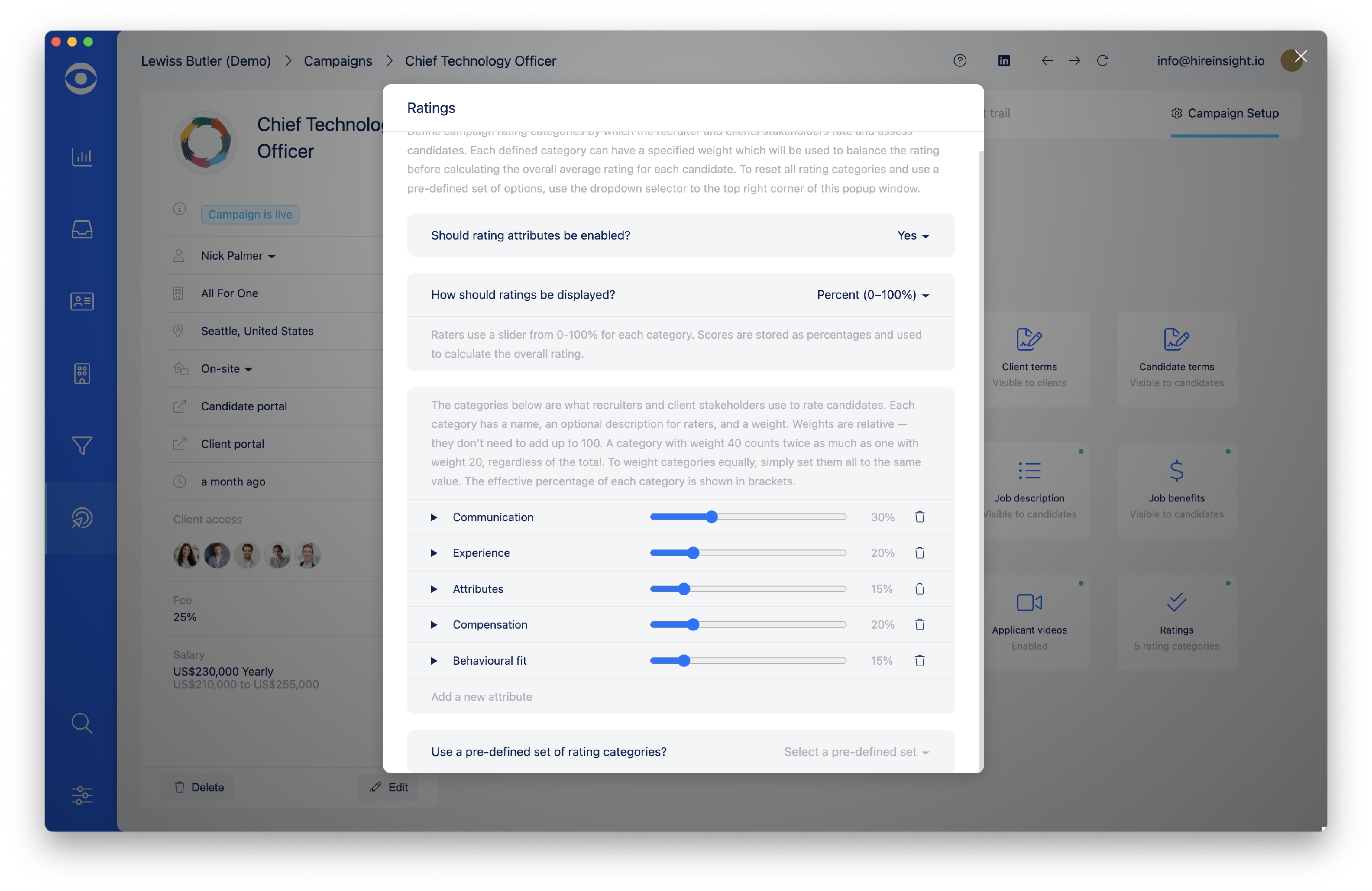
For each attribute, use the dropdown arrow to the left of the attribute to open the greyed out description text.
Tip: Attribute descriptions are tailored to each Campaign
Add a description detailing how the attribute is intended to be assessed; the Client will read this description for guidance when rating a Candidate.
Use the blue slider bar to set the % weighting of the attribute.
The description and weighting % will automatically save.
Tip: The % weighting for attributes is determined by discussion with the client. The total rating applied to each candidate will be a calibration of the individual stakeholder ratings against the weighting.
To delete an attribute click on the Trash symbol to the righthand side and the attribute will be removed and not be visible in the Client Portal.
To add a new attribute, click on the greyed out text and type in the attribute. Use the blue slider bar to set the % weighting and click the + button.
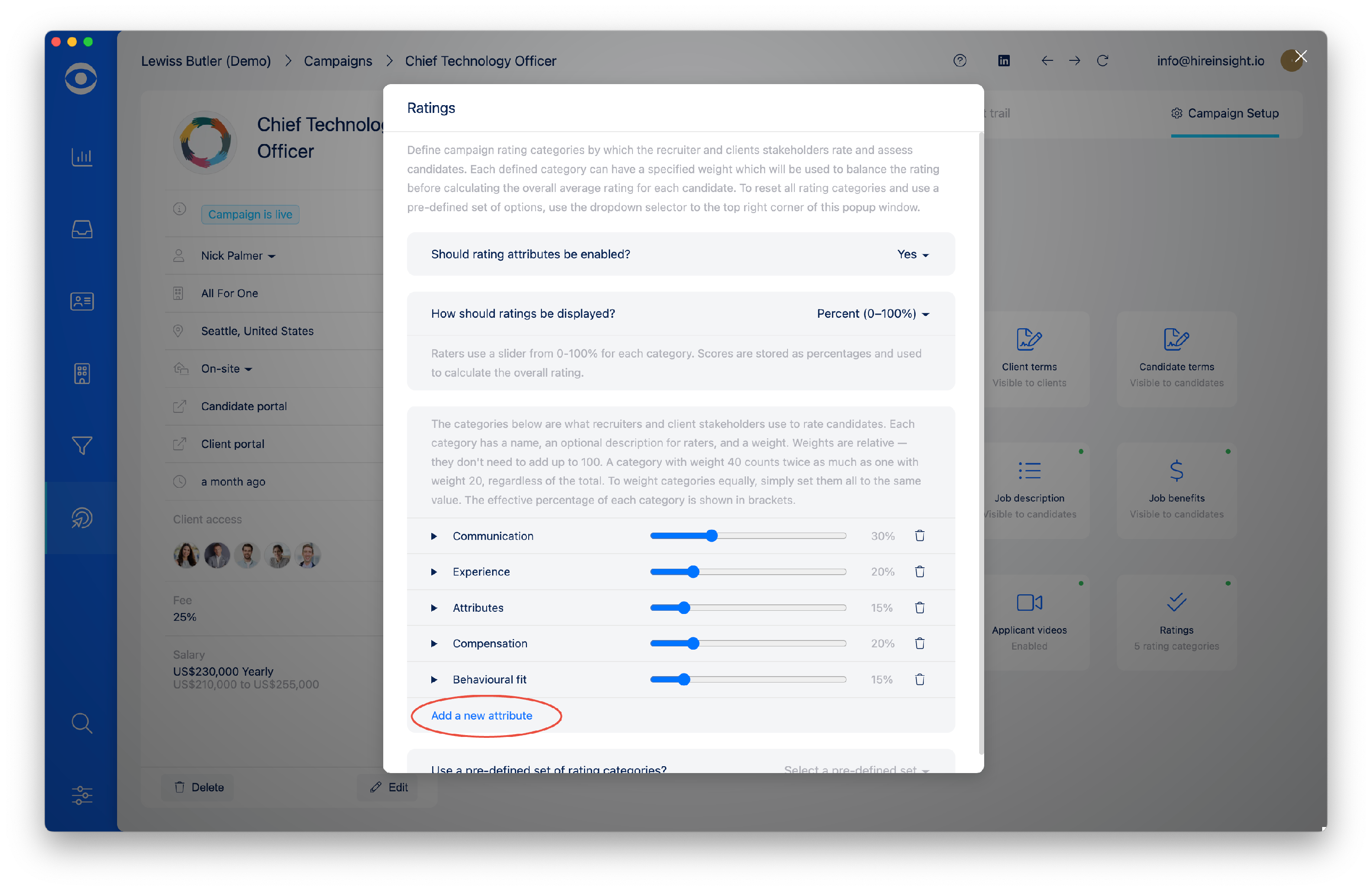
Use the dropdown arrow to the left of the attribute to open the description section and add a description for the new attribute.
The weighting % will automatically save.
The Ratings Tool in the Client Portal will now reflect the information you have entered into the Ratings set up area in the Hire Insight App.
The Client can rate the Candidate against each attribute.
When the Ratings Tool has been set up as Percentages, the Client will use the blue slider to select the preferred rating.
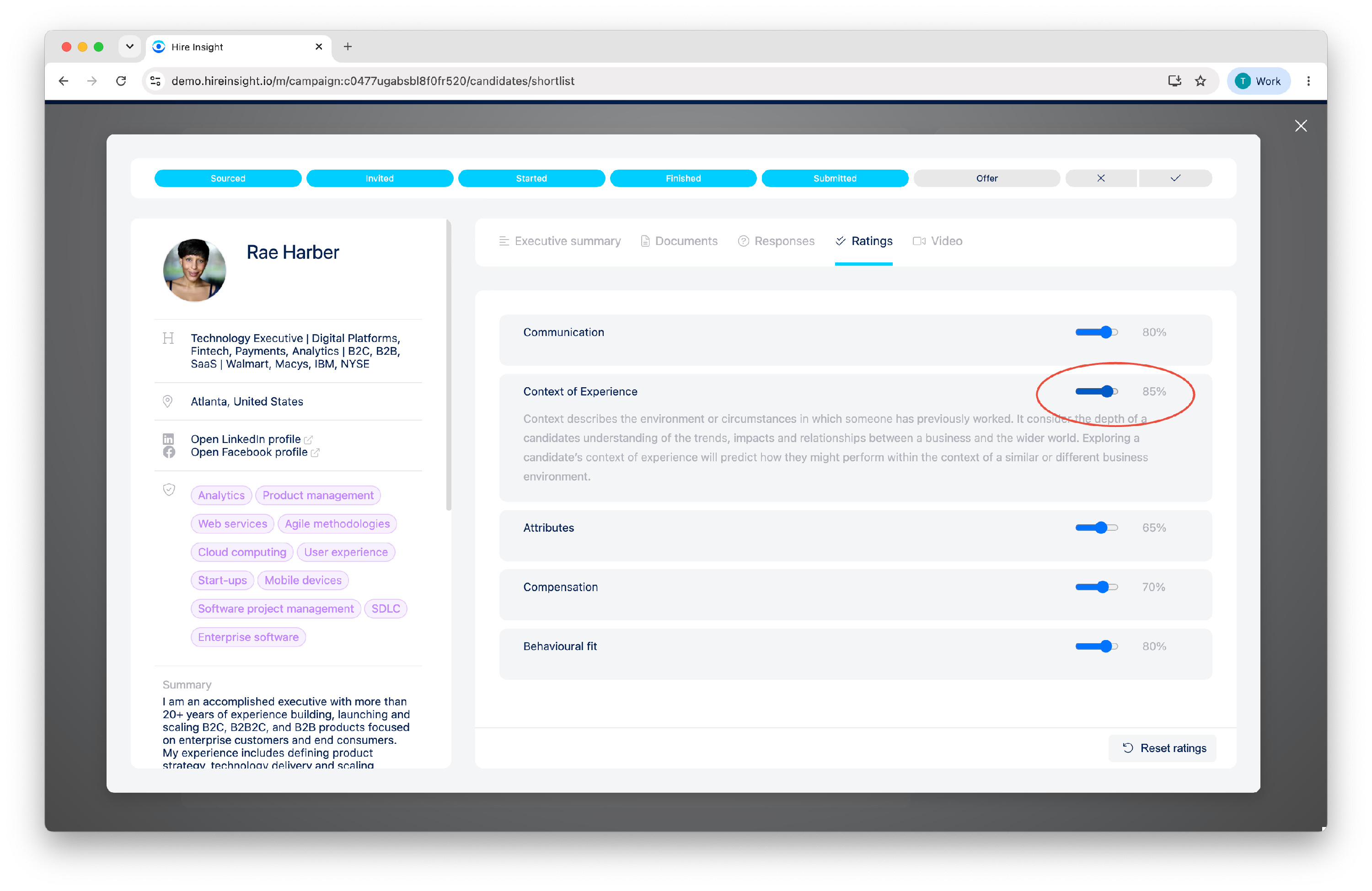
Tip: The Client ratings for the Candidate are private and not visible to other stakeholders.
The recruiter will be able to see the individual Client ratings and uses this information for the Calibration meeting
The Client Portal will show the summary for the Candidate's ratings on the Candidate page.
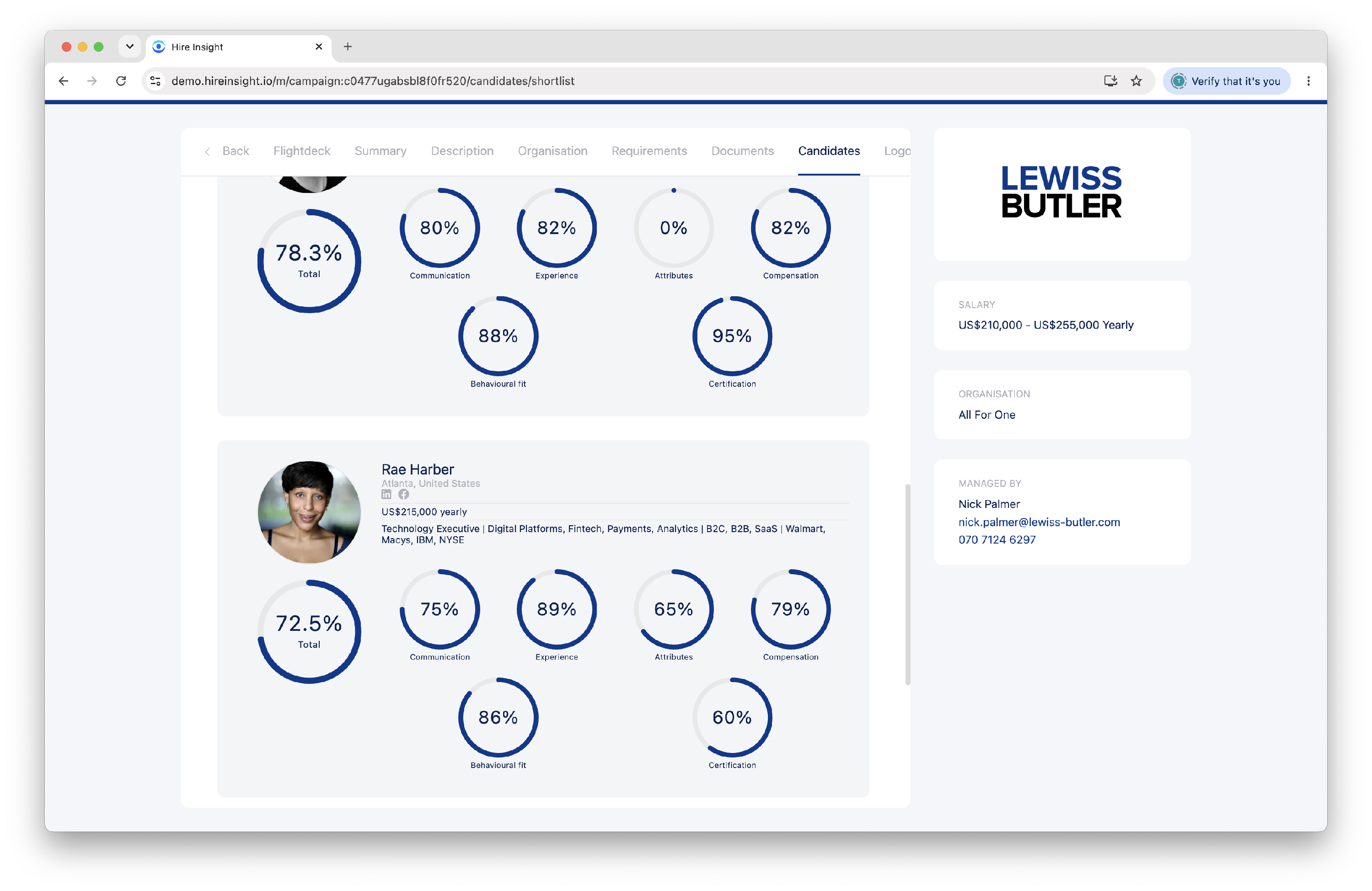
Within the Hire Insight Desktop App the Recruiter will have visibility of all the Clients ratings for the Candidate.
The Recruiter can also use the blue slider bar to add their own ratings for the Candidate.