
I can't see the Salary Information on the Compensation Chart
CONTENTS:
To view the compensation chart for candidate's in a specific campaign. First, select the Campaign.

On the Campaign page, in the lefthand windowpane, click on the Client portal button.

Scroll down the Client portal Flightdeck to view the Compensation chart. Hovering the mouse over the chart shows the target salary by individual candidate.
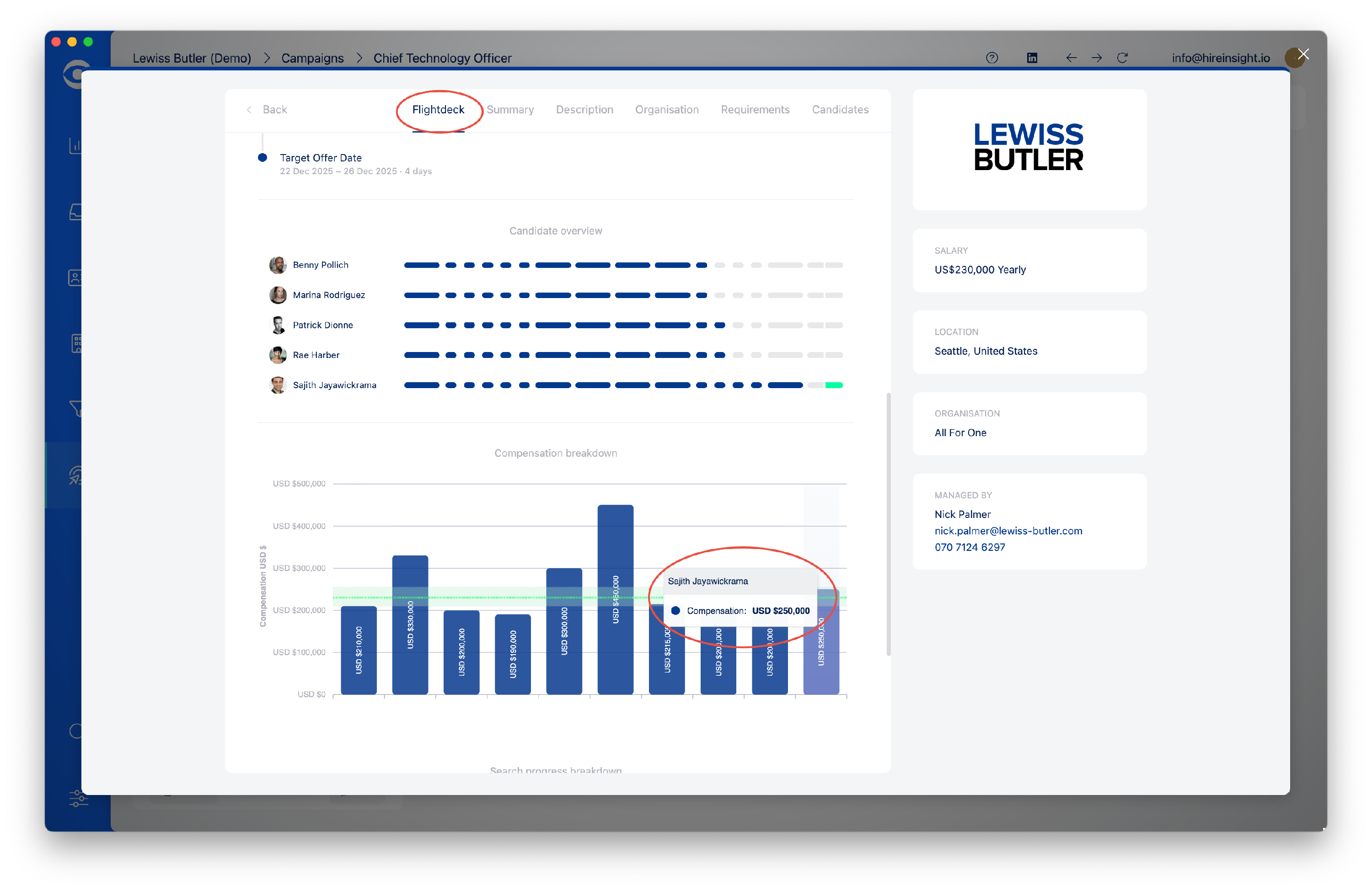
There are three reasons why a Candidate doesn't show in the Compensation chart.
1. CAMPAIGN SET UP IS INCORRECT
Navigate to Campaign Setup using the button at the top right of the Campaign page.

From the Setup options, select the Dashboard.

Select the Timeline tab and select Yes for the answer to Should the project timeline be visible to clients?

2. CANDIDATE NOT ADDED TO CAMPAIGN
In the Campaign page, select the Candidates tab to show all Candidates added to the Campaign.
If a Candidate is not showing on this selection they will not show in the Compensation Chart in the Client portal.

3. CANDIDATE SALARY INFORMATION IS BLANK
There are two options for salary information entered for the candidate:
Current Salary - for certain markets eg. USA, this will be left blank
Target Salary - the amount entered here is the figure which will show in the Compensation Chart in the Client portal.
Ensure the Target Salary information is completed.
