
How to Change the Agency logo on your Portal
Tip: For the best results and sharpest version of your Agency logo, use a .SVG file in landscape format.
.JPEG and .PNG files cam also be used.
The Agency logo in the client and candidate portal can be viewed by logging in to your account portal.
Log in to your portal using the recruiter's account name as a prefix.
[account name]@hireinsight.io
On the home page the Agency logo appears along the top of the lefthand windowpane above the Welcome text.

The Agency logo also shows on the Campaign page.

And, the Agency logo appears on the login page for your portal.

To edit the Agency logo, navigate to the app and Configure settings.
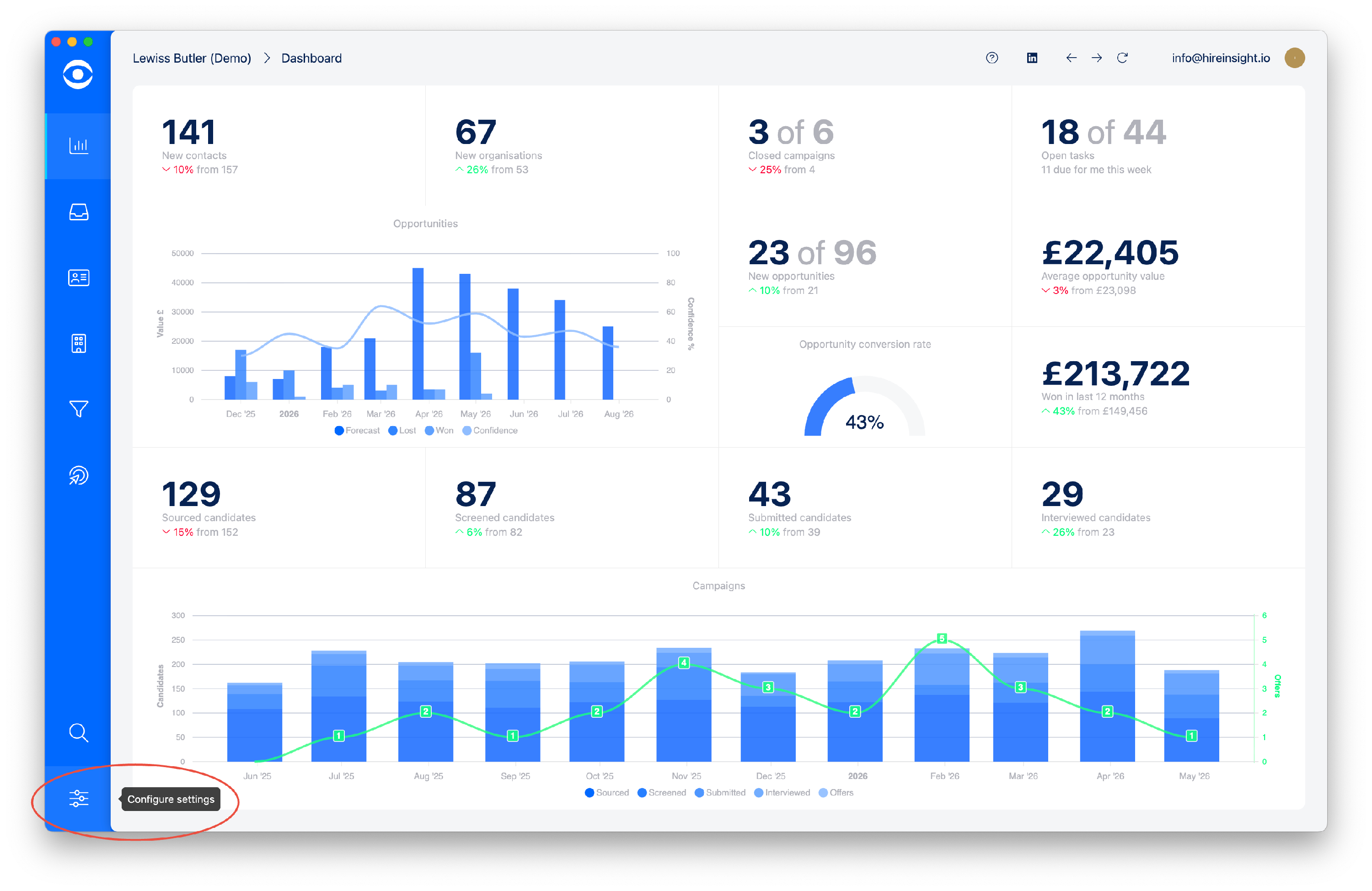
In the Settings window navigate to the Management section and click on the Branding tile.

The Branding window will open and the Agency logo is visible in the Account logo section of the page.

To change the Agency logo, click on the Account logo and a popup window will open enabling access to logo files saved to your computer storage. Select the file required and click on Open. Clicking Back to settings will save the new Agency logo.

The updated Agency logo will now show in the Branding window of Settings.

The Agency logo will update on both client and candidate portals.
