
How to Create Campaign Graphics using Canva
In this guide we will show you some of the techniques we have found useful when creating graphics, there are many more tips and ideas available in the Canva Help Centre
Tip: Campaign content is a vital tool for engaging with the best candidates, it can set you apart from your competitors.
Using Canva.com to create graphics with big visual impact is a great way to maximise the Hire Insight Campaign tools.
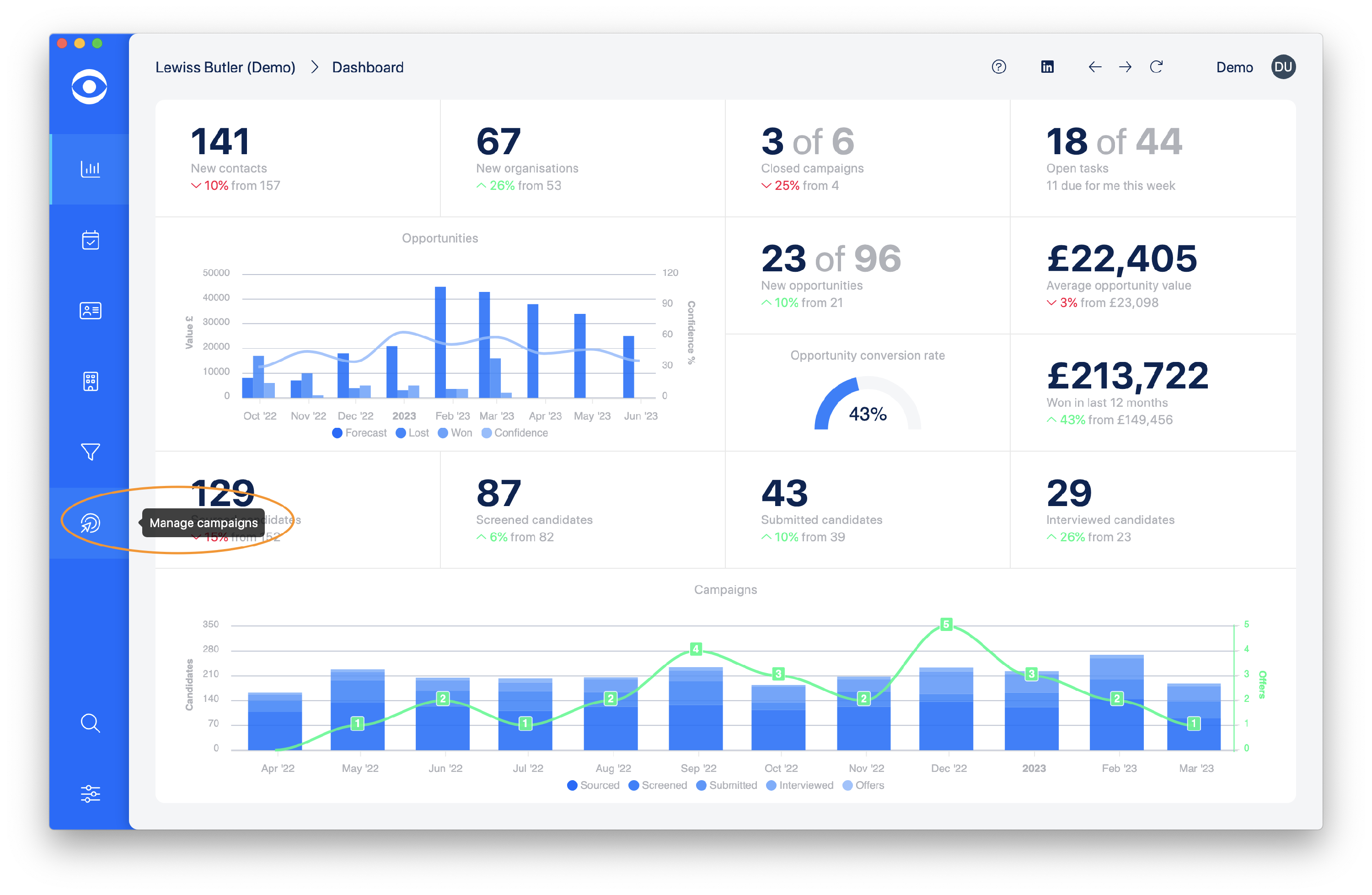
To open the Campaign section, navigate to the Manage campaigns button on the lefthand task bar. Click to open Campaigns.
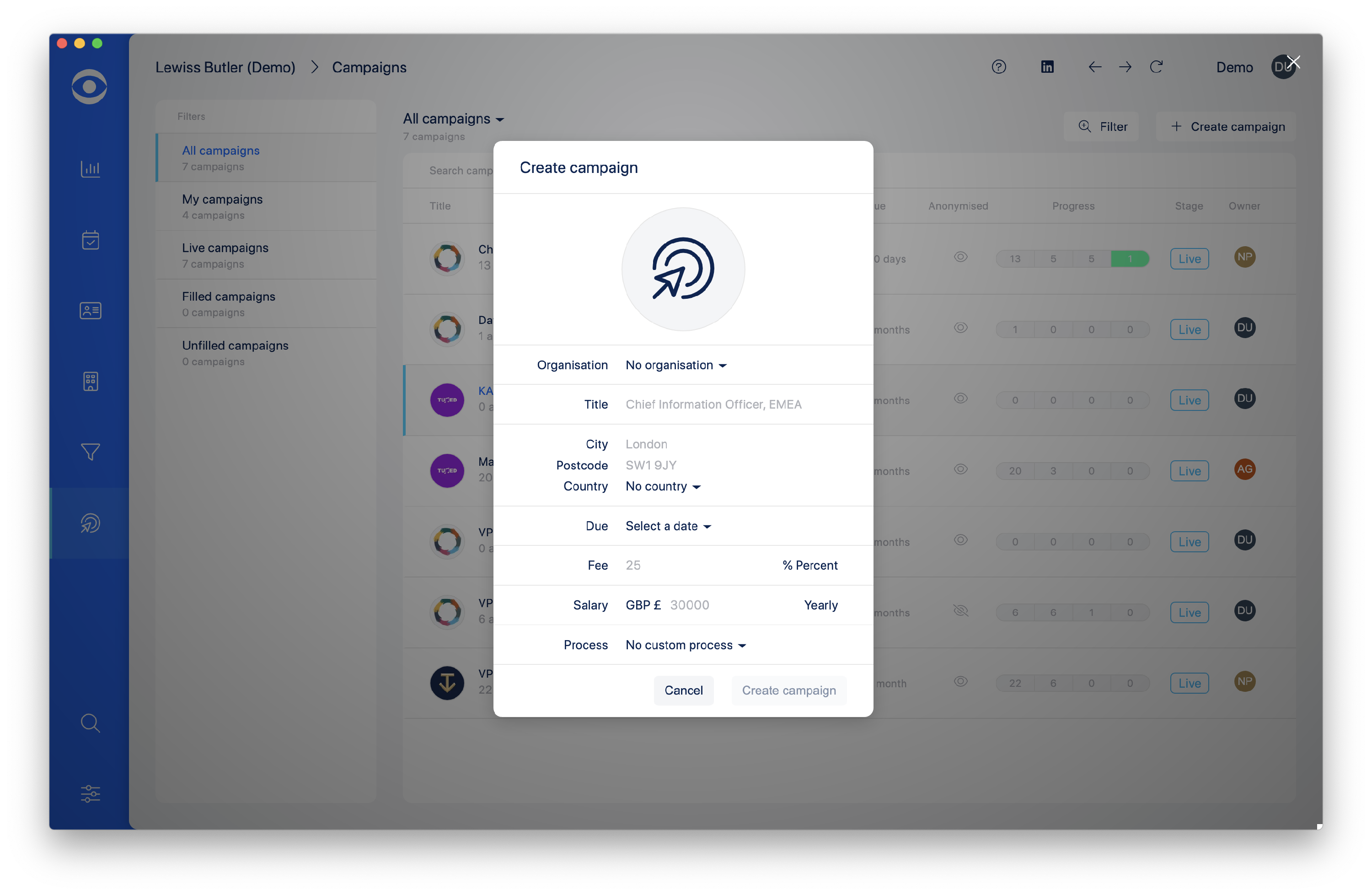
Click the +Create campaign button in the top right of the screen, the Create campaign popup will appear. Fill in the details for your Campaign and click the Create campaign button in the bottom righthand corner of the popup.
Click here to read about Creating a Campaign
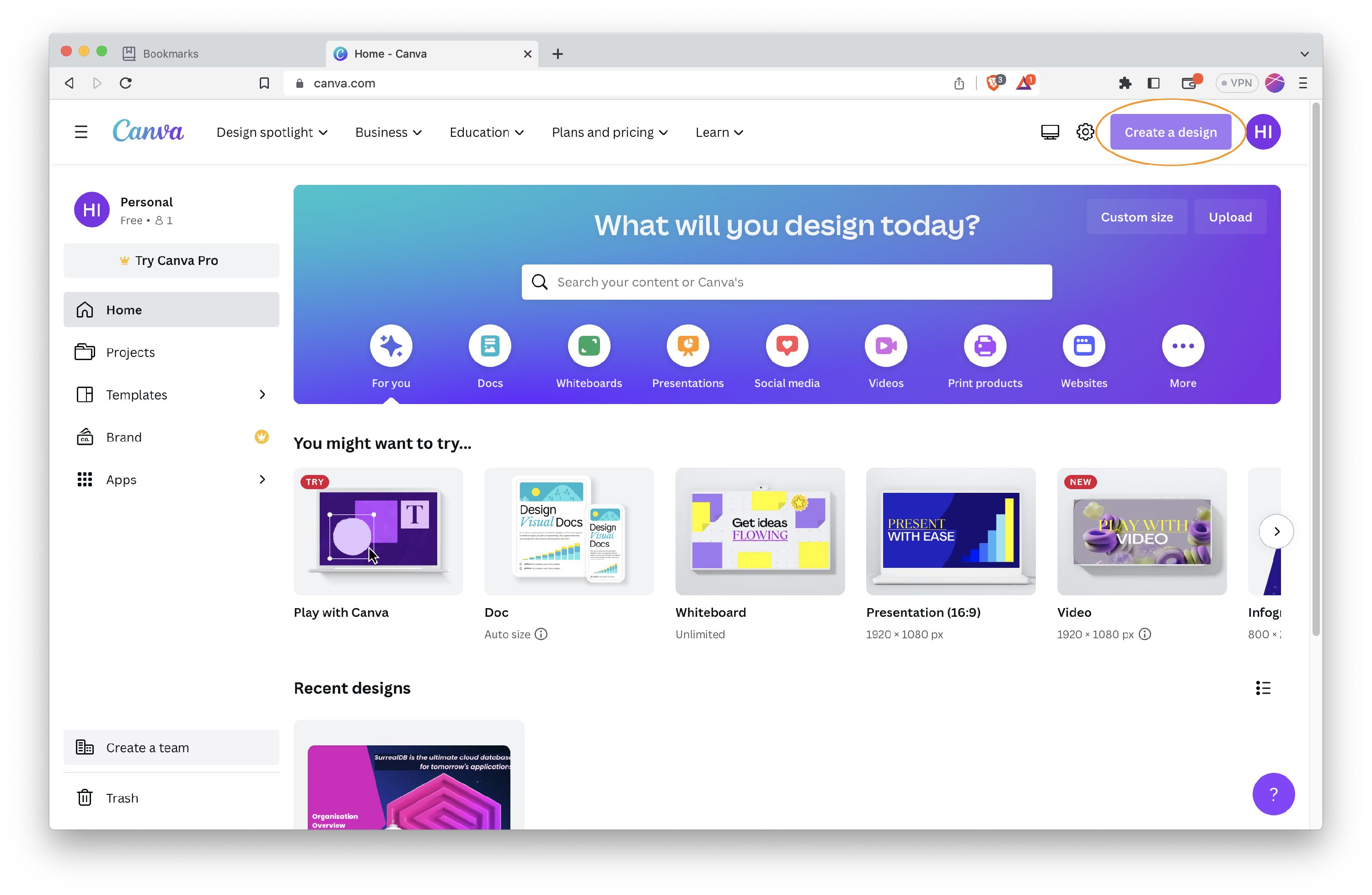
Now you have your Campaign set up in Hire Insight, navigate to Canva.com, or if you already have the desktop Canva app, open the app.
On the Canva home page, navigate to Create a design and click.
In the dropdown menu select Presentation (16:9).
The Presentation design is a preset option and will open automatically as a blank design. First change the title of the design to your Campaign.
Tip: Canva provides many design templates which are shown on the lefthand side of the screen, you'll find some are only available for paid subscriptions, however there are multiple option available for those using a free Canva plan.
For this article we'll choose a preset template to work with, but once you are confident working in Canva, we recommend spending some time to set up your own unique template.
Click on the template which suits your particular Campaign and an overview of the different pages available will be displayed.
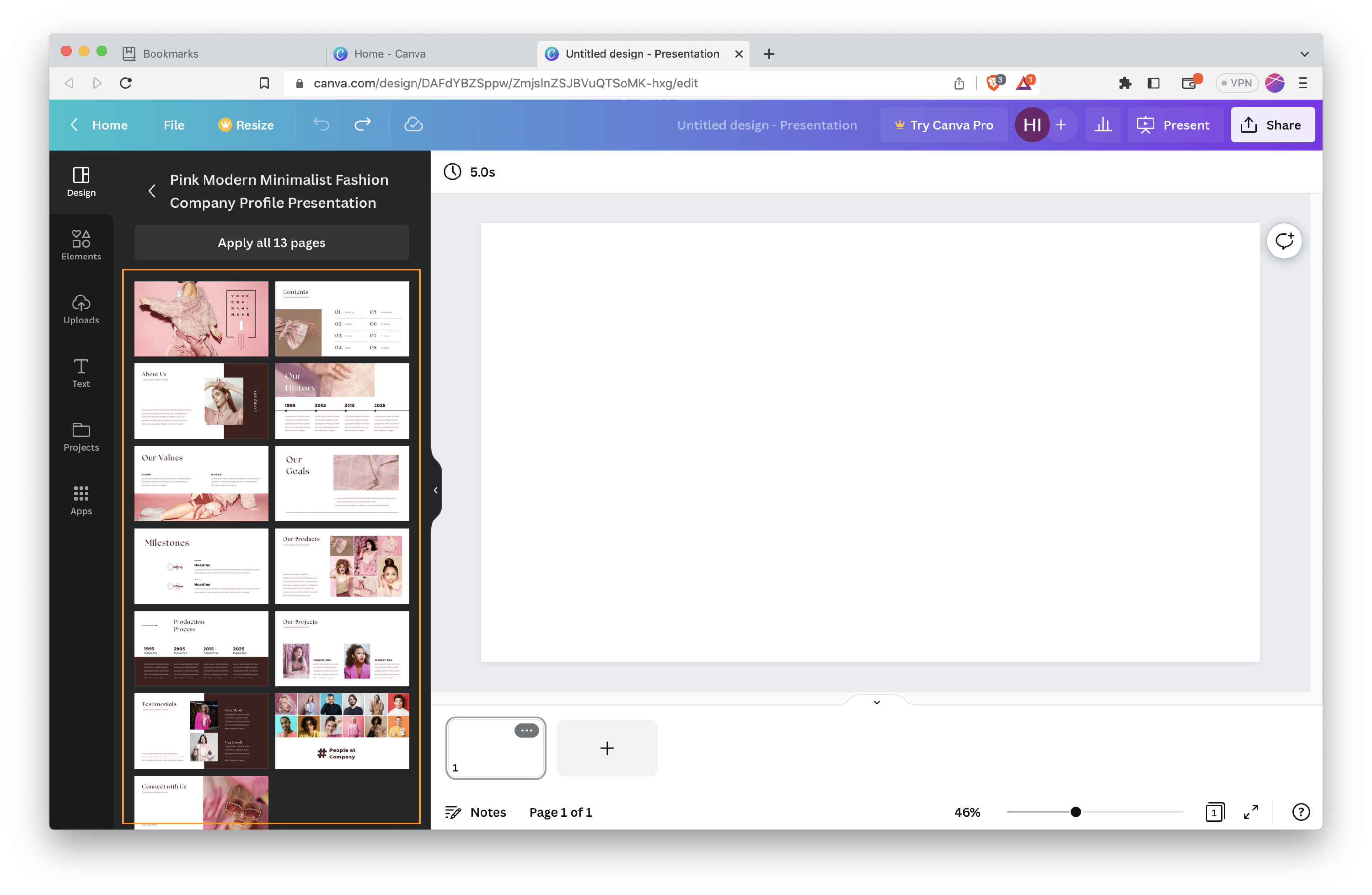
Click on the Title template and this will appear in the blank design ready to edit.
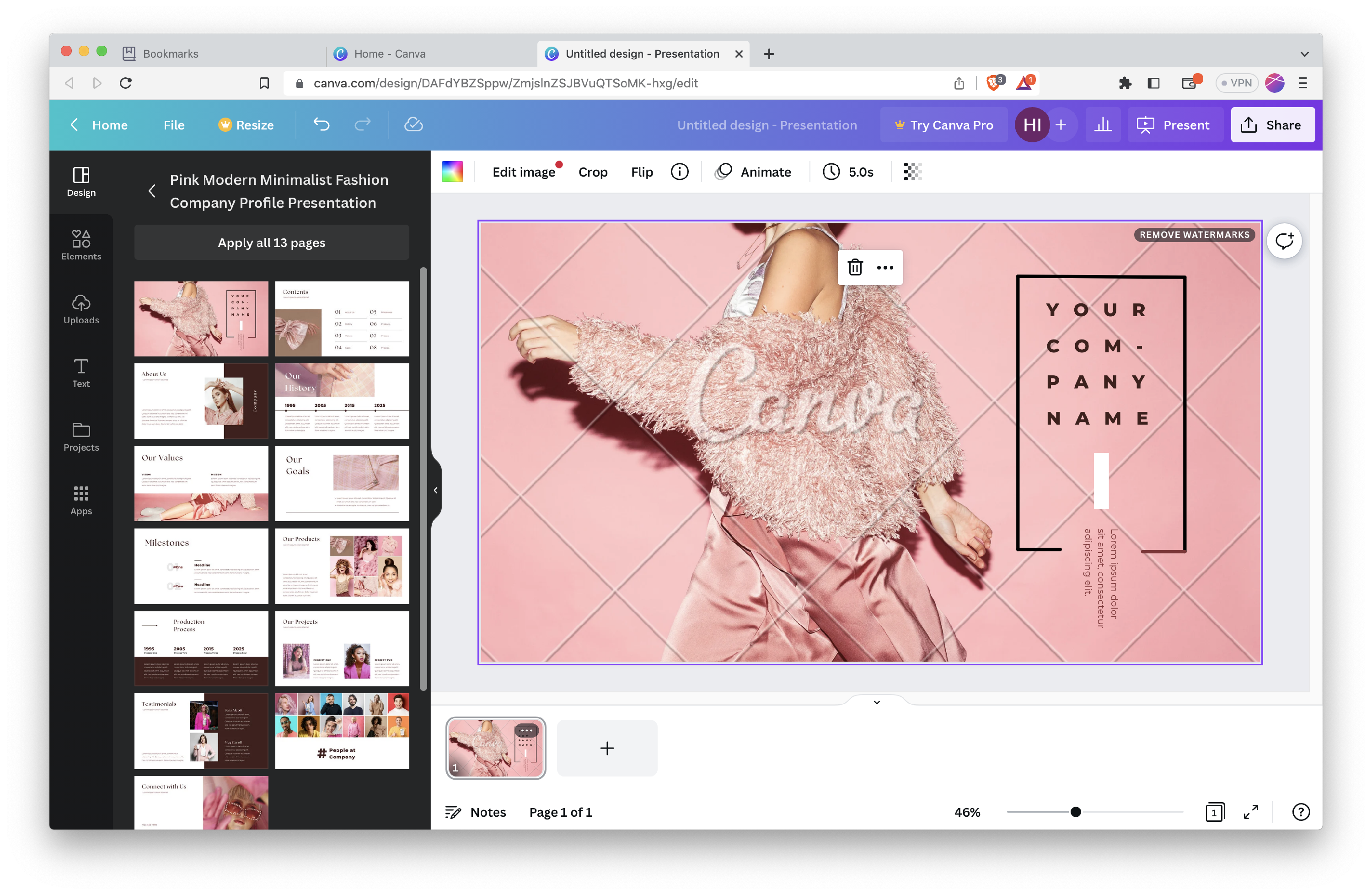
You can edit the template with your own images or colour scheme. The options to customise your template are almost endless, we recommend checking out the following links for more ideas on creating an eye-catching design.
Tutorial: Create your first design
Creating Designs using Templates
How to Create a Presentation on Canva in 20 Minutes
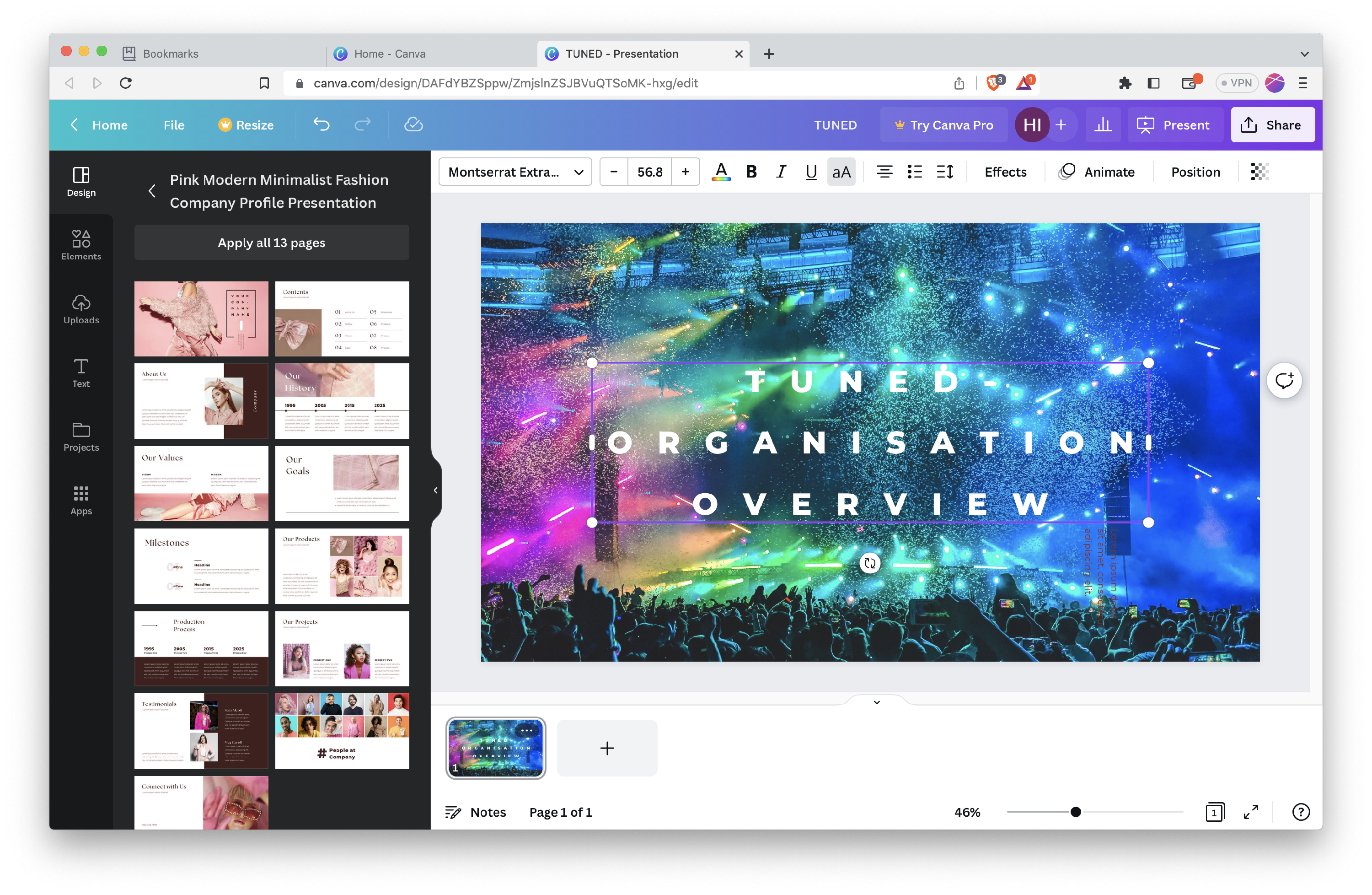
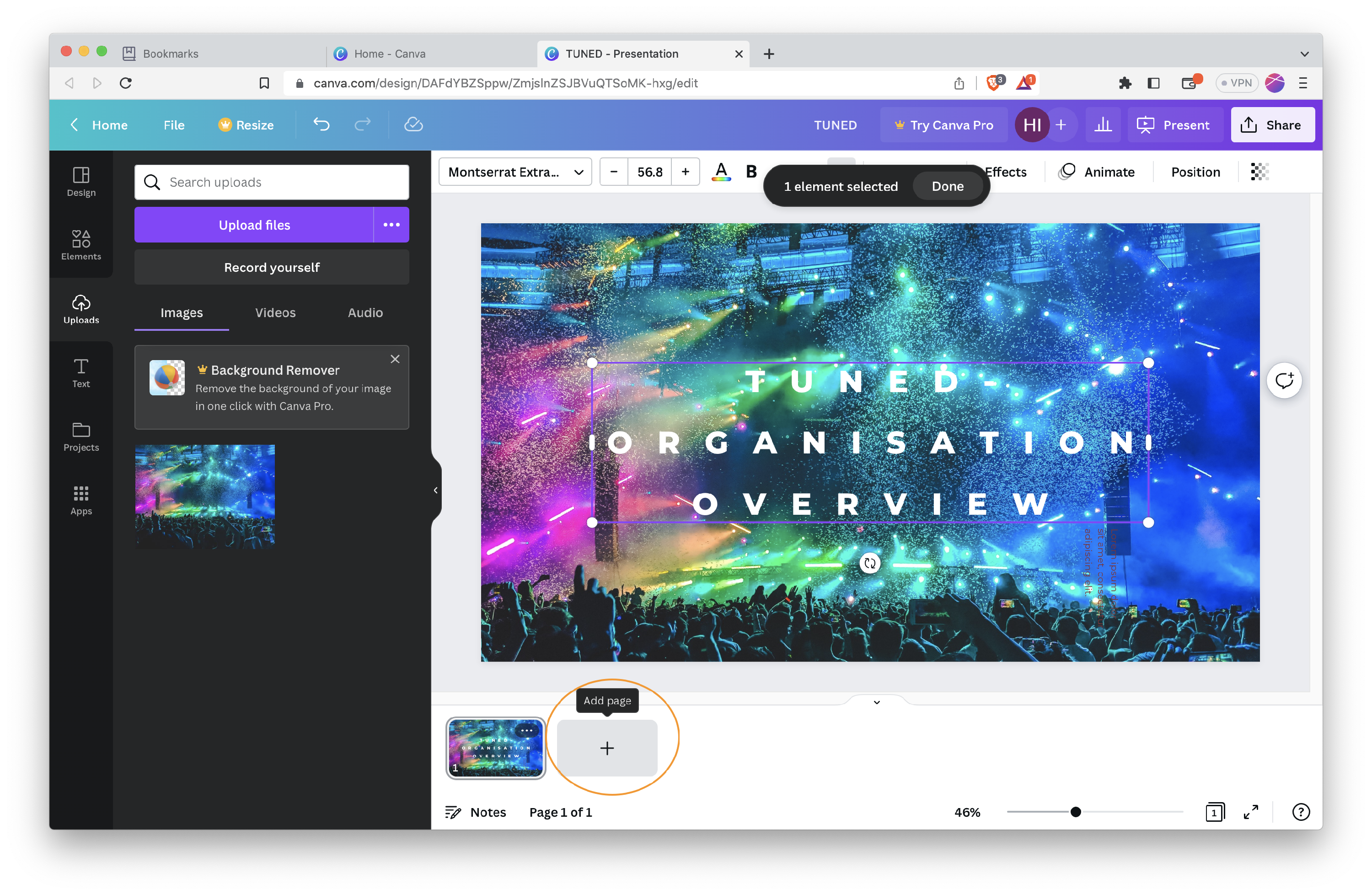
With the title page complete, add the next page by clicking on the + Add page at the bottom of the screen.
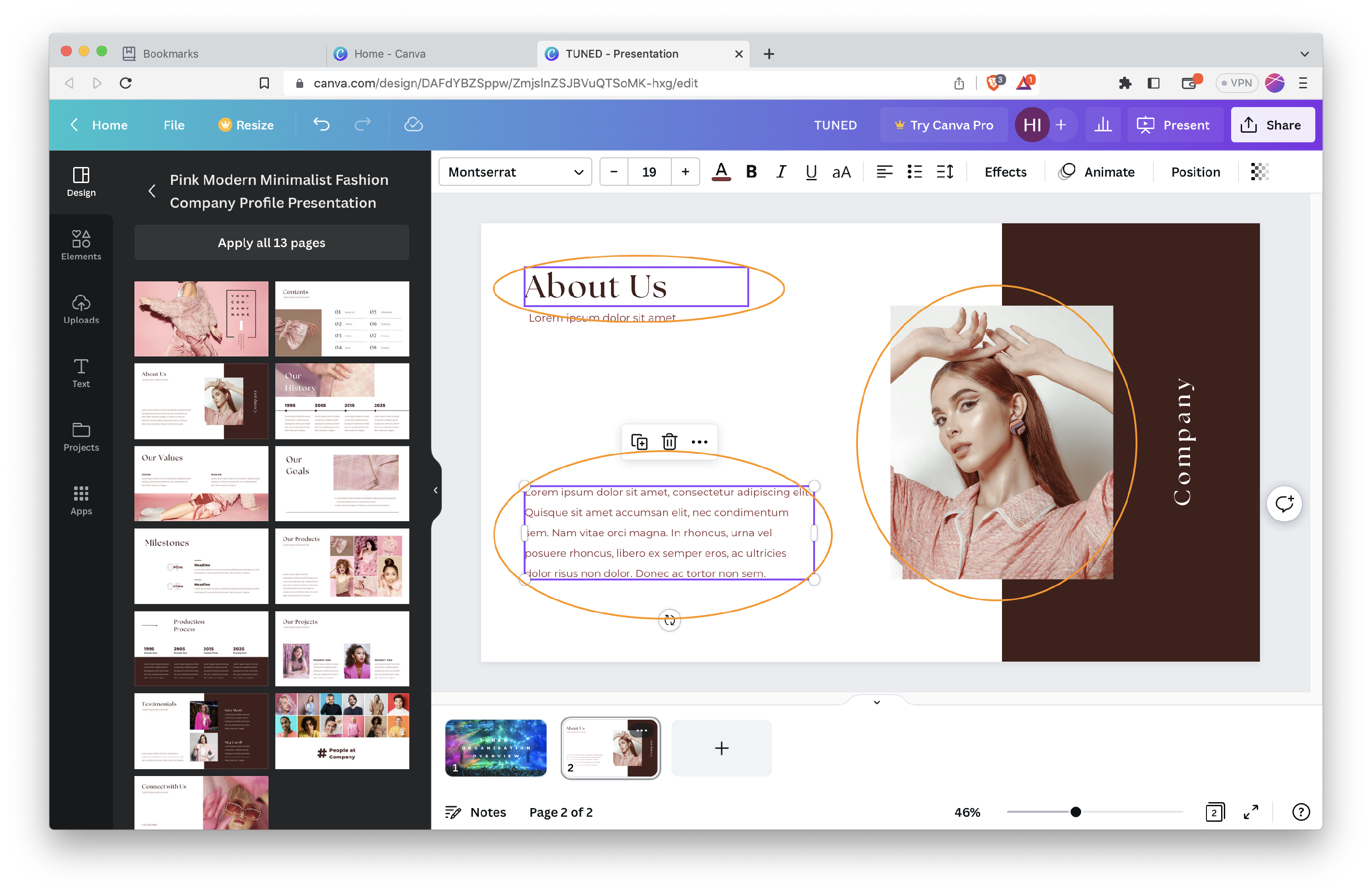
Select the next page design template you want to use, and add to the blank page. All the elements in the template can be edited to represent your unique colours and message.
Canva offers many images and artwork for customising your own design, these are available from the libraries on the lefthand side of the page and can be dragged and dropped into the presentations.
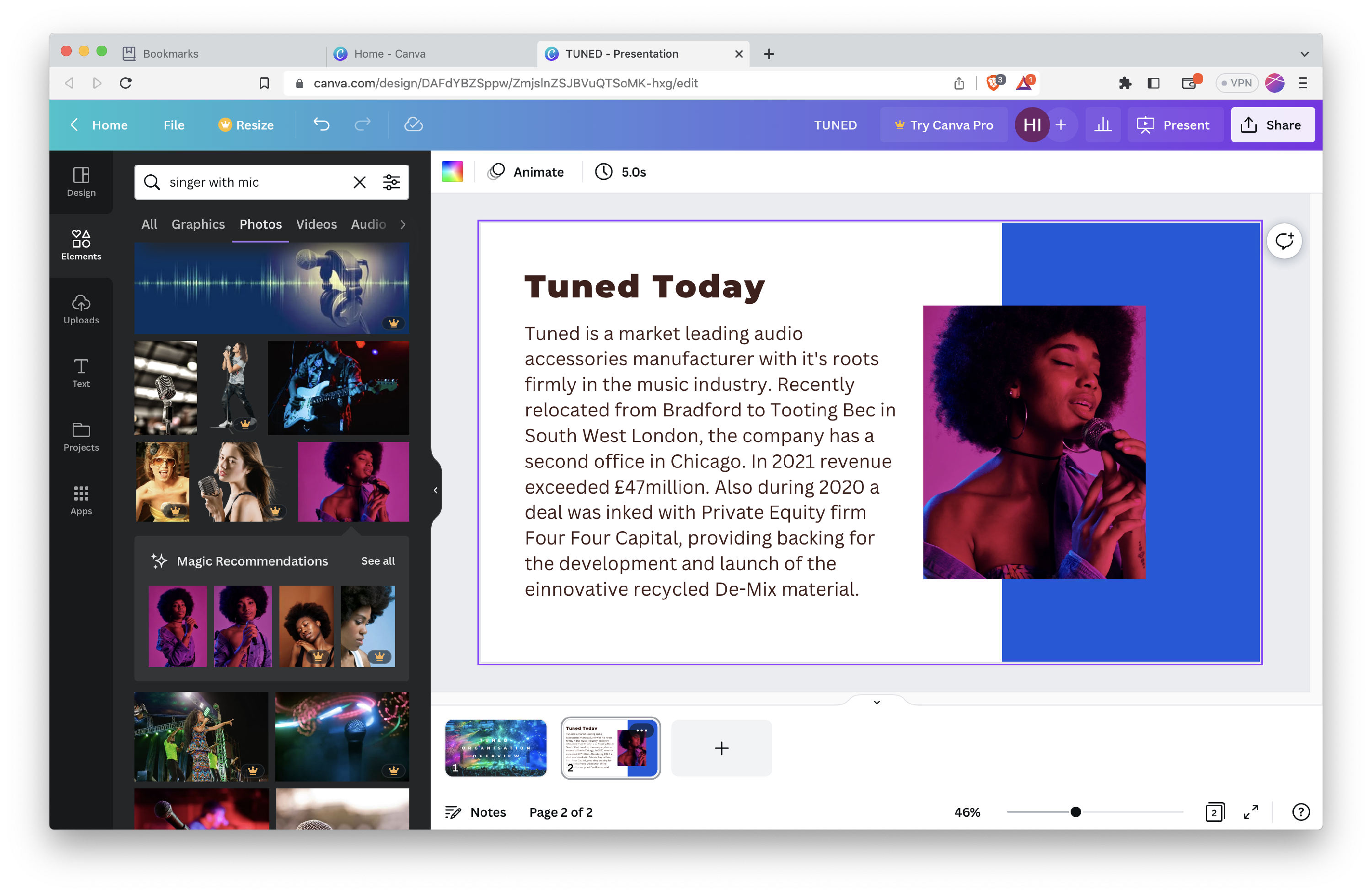
Continue to add pages to create the content for the Organisation Overview. We suggest the following page titles will give a great insight for candidates into the company.
Title
[Company Name] Today
Who We are
Product Innovation
Marketing Activity
Timeline
Finer Details
Recent Projects
In the News
[Recruiter Company] Business Card
For more on how to create the content for each of these sections read the following articles:
Read here for Tips for Writing Campaign Content
Once your presentation is complete, you are ready to export your graphics from Canva to your device.
Read here for Downloading or saving designs to your device
Now you have your Campaign graphics saved to your device you can upload these to Hire Insight.
Read here How to Upload Campaign Graphics Created in Canva