
How to Upload Campaign Graphics created in Canva
When you create your Campaign graphics in Canva you will first need to download the files from Canva to your device.
We recommend downloading the graphics as .PNG files, this is one of the options in Canva.
Read here to find out about Downloading or saving designs to you device from Canva
Now the graphics are saved to your device you are ready to upload them to your Campaign setup pages.
Navigate to the Campaign Setup page and select the Organisation overview tile.
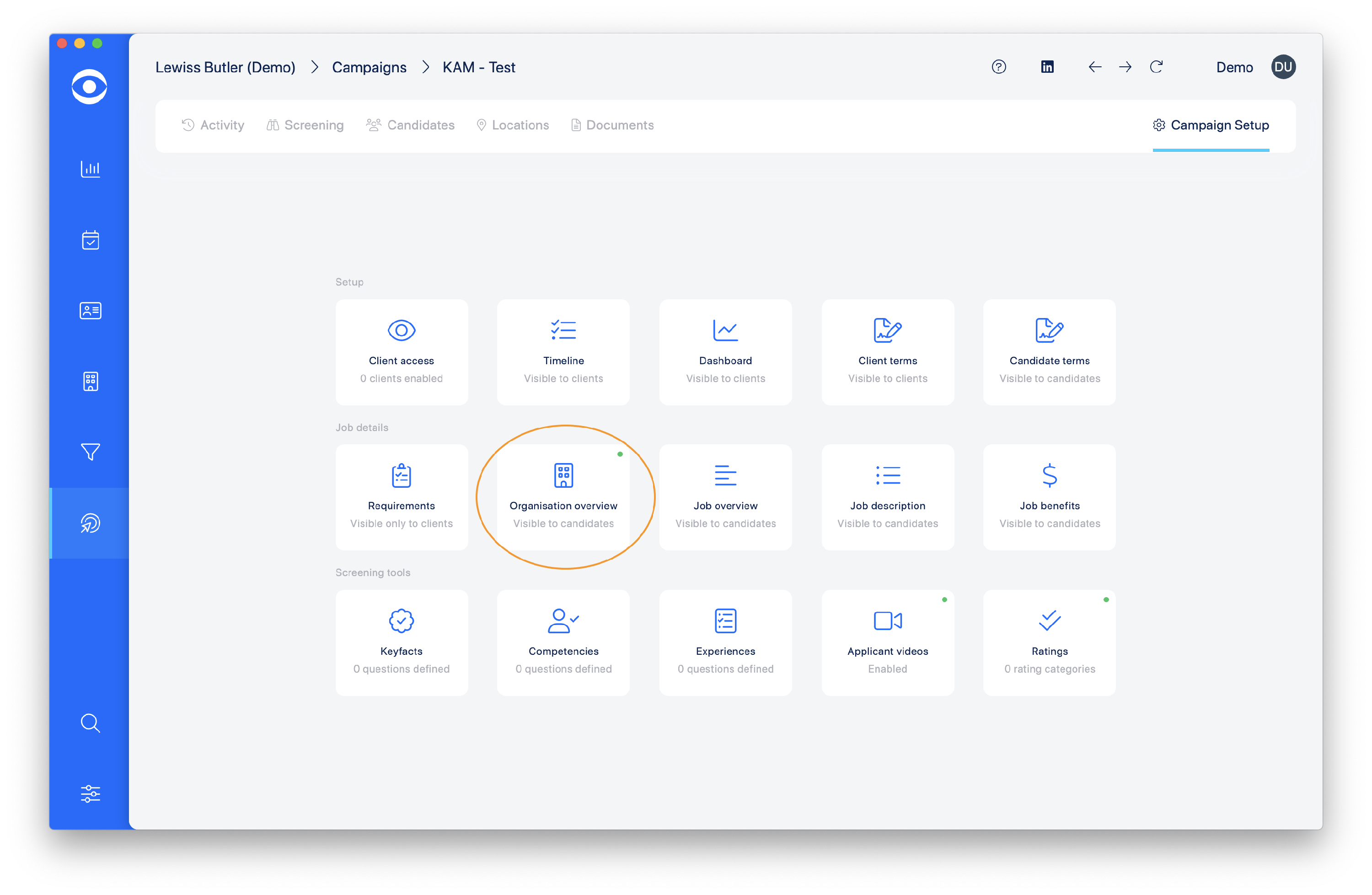
Open the Organisation overview and the document editor screen will be visible:
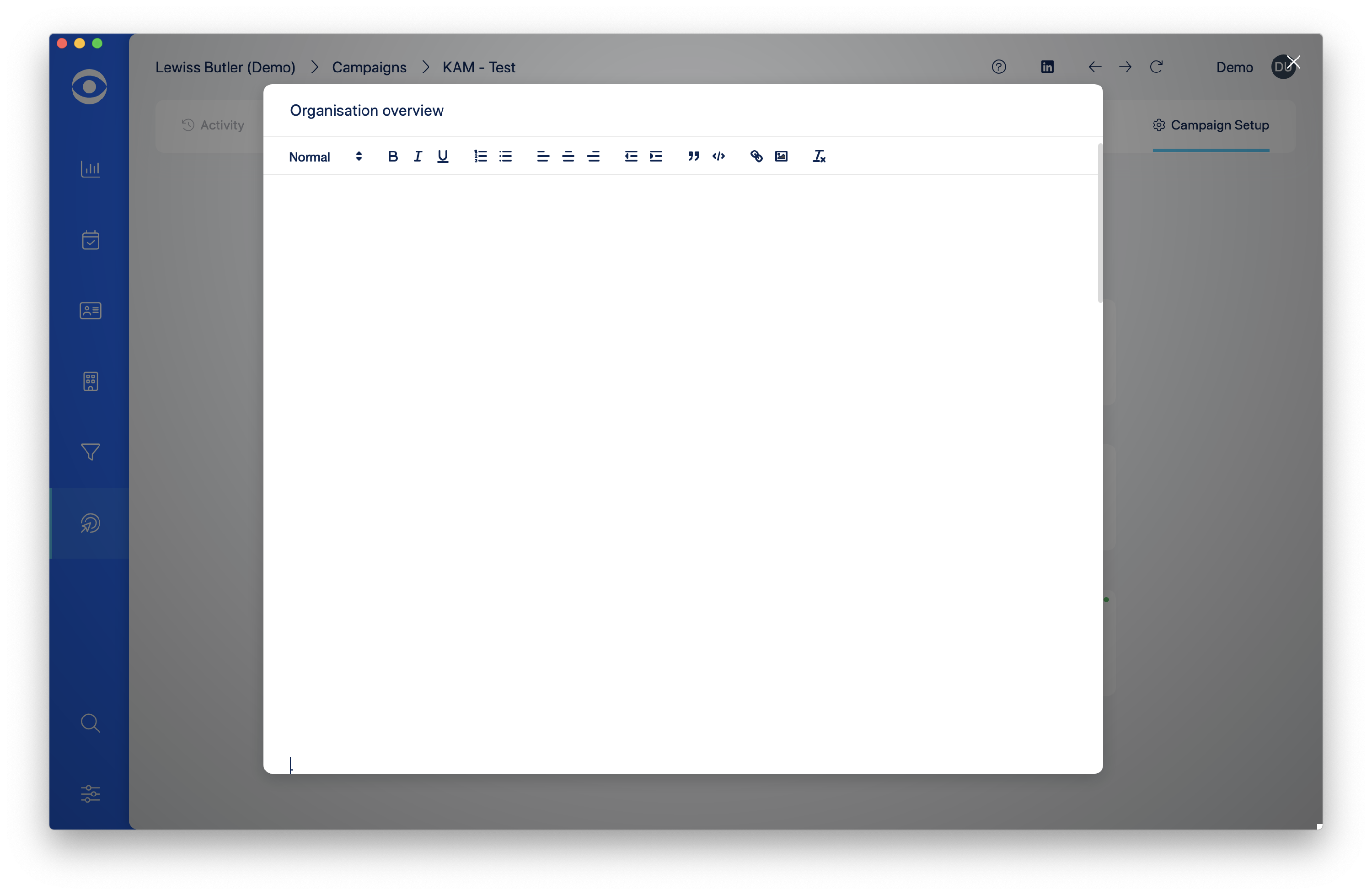
Tip: When downloading the graphics from Canva choose the option to download each graphic as an individual file. This enables uploading to Hire Insight individually - the app does not currently allow multiple images to be uploaded simultaneously.
This can be done by choosing the .PNG option in the Share menu. Multiple pages will downloaded in a zip file. Once saved, the zip file can be opened and the individual pages will automatically save as individual .PNG files
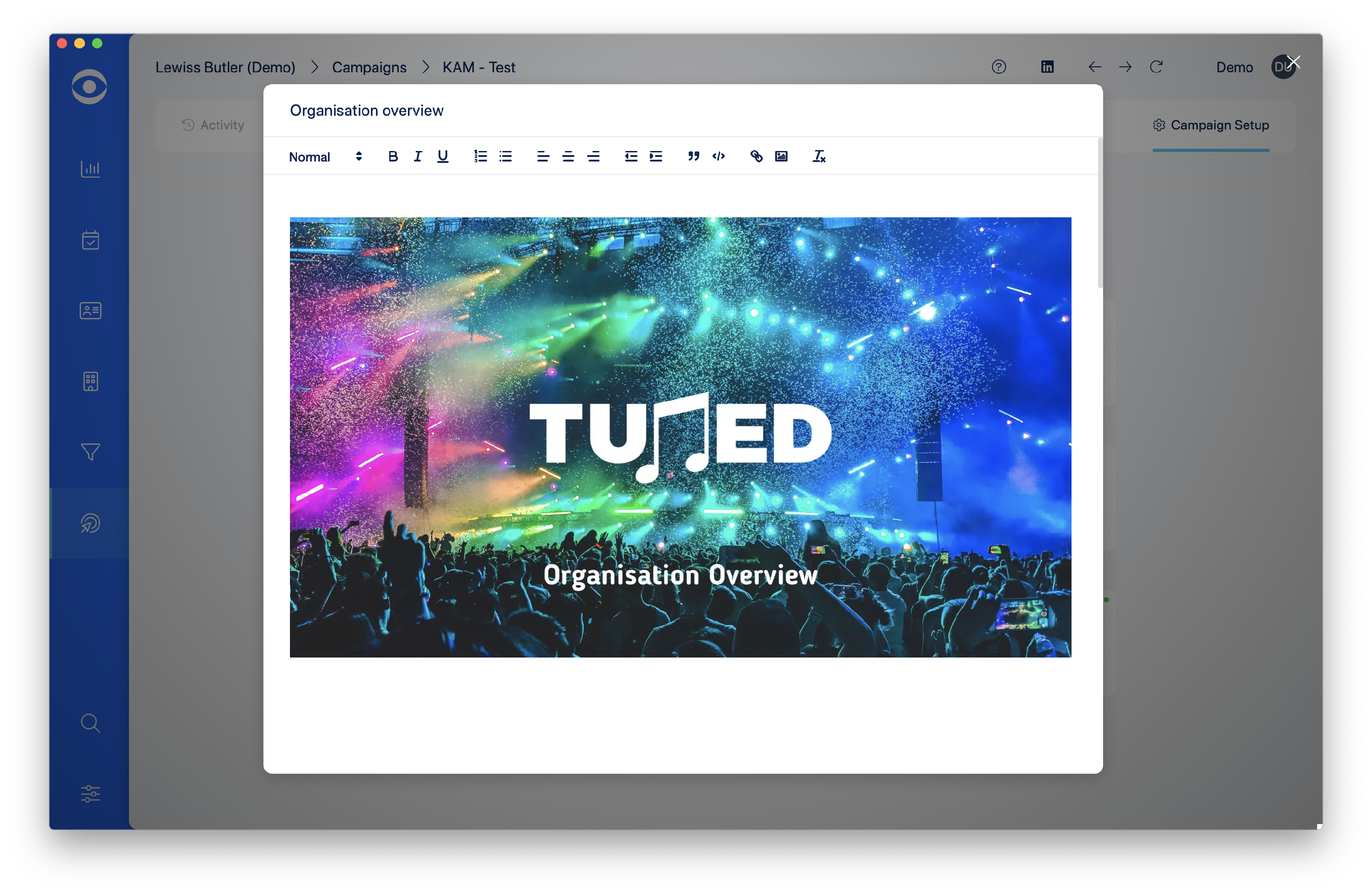
Repeat the same process for Job overview and Job benefits.