
How do I add a task?
Tip: A task can be added in multiple places within Hire Insight without needing to navigate away from what you are working on.
Workflow doesn't need to be interrupted and Tasks can be viewed in multiple formats.
CONTENTS:
- HOW TO CREATE A TASK IN TASKS
- HOW TO CREATE A TASK IN CONTACTS
- HOW TO CREATE A TASK IN ORGANISATIONS
- HOW TO CREATE A TASK IN OPPORTUNITY PIPELINES
- HOW TO CREATE A TASK IN CAMPAIGNS
-
How to Create a Task in Tasks
Within the Tasks tab you'll find an overview of all the Tasks recorded anywhere within Hire Insight. Select the Tasks button on the side bar and click to open the dashboard view.

To view Tasks in different formats choose between Tasks, Board and Calendar.

To create a new Task within the Task tab, select the +Create Task button at the top of page

Click for the Task pop up window. In the pop up window complete the relevant details and click Create Task to finish and save.

Completed Task will be added to the dashboard. This can be viewed in any format, the example below is in a column format.
On the Tasks dashboard use the filters to select the Tasks viewed by assignee.

-
How to Create a Task In Contacts
Tasks can be added whilst working in a Contact profile, without the need to navigate to the Task Manager.
In a Contact profile, navigate to the Activity summary tab and select Task in the top bar.

Click on the Task button and the Add Task pop up will appear. Complete the Task details and click Add Task.

The Task will now appear in the Activity summary of the Contact profile. From here it can be edited or marked as complete.

The Task will automatically show in the Task Manager attached to the Contact profile from which it originated.

-
How To Create a Task in Organisations
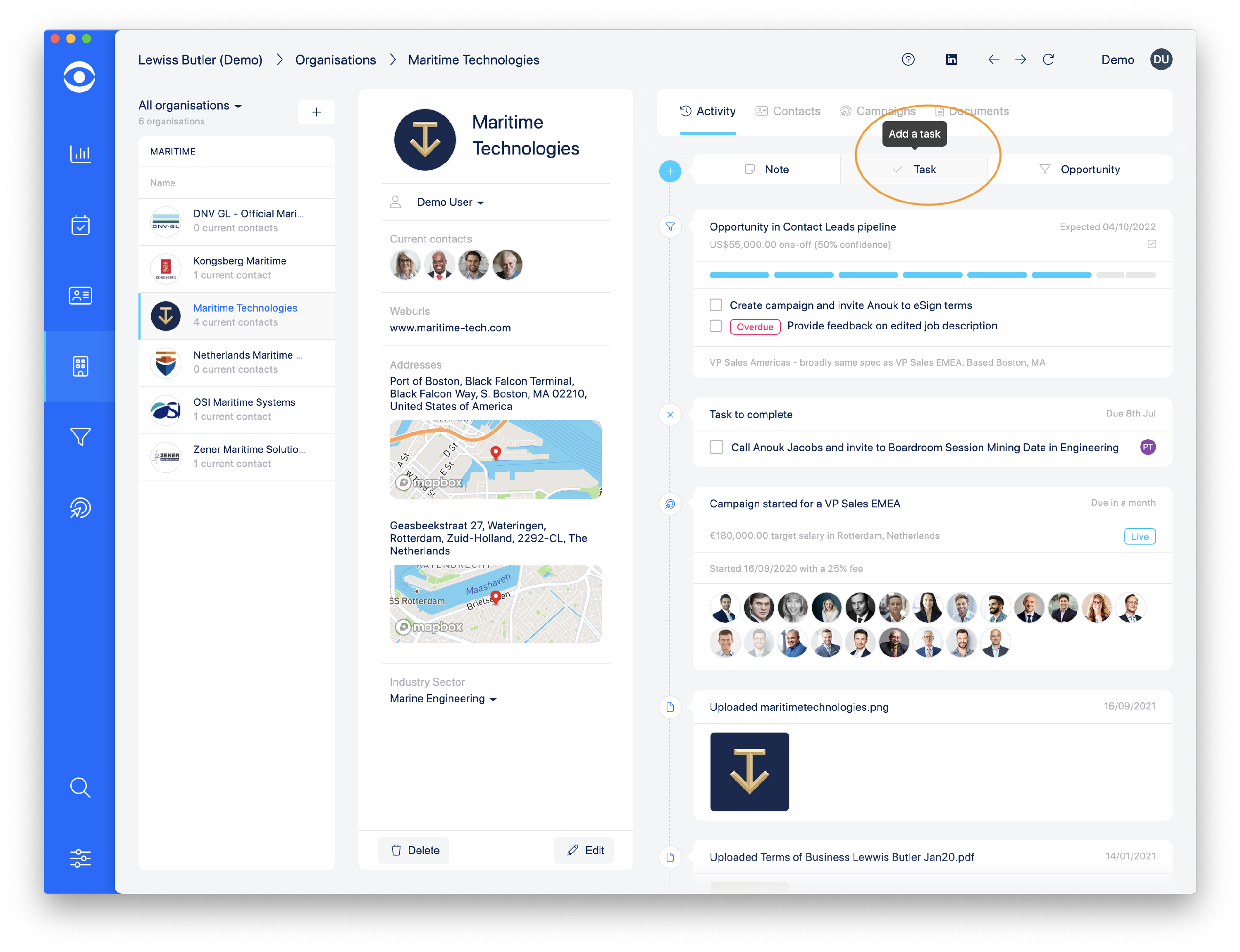
A Task can be added to an Organisation when the Organisation profile is open.
In the Activity summary click on the Task button to access the Add Task pop up.
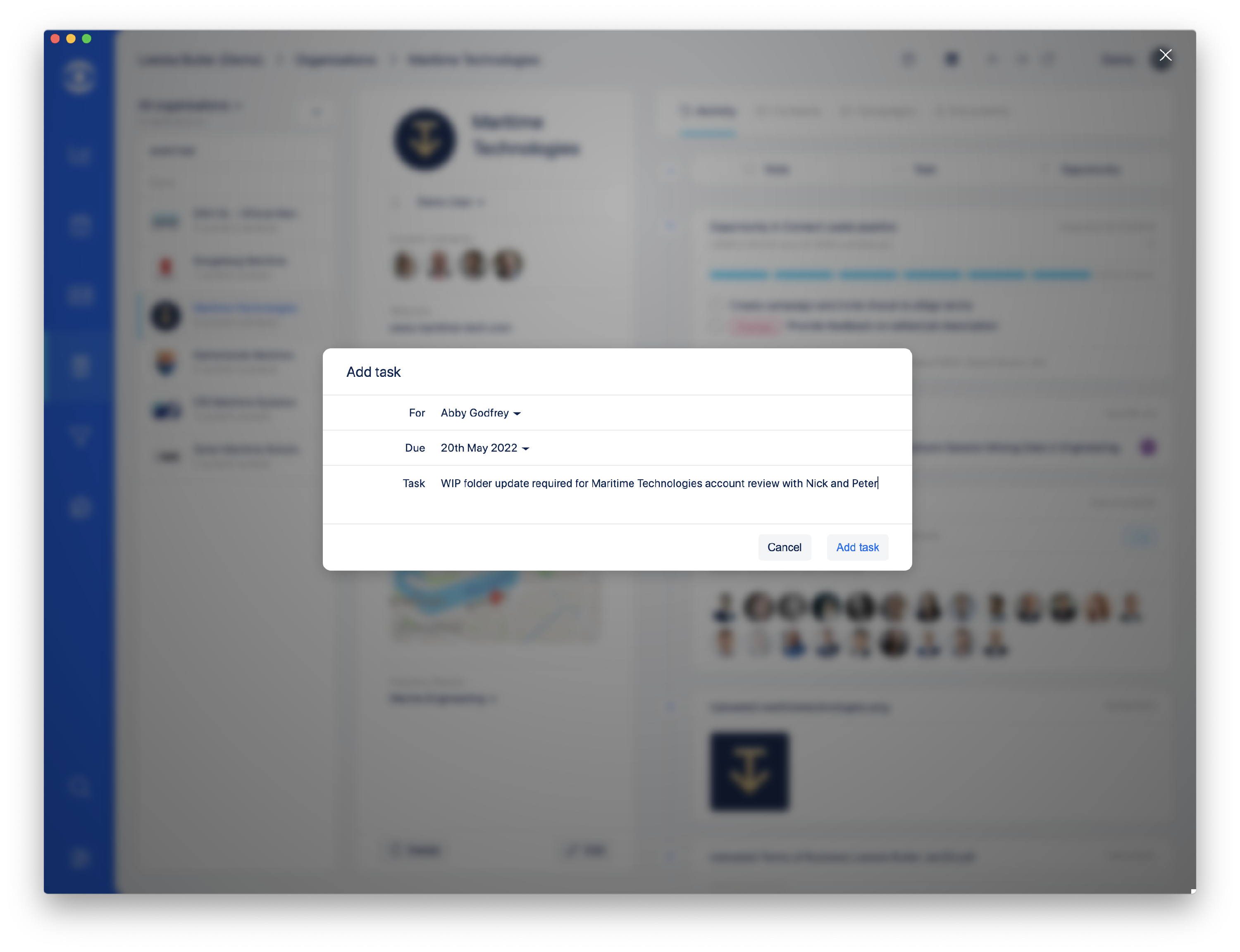
Add Task details to the pop up and click Create Task.
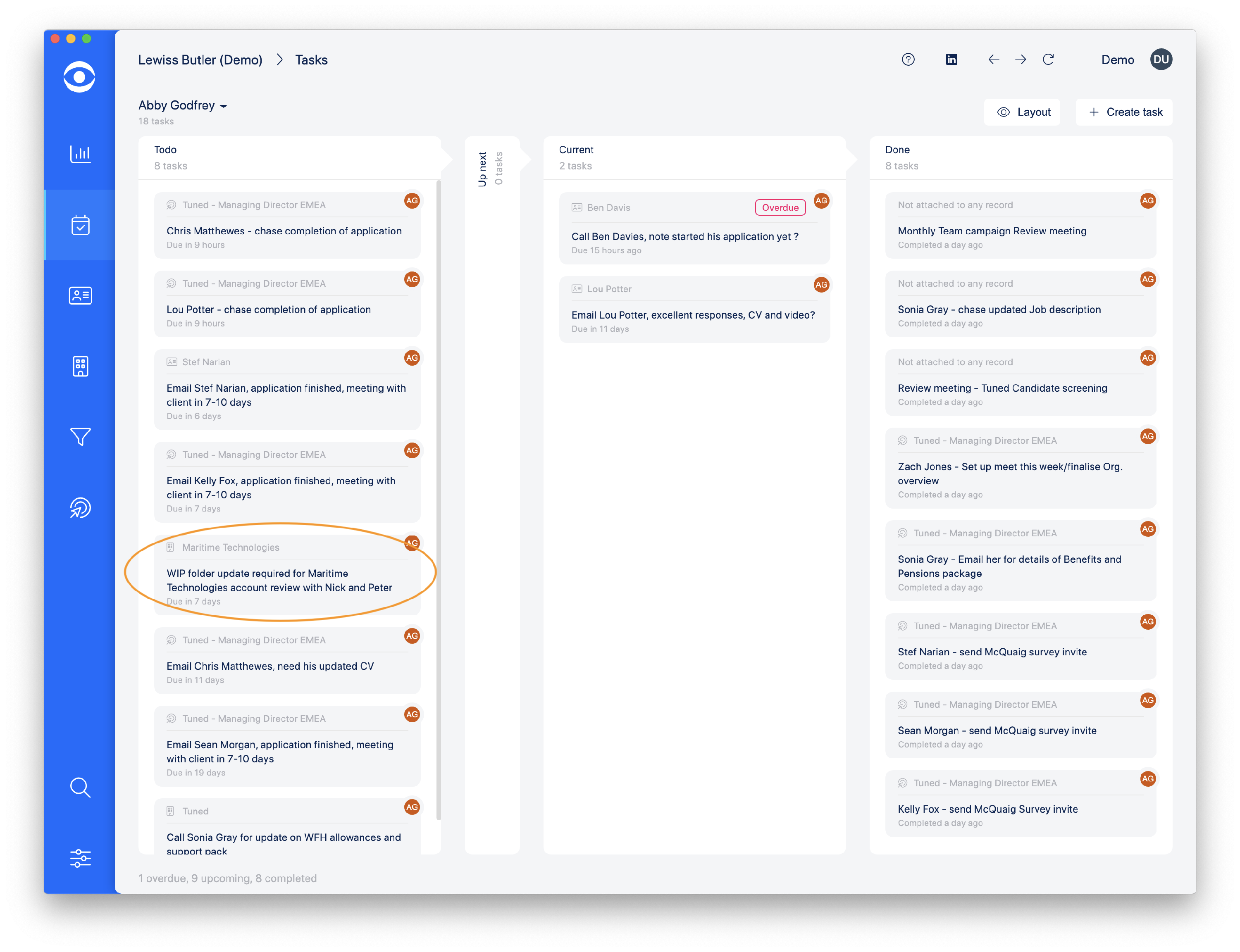
The Task will appear in the Organisation's Activity summary. From here it can be edited or marked as complete.

The Task will automatically be added to the Task Manager dashboard attached to the Organisation profile from which it originated.
-
How To Create a Task in an Opportunity Pipeline
Tasks can be added to Contact profiles while viewing in Opportunity Pipelines. They will also be visible in the Opportunity summary when the Layout selected includes 'Info'.

Selecting a Contact profile within an Opportunity Pipeline enables a new Task to be added by clicking on the Task button in the Activity Summary.

The pop out window allows the Task detail to be recorded and when saved by clicking Add Task.

The Task will show in the Contact Activity Summary where it can be edited or marked as completed.

The Task will automatically show in the Task Manager summary, with the Opportunity reference from which it originated.

-
How To Create a Task in Campaigns
Tasks can be added when viewing information in the Campaign tab. In the Activity Summary, click the Task button at the page.
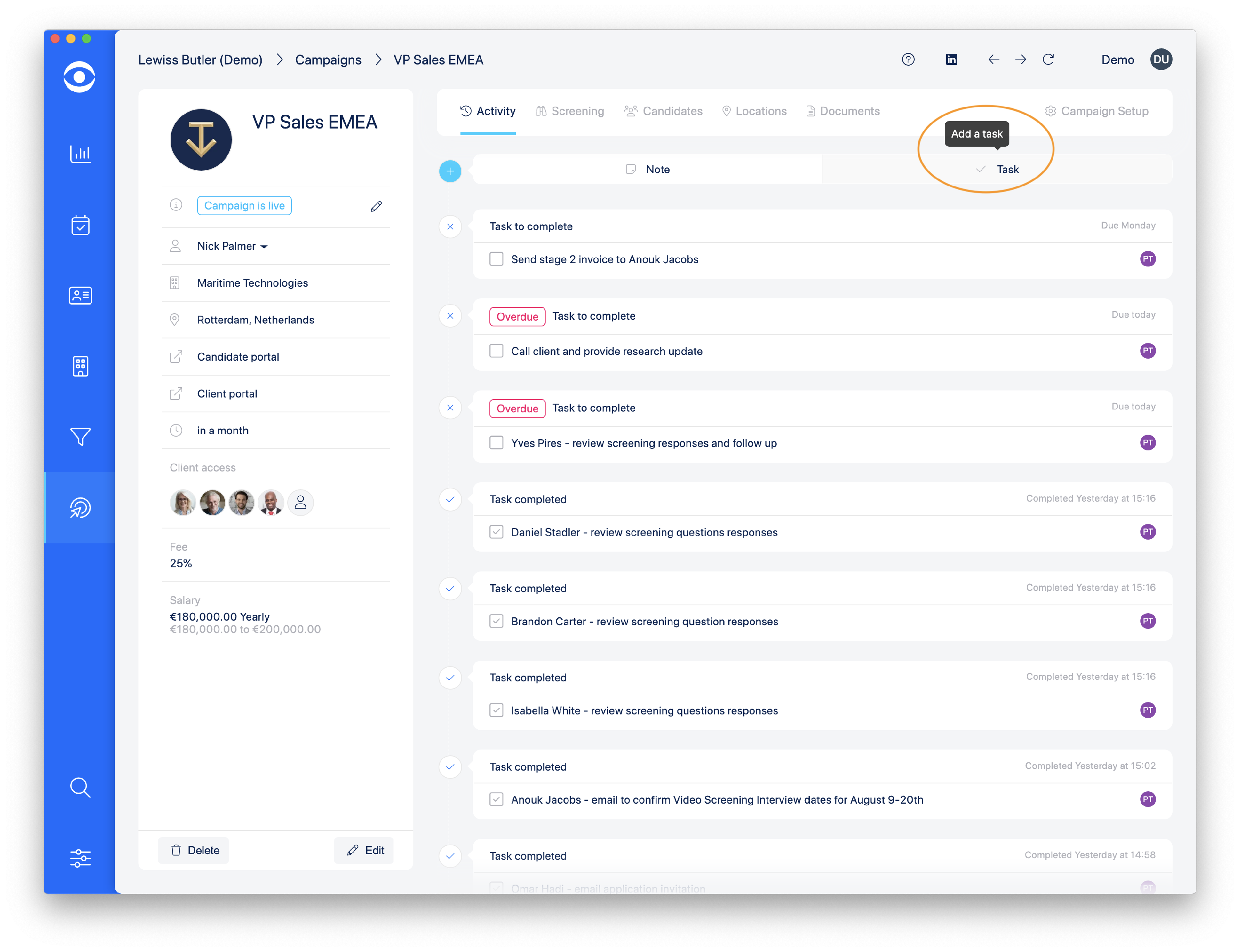
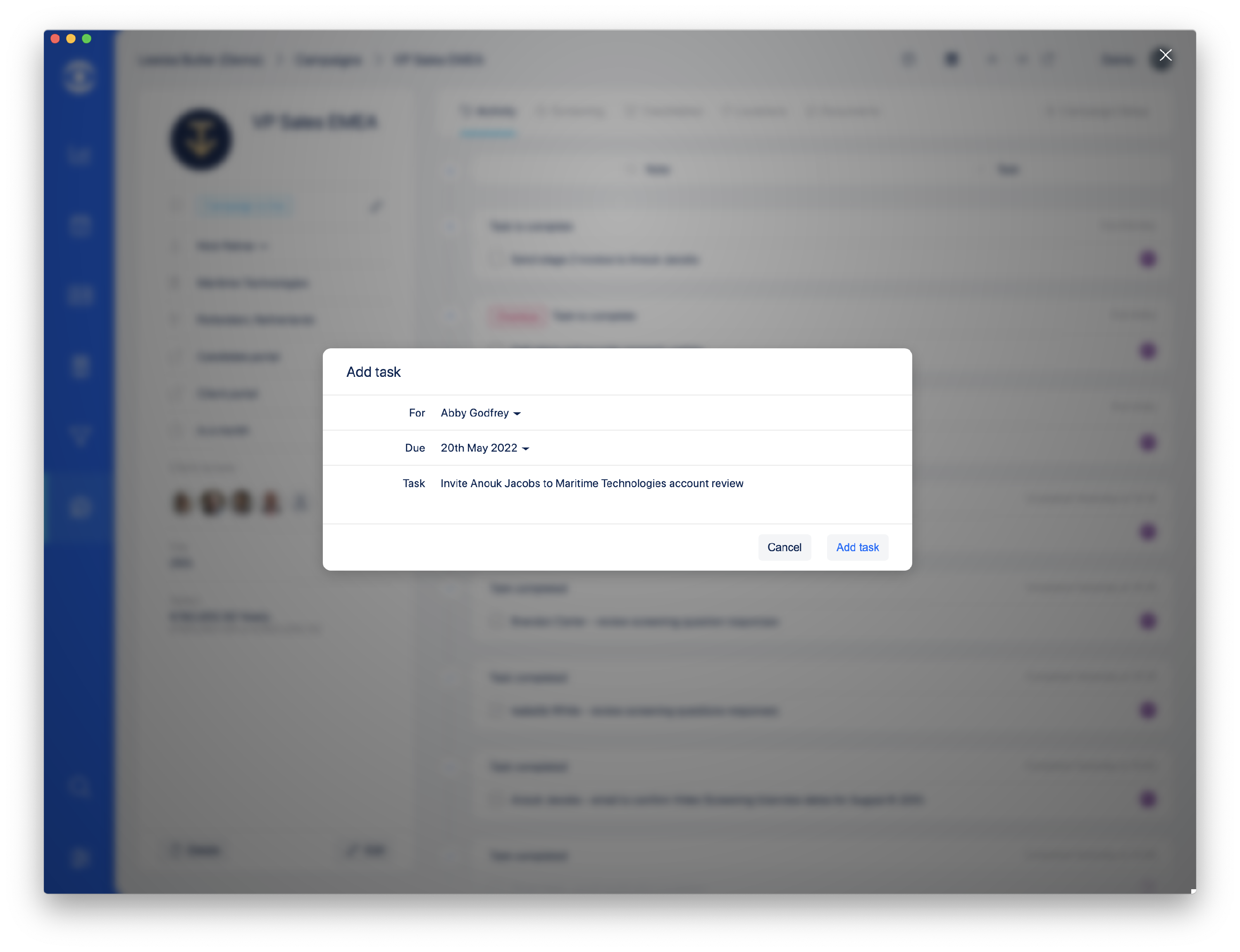
The Add Task pop up will open allowing you to enter the Task details and Add Task.
Task will show in the Activity summary where it can be edited or marked as completed.
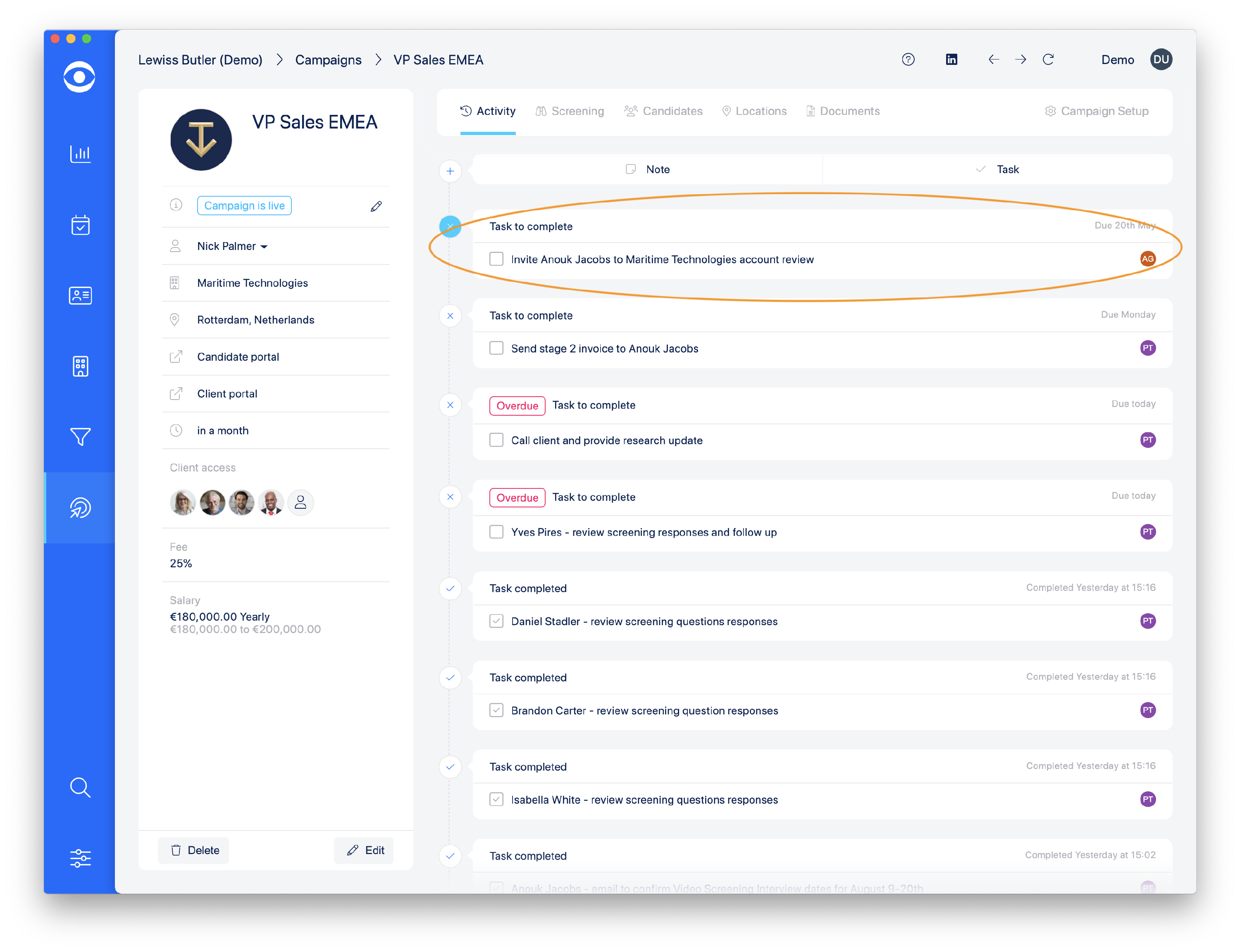
The Task will also be visible in the Task manager where it will show in which Campaign it was created.
